Troubleshooting
This page explains how to resolve a variety of common problems with the podium and related SMART products.
Note
The troubleshooting information on this page is organized into three types of checklists:
What to keep in mind
Information you should be aware of when troubleshooting an issue
What to check
Items you should verify when troubleshooting an issue
What to try
Actions you should perform to either resolve an issue or identify an issue’s underlying cause
 Troubleshooting the display
What seems to be the problem?
The podium isn’t turning on.
The SMART logo on the utility bar light doesn’t light up.

What to check
The power cable is securely fastened to the power outlet and the podium.
Note
If the power cable is connected to a power bar, make sure the power bar is securely fastened to the power outlet and turned on.
Check the green LED light on the podium’s power adapter, and ensure that it is lit. This indicates that the power adapter is receiving MAINS power from the wall outlet, and outputting DC power to the podium.
What to try
Press the power button on the back of interactive podium once to turn it on.
Test the power outlet with a different device to make sure it’s working.
Did this information help you solve the problem? Let us know.
The SMART logo is lit up (white), but the screen is blank.
What to check
Any connected computers are on and not in an energy saving mode.
What to try
Touch the screen to wake it from the screen-off power saving mode
Determine if the problem is with the currently selected input rather than with the podium by:
Pressing the Settings button on the utility bar and switching to another input using the OSD menu.
Disconnecting any cables from the podium’s HDMI Out and USB-C Out connectors (if used) to determine whether equipment connected to the HDMI or USB-C output port is causing the problem.
Restart the podium by turning it off and then on again.
If a computer’s input is currently selected, replace the video cable that connects the computer to the podium to determine if the problem is with the cable.
Notes
Make sure the replacement cable meets the required specifications.
If using a computer connected via an HDMI cable,use a Certified Premium High Speed HDMI cable whose certification can be verified on the HDMI.org website by scanning the HDMI certification QR code on the cable's packaging.
If using a computer connected via a USB Type-C cable, make sure the cable is no longer than 2 meters (6'6") long, and contains wiring to support SuperSpeed USB data (This wiring is required for DP Alt-Mode video signals).
Avoid using connection extenders or signal converters where possible and during troubleshooting.
The recommended resolutions are 3840 × 2160 @ 60Hz or 1920 × 1080 @ 60Hz.
Did this information help you solve the problem? Let us know.
The screen is blank or there’s a problem with the image on the screen.
The screen is blank.
What to check
The podium is on and not in an energy saving mode (the power light is white).
Any connected computers are on and not in an energy saving mode.
What to try
Determine if the problem is with the currently selected input rather than with the podium by:
Pressing the Settings button on the utility bar and switching to another input using the OSD menu.
Disconnecting any cables from the podium’s HDMI Out and USB-C Out connectors (if used) to determine whether equipment connected to the HDMI or USB-C output port is causing the problem.
Restart the podium and any connected computers.
If a computer’s input is currently selected, replace the video cable that connects the computer to the display to determine if the problem is with the cable.
Notes
Make sure the replacement cable meets the required specifications.
If using a computer connected via an HDMI cable,use a Certified Premium High Speed HDMI cable whose certification can be verified on the HDMI.org website by scanning the HDMI certification QR code on the cable's packaging.
If using a computer connected via a USB Type-C cable, make sure the cable is no longer than 2 meters (6'6") long, and contains wiring to support SuperSpeed USB data (This wiring is required for DP Alt-Mode video signals).
Avoid using connection extenders or signal converters where possible and during troubleshooting.
The recommended resolutions are 3840 × 2160 @ 60Hz or 1920 × 1080 @ 60Hz.
Did this information help you solve the problem? Let us know.
A computer is connected to the podium, but only a connection message appears on the screen.
What to check
The computer is not in an energy saving mode.
The computer is connected to the currently selected input.
The computer is connected to the podium using correct cabling.
The computer’s active video signal resolution and refresh rate match the display’s native or supported resolutions and refresh rates.
If the computer is a laptop, its video output is enabled.
Tip
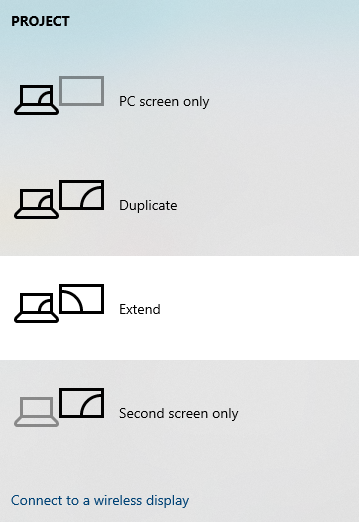
On Windows computers, press WIN+P to determine if the computer’s video output is enabled, and set the video output to duplicate or extend the desktop.
What to try
Replace the video cable that connects the computer to the display to determine if the problem is with the cable.
Notes
Make sure the replacement cable meets the required specifications.
If using a computer connected via an HDMI cable,use a Certified Premium High Speed HDMI cable whose certification can be verified on the HDMI.org website by scanning the HDMI certification QR code on the cable's packaging.
If using a computer connected via a USB Type-C cable, make sure the cable is no longer than 2 meters (6'6") long, and contains wiring to support SuperSpeed USB data (This wiring is required for DP Alt-Mode video signals).
Avoid using connection extenders or signal converters where possible and during troubleshooting.
The recommended resolutions are 3840 × 2160 @ 60Hz or 1920 × 1080 @ 60Hz.
Did this information help you solve the problem? Let us know.
The image on the screen is distorted.
What to check
The SMART OPS module or AM60 appliance is securely installed in the OPS slot and its power light is on.
Any connected computers are on and not in an energy saving mode.
If a computer’s input is currently selected, the computer’s video resolution and refresh rate match the podium’s native or supported resolutions and refresh rates.
If a computer is connected to the display by an HDMI cable, the cable is certified for Premium High Speed (18 Gbps) and is no longer than the maximum cable length defined in the SMART cable and connectors hub.
What to try
Determine if the problem is with the currently selected input rather than with the podium by:
Pressing the Settings button on the utility bar and switching to another input using the OSD menu.
Disconnecting any cables from the podium’s HDMI Out and USB-C Out connectors (if used) to determine whether equipment connected to the HDMI or USB-C output port is causing the problem.
Turn the podium off, then on, and restart and any connected computers.
If a computer’s input is currently selected, replace the video cable that connects the computer to the podium to determine if the problem is with the cable.
Notes
Make sure the replacement cable meets the required specifications.
If using a computer connected via an HDMI cable,use a Certified Premium High Speed HDMI cable whose certification can be verified on the HDMI.org website by scanning the HDMI certification QR code on the cable's packaging.
If using a computer connected via a USB Type-C cable, make sure the cable is no longer than 2 meters (6'6") long, and contains wiring to support SuperSpeed USB data (This wiring is required for DP Alt-Mode video signals).
Avoid using connection extenders or signal converters where possible and during troubleshooting.
The recommended resolutions are 3840 × 2160 @ 60Hz or 1920 × 1080 @ 60Hz.
Did this information help you solve the problem? Let us know.
There are lines, snow, or other visual noise on the screen.
What to check
The SMART OPS module or AM60 appliance is securely installed in the OPS slot and its power light is on.
Any connected computers are on and not in an energy saving mode.
If a computer’s input is currently selected, the computer’s video resolution and refresh rate match the podium’s native or supported resolutions and refresh rates.
If a computer is connected to the display by an HDMI cable, the cable is certified for Premium High Speed (18 Gbps) and is no longer than the maximum cable length defined in the SMART cable and connectors hub.
What to try
Determine if the problem is with the currently selected input rather than with the podium by:
Pressing the Settings button on the utility bar and switching to another input using the OSD menu.
Disconnecting any cables from the podium’s HDMI Out and USB-C Out connectors (if used) to determine whether equipment connected to the HDMI or USB-C output port is causing the problem.
Turn the podium off, then on, and restart and any connected computers.
If a computer’s input is currently selected, replace the video cable that connects the computer to the podium to determine if the problem is with the cable.
Notes
Make sure the replacement cable meets the required specifications.
If using a computer connected via an HDMI cable,use a Certified Premium High Speed HDMI cable whose certification can be verified on the HDMI.org website by scanning the HDMI certification QR code on the cable's packaging.
If using a computer connected via a USB Type-C cable, make sure the cable is no longer than 2 meters (6'6") long, and contains wiring to support SuperSpeed USB data (This wiring is required for DP Alt-Mode video signals).
Avoid using connection extenders or signal converters where possible and during troubleshooting.
The recommended resolutions are 3840 × 2160 @ 60Hz or 1920 × 1080 @ 60Hz.
Did this information help you solve the problem? Let us know.
The image is flickering or flashing.
What to check
The SMART OPS module or AM60 appliance is securely installed in the OPS slot and its power light is on.
Any connected computers are on and not in an energy saving mode.
If a computer’s input is currently selected, the computer’s video resolution and refresh rate match the podium’s native or supported resolutions and refresh rates.
If a computer is connected to the display by an HDMI cable, the cable is certified for Premium High Speed (18 Gbps) and is no longer than the maximum cable length defined in the SMART cable and connectors hub.
What to try
Determine if the problem is with the currently selected input rather than with the podium by:
Pressing the Settings button on the utility bar and switching to another input using the OSD menu.
Disconnecting any cables from the podium’s HDMI Out and USB-C Out connectors (if used) to determine whether equipment connected to the HDMI or USB-C output port is causing the problem.
Turn the podium off, then on, and restart and any connected computers.
If a computer’s input is currently selected, replace the video cable that connects the computer to the podium to determine if the problem is with the cable.
Notes
Make sure the replacement cable meets the required specifications.
If using a computer connected via an HDMI cable,use a Certified Premium High Speed HDMI cable whose certification can be verified on the HDMI.org website by scanning the HDMI certification QR code on the cable's packaging.
If using a computer connected via a USB Type-C cable, make sure the cable is no longer than 2 meters (6'6") long, and contains wiring to support SuperSpeed USB data (This wiring is required for DP Alt-Mode video signals).
Avoid using connection extenders or signal converters where possible and during troubleshooting.
The recommended resolutions are 3840 × 2160 @ 60Hz or 1920 × 1080 @ 60Hz.
Did this information help you solve the problem? Let us know.
The image is dim.
What to check
Any connected computers are on and not in an energy saving mode.
If a computer’s input is currently selected, the computer’s video resolution and refresh rate match the podium’s native or supported resolutions and refresh rates.
If a computer is connected to the display by an HDMI cable, the cable is certified for Premium High Speed (18 Gbps) and is no longer than the maximum cable length defined in the SMART cable and connectors hub.
What to check
The Display brightness, Auto brightness, and Blue light filter settings are set appropriately.
What to check
Any connected computers are on and not in an energy saving mode.
If a computer’s input is currently selected, the computer’s video resolution and refresh rate match the podium’s native or supported resolutions and refresh rates.
What to check
The SMART OPS module or AM60 appliance is securely installed in the OPS slot and its power light is on.
Any connected computers are on and not in an energy saving mode.
If a computer’s input is currently selected, the computer’s video resolution and refresh rate match the podium’s native or supported resolutions and refresh rates.
What to try
Determine if the problem is with the currently selected input rather than with the podium by:
Pressing the Settings button on the utility bar and switching to another input using the OSD menu.
Disconnecting any cables from the podium’s HDMI Out and USB-C Out connectors (if used) to determine whether equipment connected to the HDMI or USB-C output port is causing the problem.
Turn the podium off, then on, and restart and any connected computers.
If a computer’s input is currently selected, replace the video cable that connects the computer to the podium to determine if the problem is with the cable.
Notes
Make sure the replacement cable meets the required specifications.
If using a computer connected via an HDMI cable,use a Certified Premium High Speed HDMI cable whose certification can be verified on the HDMI.org website by scanning the HDMI certification QR code on the cable's packaging.
If using a computer connected via a USB Type-C cable, make sure the cable is no longer than 2 meters (6'6") long, and contains wiring to support SuperSpeed USB data (This wiring is required for DP Alt-Mode video signals).
Avoid using connection extenders or signal converters where possible and during troubleshooting.
The recommended resolutions are 3840 × 2160 @ 60Hz or 1920 × 1080 @ 60Hz.
Check the connected computer’s brightness settings.
See the computer’s operating system documentation.
Did this information help you solve the problem? Let us know.
There is no image when using the USB Type-C receptacle with a computer.
What to check
The computer supports Display Port Alternate Mode video via USB Type-C.
Tip
Look for the Display Port logo
 or the Thunderbolt 3 or 4 logo
 beside the USB Type-C receptacle on the computer. If it’s not there, the computer might not support Display Port Alternate Mode video via USB Type-C.
The cable used with the USB Type-C receptacle supports Super Speed (5Gbps) USB.
Tip
Look for the Super Speed USB logo
 or Thunderbolt logo on the cable. If the cable doesn’t have the Super Speed USB or Thunderbolt logo, it might not have the internal wiring necessary to carry Display Port Alternate Mode video data.
Did this information help you solve the problem? Let us know.
There are bright spots on the screen.
What to try
Determine if the problem is with the currently selected input rather than with the podium by:
Pressing the Settings button on the utility bar and switching to another input using the OSD menu.
Disconnecting any cables from the podium’s HDMI Out and USB-C Out connectors (if used) to determine whether equipment connected to the HDMI or USB-C output port is causing the problem.
Take a photograph of the screen and send it to SMART support.
Note
If SMART support determines that the problem is with the screen and the display is under warranty, you may be eligible for a replacement.
Did this information help you solve the problem? Let us know.
Colors don’t appear correctly.
What to keep in mind
If two or more displays are mounted side-by-side, it’s normal to see minor differences in colors across the displays. This problem is not unique to SMART products.
What to try
Check the connected computer’s brightness settings.
See the computer’s operating system documentation.
Switch between inputs to determine whether the color issue occurs while connected to a specific input type only. If the podium’s screen appears normal but a specific video input does not, test the connection cables and video source equipment by temporarily replacing them.
If the screen is completely lacking one color or the color problems occur on the podium’s screen, take a photograph of the screen and send it to SMART support.
Note
If SMART support determines that the problem is with the screen and the podium is under warranty, you may be eligible for a replacement.
Did this information help you solve the problem? Let us know.
The image is cut off or shifted to the left or right.
What to check
The connected computers’ video output is set to a resolution supported by the podium.
What to try
Adjust any connected computers’ video settings, particularly zoom, crop, and underscan.
See the computer’s operating system documentation.
If a computer’s input is currently selected and the computer’s desktop is extended across multiple screens, select a different screen mode. If the mode is currently set to duplicate, change it to extended. If the mode is currently set to extended, change it to duplicate.
Tip
On Windows computers, press WIN+P to determine if the computer’s video output is enabled, and set the video output to duplicate or extend the desktop.
Did this information help you solve the problem? Let us know.
The image doesn’t fill the entire screen.
What to check
The connected computer’s video connector is configured to output a supported video signal with a 16:9 aspect ratio.
What to try
Adjust any connected computers’ video settings, particularly overscan.
See the computer’s operating system documentation.
If a computer’s input is currently selected and the computer’s desktop is extended across multiple screens, select a different screen mode. If the mode is currently set to duplicate, change it to extended. If the mode is currently set to extended, change it to duplicate.
Did this information help you solve the problem? Let us know.
A persistent image appears on the display.
What to try
Follow the recommendations in the knowledge base article, Image persistence or burn in on LCD displays.
Did this information help you solve the problem? Let us know.
There’s no sound or there’s a problem with the sound.
There’s no sound.
What to check
If the podium is connected to an external audio system, the external audio system is turned on and not muted. The cables connecting the podium to the computer are securely fastened.
Notes
Connecting an audio cable to the display’s stereo 3.5 mm Out connector disables the internal speakers.
If a computer or other device is connected to the display using an HDMI cable, the computer or other device is configured to send HDMI video and audio, not digital DVI video.
Note
HDMI cables can carry digital DVI video signals, which don’t include audio.
What to try
If a computer’s input is currently selected, adjust the computer’s volume (80% recommended) and then adjust the podium’s volume. If the display is connected to an external audio system, adjust the audio system’s volume. If you’re using the integrated speakers, set the volume for the computer and any running applications to 80%, and then adjust the podium’s volume.
OR
If you’re using an external audio system, set the volume for the computer, any running applications, and the display to 80%, and then adjust the external audio system’s volume.
Did this information help you solve the problem? Let us know.
There is sound, but the volume is low.
What to check
If the podium is connected to an external audio system, the external audio system is turned on and not muted. The cables connecting the podium to the computer are securely fastened.
Notes
Connecting an audio cable to the display’s stereo 3.5 mm Out connector disables the internal speakers.
What to try
If a computer’s input is currently selected, adjust the computer’s volume (80% recommended) and then adjust the podium’s volume. If the display is connected to an external audio system, adjust the audio system’s volume. If you’re using the integrated speakers, set the volume for the computer and any running applications to 80%, and then adjust the podium’s volume.
OR
If you’re using an external audio system, set the volume for the computer, any running applications, and the display to 80%, and then adjust the external audio system’s volume.
Did this information help you solve the problem? Let us know.
The sound is distorted or muffled.
What to check
If the podium is connected to an external audio system, the external audio system is turned on and not muted. The cables connecting the podium to the computer are securely fastened.
Notes
Connecting an audio cable to the display’s stereo 3.5 mm Out connector disables the internal speakers.
If you’re using the stereo 3.5 mm line Out connector, ensure that analog audio cable is not routed behind mains voltage power lines, electric motors, or other sources of electromagnetic interference.
What to try
If a computer’s input is currently selected, adjust the computer’s volume (80% recommended) and then adjust the podium’s volume. If the display is connected to an external audio system, adjust the audio system’s volume. If you’re using the integrated speakers, set the volume for the computer and any running applications to 80%, and then adjust the podium’s volume.
OR
If you’re using an external audio system, set the volume for the computer, any running applications, and the display to 80%, and then adjust the external audio system’s volume.
If you’re using the stereo 3.5 mm line Out connector, replace the existing analog audio cable with better quality cable.
Did this information help you solve the problem? Let us know.
There is a whine or buzzing sound coming from the back of the display.
What to keep in mind
These sounds are normal. All electronic displays emit some electrical noise. Such sounds might be more noticeable with some displays than with others. However, if you hear noise from the front of the podium, further investigation is required.
What to check
If you’re using the stereo 3.5 mm line Out connector, ensure that analog audio cable is not routed behind mains voltage power lines, electric motors, or other sources of electromagnetic interference.
What to try
Connect all devices to the same power outlet or power bar.
If you’re using the stereo 3.5 mm line Out connector, replace the existing analog audio cable with better quality cable.
Did this information help you solve the problem? Let us know.
The microphone array is not picking up sound.
What to check
If you’re using an external computer, the computer’s audio settings are configured to use the SMART Board Mini Microphone as the input device.
The microphone is not muted or the microphone mute LED is not lit.
What to try
Press the utility bar’s Mute button
 twice to ensure the mute indicator light matches the actual mute state.
OR
Press the remote control’s Mute button
twice to ensure the mute indicator light matches the actual mute state.Did this information help you solve the problem? Let us know.
Touch isn’t working as expected.
The podium doesn’t respond to touch.
What to try
Remove the stylus nib from the stylus and wait 15 seconds. After 15 seconds, reinsert the nib.
If the irregular ink behavior continues, remove the stylus nib for a longer duration such as 60 seconds.
Did this information help you solve the problem? Let us know.
The podium responds to touch intermittently.
What to keep in mind
Touch is not available immediately after switching inputs, waking, or turning on the podium. Wait until the connected computer is fully connected to the podium, then the connected computer will respond to touches on the podium.
What to check
The latest version of SMART Product Drivers and Ink is installed and running on any connected computers.
There is only one USB cable connecting the computer to the podium.
The USB cable between the podium and the computer doesn’t exceed the maximum cable length and supports the minimum USB data speed.
What to try
Clean the screen.
If the pointer appears in the wrong place on input from a connected computer, orient the podium.
Restart the display.
Remove any USB extenders, hubs, port replicators, or docking stations to improve the USB data connection while troubleshooting.
Update SMART Product Drivers to 12.27 or later.
Did this information help you solve the problem? Let us know.
When you touch the screen, the pointer doesn’t appear in the correct place.
What to keep in mind
Touch is not available immediately after switching inputs, waking, or turning on the podium. Wait until the connected computer is fully connected to the podium, then the connected computer will respond to touches on the podium.
Touch is oriented to the dimensions of the interactive podium's screen. If a connected computer’s image has a different aspect ratio than the podium's screen (and letterbox or pillarbox bars appear around the computer’s image as a result), the touch location will not be accurate and you will need to orient the podium.
What to check
The latest version of SMART Product Drivers and Ink is installed and running on any connected computers.
There is only one USB cable connecting the computer to the podium.
The USB cable between the podium and the computer doesn’t exceed the maximum cable length and supports the minimum USB data speed.
What to try
Clean the screen.
If the pointer appears in the wrong place on input from a connected computer, orient the podium.
Restart the display.
Remove any USB extenders, hubs, port replicators, or docking stations to improve the USB data connection while troubleshooting.
Update SMART Product Drivers to 12.27 or later.
Did this information help you solve the problem? Let us know.
Touch on the connected computer goes to a different display other than the SMART Board Mini 727.
What to keep in mind
Touch is not available immediately after switching inputs, waking, or turning on the podium. Wait until the connected computer is fully connected to the podium, then the connected computer will respond to touches on the podium.
Touch is oriented to the dimensions of the interactive podium's screen. If a connected computer’s image has a different aspect ratio than the podium's screen (and letterbox or pillarbox bars appear around the computer’s image as a result), the touch location will not be accurate and you will need to orient the podium.
What to check
The latest version of SMART Product Drivers and Ink is installed and running on any connected computers.
There is only one USB cable connecting the computer to the podium.
The USB cable between the podium and the computer doesn’t exceed the maximum cable length and supports the minimum USB data speed.
What to try
Clean the screen.
If the pointer appears in the wrong place on input from a connected computer, orient the podium.
Restart the display.
Remove any USB extenders, hubs, port replicators, or docking stations to improve the USB data connection while troubleshooting.
Update SMART Product Drivers to 12.27 or later.
Did this information help you solve the problem? Let us know.
The stylus and eraser aren’t working as expected.
The podium doesn’t respond to touch or writing with a stylus.
What to try
Remove the stylus nib from the stylus and wait 15 seconds. After 15 seconds, reinsert the nib.
If the irregular ink behavior continues, remove the stylus nib for a longer duration such as 60 seconds.
Did this information help you solve the problem? Let us know.
The podium responds to touch but not to writing with a stylus.
What to keep in mind
The stylus needs to be turned on before it will write or erase ink on the podium’s screen. The indicator light will be green when the stylus is on.
What to check
The stylus is on and charged (green indicator light).
The pen nib is not worn.
Tip
Replacement pens are available from the Store for SMART Parts.
The latest version of SMART Product Drivers and Ink is installed and running on any connected computers.
You’re pressing the stylus tip firmly on the podium before moving the stylus.
What to try
Press the stylus’s side button or eraser once to turn on the stylus. The indicator light will be green.
If the indicator light is orange or does not turn on, put the stylus in the charging tray to charge.
A green flashing light indicates charging.
Replace the worn stylus nib.
Did this information help you solve the problem? Let us know.
When you write on the screen, the ink appears in the wrong place.
What to keep in mind
Touch is oriented to the dimensions of the interactive podium's screen. If a connected computer’s image has a different aspect ratio than the podium's screen (and letterbox or pillarbox bars appear around the computer’s image as a result), the touch location will not be accurate and you will need to orient the podium.
What to check
The latest version of SMART Product Drivers and Ink is installed and running on any connected computers.
You’re pressing the stylus tip firmly on the podium before moving the stylus.
What to try
Clean the screen.
If the ink appears in the wrong place on input from a connected computer, orient the podium.
Restart the display.
Use a known working stylus from another podium to check if the issue is being caused by the stylus.
Did this information help you solve the problem? Let us know.
The stylus draws before it physically touches the screen.
What to try
Remove the stylus nib from the stylus and wait 15 seconds. After 15 seconds, reinsert the nib.
If the irregular ink behavior continues, remove the stylus nib for a longer duration such as 60 seconds.
Did this information help you solve the problem? Let us know.
Writing is intermittent.
What to check
The latest version of SMART Product Drivers and Ink is installed and running on any connected computers.
You’re pressing the stylus tip firmly on the podium before moving the stylus.
What to try
Clean the screen.
Restart the display.
Use a known working stylus from another podium to check if the issue is being caused by the stylus.
Did this information help you solve the problem? Let us know.
Ink disappears as you write.
What to check
The latest version of SMART Product Drivers and Ink is installed and running on any connected computers.
You’re pressing the stylus tip firmly on the podium before moving the stylus.
What to try
Clean the screen.
Restart the display.
Use a known working stylus from another podium to check if the issue is being caused by the stylus.
Did this information help you solve the problem? Let us know.
You can’t write or draw in Microsoft Office.
What to check
Microsoft Office 2013 or later is installed on any connected computers.
The latest version of SMART Product Drivers and Ink is installed and running on any connected computers.
Did this information help you solve the problem? Let us know.
SMART software on the podium isn’t working as expected.
The image from the camera is flickering.
The camera’s video is flickering.
What to keep in mind
The remote control only controls the camera and microphone array. It does not control the podium. The camera’s settings can only be changed with the remote control in an application that displays the camera’s image. What to check
The camera frequency setting.
The electrical frequency of your region.
Make sure the camera's privacy shutter is open and you can see the camera lens.
Make sure the camera image is not muted. A muted camera image will be all black except for a 'no camera' symbol
 in the top-left corner. Press the camera mute button on the camera's remote control to unmute the camera’s image.
What to try
To change the camera’s settings, open an application that displays the camera’s image. Use the remote control to change the image settings.
Did this information help you solve the problem? Let us know.
The image from the camera is black.
What to keep in mind
The remote control only controls the camera and microphone array. It does not control the podium. The camera’s settings can only be changed with the remote control in an application that displays the camera’s image. What to check
The camera frequency setting.
The electrical frequency of your region.
Make sure the camera's privacy shutter is open and you can see the camera lens.
Make sure the camera image is not muted. A muted camera image will be all black except for a 'no camera' symbol
in the top-left corner. Press the camera mute button on the camera's remote control to unmute the camera’s image.What to try
To change the camera’s settings, open an application that displays the camera’s image. Use the remote control to change the image settings.
Did this information help you solve the problem? Let us know.
The camera isn’t working.
The camera’s video is flickering.
What to keep in mind
The remote control only controls the camera and microphone array. It does not control the podium. The camera’s settings can only be changed with the remote control in an application that displays the camera’s image. What to check
The camera frequency setting.
The electrical frequency of your region.
Make sure the camera's privacy shutter is open and you can see the camera lens.
Make sure the camera image is not muted. A muted camera image will be all black except for a 'no camera' symbol
in the top-left corner. Press the camera mute button on the camera's remote control to unmute the camera’s image.What to try
To change the camera’s settings, open an application that displays the camera’s image. Use the remote control to change the image settings.
Did this information help you solve the problem? Let us know.
The image from the camera is black.
What to keep in mind
The remote control only controls the camera and microphone array. It does not control the podium. The camera’s settings can only be changed with the remote control in an application that displays the camera’s image. What to check
The camera frequency setting.
The electrical frequency of your region.
Make sure the camera's privacy shutter is open and you can see the camera lens.
Make sure the camera image is not muted. A muted camera image will be all black except for a 'no camera' symbol
in the top-left corner. Press the camera mute button on the camera's remote control to unmute the camera’s image.What to try
To change the camera’s settings, open an application that displays the camera’s image. Use the remote control to change the image settings.
Did this information help you solve the problem? Let us know.
The remote control isn’t working.
The remote control doesn’t control the podium.
What to keep in mind
The remote control only controls the camera and microphone array. It does not control the podium. The camera’s settings can only be changed with the remote control in an application that displays the camera’s image. Make sure the camera's remote control has a clear line-of-sight to the front of the camera. What to check
The camera frequency setting.
The electrical frequency of your region.
What to try
To change the camera’s settings, open an application that displays the camera’s image. Use the remote control to change the image settings.
Did this information help you solve the problem? Let us know.
I can’t change the camera’s settings.
What to keep in mind
The remote control only controls the camera and microphone array. It does not control the podium. The camera’s settings can only be changed with the remote control in an application that displays the camera’s image. Make sure the camera's remote control has a clear line-of-sight to the front of the camera. What to check
The camera frequency setting.
The electrical frequency of your region.
What to try
To change the camera’s settings, open an application that displays the camera’s image. Use the remote control to change the image settings.
Did this information help you solve the problem? Let us know.
Troubleshooting related SMART productsIf you’re encountering a problem with related products, refer to those products’ troubleshooting pages:

