Using the microphone array
You can use the microphone array to capture audio while using a conferencing app on your interactive podium. You can also connect a room computer or guest laptop to the podium and use the podium's built-in microphone array in place of the connected computer’s. The microphone array provides improved sound selection and noise cancellation.
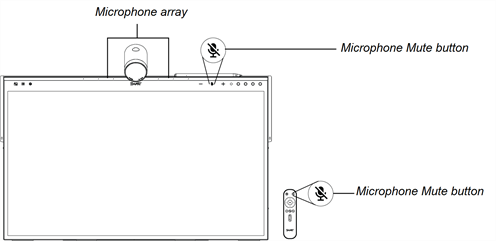
The eight-microphone array is located along the top of the podium's frame.
Microphone mute buttons are located on the podium's utility bar or on the remote control.
To use the microphone array with a connected computer
Connect the computer to the podium and select it as the podium’s input.
SeeSMART Board Mini 727 interactive podium illustrated installation instructions (docs.smarttech.com/kb/172012)
Open the sound controls on the connected computer.
Windows computer
Select Start
 SettingsSystemSoundInputChoose your input device.
Mac computer
Select Apple menu
System Preferences, click Sound, then click Input.
Select from the list of sound input devices.
Tip
Use the connected computer’s sound controls to adjust settings such as input volume and background noise reduction.
To set the microphone array as the default microphone when using a conferencing app on a connected computer
Connect the computer to the podium and select it as the podium’s input.
SeeSMART Board Mini 727 interactive podium illustrated installation instructions (docs.smarttech.com/kb/172012)
Start the conferencing app on the computer.
Open the conferencing app’s sound controls and select from the list of sound input devices.
Tip
Use the conferencing app’s sound controls to adjust settings such as input volume and background noise reduction.
To mute the microphone array
 button.