Using the camera
The SMART Board Mini 727 comes with a 4K Ultra-HD camera with 5× ePTZ, privacy shutter, and infrared camera remote.
Components

No. | Name | Description | For more information |
|---|---|---|---|
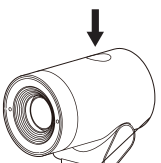
1 | Function button | Press to change between auto-framing and custom zoom. | |
2 | Indicator light | Indicates when the camera is in use. | |
3 | Camera lens | Keep clean to ensure best picture quality | |
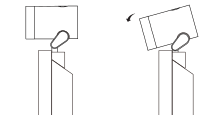
4 | Gently tilt the camera to adjust its perspective. | ||
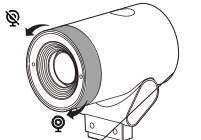
5 | Privacy shutter | Twist the adjuster counterclockwise to close the shutter. | |
6 | Camera mounting holes | Using the provided screws, secure the camera to the podium. | SeeSMART Board Mini 727 interactive podium illustrated installation instructions (docs.smarttech.com/kb/172012) |
7 | Camera connection plug | Connects to the camera port on top of the podium. | SeeSMART Board Mini 727 interactive podium illustrated installation instructions (docs.smarttech.com/kb/172012) |
To use the SMART Board Mini 727 camera
Install the SMART Board Mini 727 camera.
SeeSMART Board Mini 727 interactive podium illustrated installation instructions (docs.smarttech.com/kb/172012)
Connect a computer to the interactive podium. The connected computer should auto-detect the camera.
(Optional) To manually select the camera input on the connected computer, open the camera controls on the connected computer (this procedure will vary from device to device).
Tip
Individual applications with access to the camera may also have in-app camera controls.
Select SMART Board Mini from the list of camera input devices.
Note
For macOS, you might need to give permissions to individual apps.
The camera is now ready to use.
Tip
Use the interactive podium camera remote control to adjust camera settings by opening the camera’s on-screen display menu while viewing the camera image in a camera app.
Gently move the camera up or down to adjust the tilt angle.
 Camera on-screen display menu settings
You might need to adjust the interactive podium's camera settings when you initially install it, while maintaining it, or while using it.
To access the camera’s on-screen display menu (OSD) settings
On the connected computer, open an application that can display the camera’s image (this procedure will vary from device to device).
Windows computer
Click Start
 SettingsBluetooth & devicesCamerasConnected camerasChoose your input device.
Mac computer
Click Apple menu
System SettingsSecurity & PrivacyCamera.
Press
 on the camera remote to open the OSD menu.
Option
Values
Image
- Sharpness
- Contrast
- Saturation
- Brightness
- Gamma
- White Balance
Mode
- 2D NR (noise reduction)
- 3D NR (noise reduction)
- Flicker
- Backlight Comp.
- Mirror
- Flip
- Default Mode
- Preset FOV
System - Language
- USB Transfer Type
- Serial Number
- FW Version
- Reset
Press the up and down arrows to highlight a menu, and then press OK to open the menu.
Browse through the options using the up and down arrows.
Press the left and right arrows to change the menu option’s setting.
To return to the main menu, press
 .
.
Camera indicator lightCamera LED color | Status |
|---|---|
Green | The camera is enabled and currently in use. |
Red | The camera is not in use or the camera’s video output is muted by the remote control. |
Camera function buttonYou can control the zoom using the camera’s remote or by pressing the camera’s function button on top of the camera.
Option | Notes |
|---|---|
Single press | Change between auto-framing and zoom modes from 1× to 5×. |
Long press (>2 seconds) | Reset the camera to auto-framing mode. |
Long press (>5 seconds) | Reboot the camera. |
 Camera privacy shutter
You can open and close the camera’s privacy shutter by gently twisting the camera’s adjuster clockwise or counter-clockwise.
 Maintaining the camera
Follow these instructions to clean the camera without damaging its components.
Use soft cloth or tissue to clean the camera cover.
Wipe it with a soft, dry cloth when cleaning the camera lens.
Wipe it gently with a mild detergent if needed.
Do not use strong or corrosive detergents to avoid scratching the lens and affecting the video quality.