Using the camera remote
The interactive podium comes with an infrared camera remote.
Use the infrared remote control to turn the camera’s image output on or off, adjust camera settings, and mute and unmute the microphone array.
Important
Do not subject the remote control to strong shock.
Keep the remote control away from liquids. If it gets wet, wipe it dry immediately.
Do not expose the remote control to heat or steam.
Do not open any part of the remote control other than the battery compartment.
Note
When using the remote control, point it directly at the camera’s infrared sensor.
This image and table describe the SMART Board Mini 727 camera remote control’s functions.
Tip
For information on how to use the camera remote to adjust camera settings
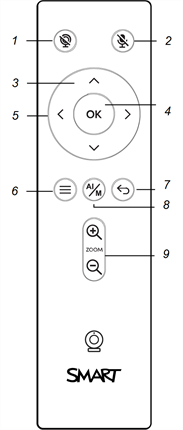
No. | Name | Procedure |
|---|---|---|
1 | Camera video mute | Press to enable or disable the camera’s video output. The no camera icon |
2 | Microphone mute | Press to mute the microphone array. |
3 | Up and down buttons | Press to navigate to menu options in the camera settings. |
4 | OK button | Press to select a menu option in the camera settings. |
5 | Left and right buttons | Press to navigate to menu options in the selected camera setting. |
6 | Menu | Press to open the camera settings menu. |
7 | Back | Press to go one step back in the navigation history. |
8 | AI/M | Press to change the camera’s framing mode between Automatic and Manual. |
9 | Zoom | Press to zoom in and out when using Manual zoom mode. |
 in the top left corner of a black screen indicates that the camera video is muted.