Turning on and turning off the interactive podium
In most situations, the interactive podium enters an energy saving mode when not in use.
In some situations, such as when you transport the podium or clean its screen, you need to turn the podium off. You can turn it back on after.
Note
Touch is not available immediately after switching inputs, waking, or turning on the podium. Wait until the computer fully connects to the podium, then the connected computer will respond to touches on the podium.
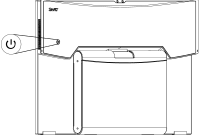
 Waking up the podium and putting it back to sleep
To wake the podium, press the Power button on the back of the interactive podium once.
Note
Touch is not available immediately after switching inputs, waking, or turning on the podium. Wait until the computer fully connects to the podium, then the connected computer will respond to touches on the podium.
To return the podium to a partial sleep state, press the Power button on the back of the podium once.
Note
Putting the podium into a screen-off state mutes the camera’s video output (if connected) and mutes the microphone array (if in use). The camera’s image will be black and the microphone mute indicator button
will illuminate.
Turning the display off and turning it back onTo turn off the podium
Press and hold the Power button
on the back of the interactive podium for 3 seconds.A dialog appears.
Tap Turn Off.
To turn on the podium
Press Power button on the back of the podium once and wait for the podium to turn on.
Setting standby mode timeoutWhen there is no active video signal from an HDMI, USB-C, or OPS appliance, the interactive podium enters an energy saving mode when not in use.
To configure standby mode timeout
Press
 on the utility bar.
Tap Power to open the settings.
Set the standby mode timeout.