Solucionar problemas
Esta página explica cómo resolver una variedad de problemas comunes con el podio y los productos SMART relacionados.
Nota
La información de solución de problemas de esta página está organizada en tres tipos de listas de verificación:
Que tener en cuenta
Información que debe tener en cuenta al solucionar un problema
Que comprobar
Elementos que debe verificar al solucionar un problema
Que probar
Acciones que debe realizar para resolver un problema o identificar la causa subyacente de un problema
 Solución de problemas de la pantalla
¿Cuál parece ser el problema?
El podio no se enciende.
The SMART logo on the utility bar light doesn’t light up.

Que comprobar
The power cable is securely fastened to the power outlet and the podium.
Nota
If the power cable is connected to a power bar, make sure the power bar is securely fastened to the power outlet and turned on.
Check the green LED light on the podium’s power adapter, and ensure that it is lit. This indicates that the power adapter is receiving MAINS power from the wall outlet, and outputting DC power to the podium.
Que probar
Press the power button on the back of interactive podium once to turn it on.
Test the power outlet with a different device to make sure it’s working.
The SMART logo is lit up (white), but the screen is blank.
Que comprobar
Todos los ordenadores conectados están encendidos y no están en modo de ahorro de energía.
Que probar
Touch the screen to wake it from the screen-off power saving mode
Determine if the problem is with the currently selected input rather than with the podium by:
Pressing the Settings button on the utility bar and switching to another input using the OSD menu.
Disconnecting any cables from the podium’s HDMI Out and USB-C Out connectors (if used) to determine whether equipment connected to the HDMI or USB-C output port is causing the problem.
Restart the podium by turning it off and then on again.
If a computer’s input is currently selected, replace the video cable that connects the computer to the podium to determine if the problem is with the cable.
Notas
Asegúrese de que el cable de sustitución cumple con las especificaciones requeridas.
If using a computer connected via an HDMI cable,use a Certified Premium High Speed HDMI cable whose certification can be verified on the HDMI.org website by scanning the HDMI certification QR code on the cable's packaging.
If using a computer connected via a USB Type-C cable, make sure the cable is no longer than 2 meters (6'6") long, and contains wiring to support SuperSpeed USB data (This wiring is required for DP Alt-Mode video signals).
Avoid using connection extenders or signal converters where possible and during troubleshooting.
The recommended resolutions are 3840 × 2160 @ 60Hz or 1920 × 1080 @ 60Hz.
La pantalla está en blanco o hay un problema con la imagen en la pantalla.
La pantalla está en blanco.
Que comprobar
The podium is on and not in an energy saving mode (the power light is white).
Todos los ordenadores conectados están encendidos y no están en modo de ahorro de energía.
Que probar
Determine if the problem is with the currently selected input rather than with the podium by:
Pressing the Settings button on the utility bar and switching to another input using the OSD menu.
Disconnecting any cables from the podium’s HDMI Out and USB-C Out connectors (if used) to determine whether equipment connected to the HDMI or USB-C output port is causing the problem.
Restart the podium and any connected computers.
Si la entrada de un ordenador está actualmente seleccionada, sustituya el cable de vídeo que conecta el ordenador a la pantalla para determinar si el problema está en el cable.
Notas
Asegúrese de que el cable de sustitución cumple con las especificaciones requeridas.
If using a computer connected via an HDMI cable,use a Certified Premium High Speed HDMI cable whose certification can be verified on the HDMI.org website by scanning the HDMI certification QR code on the cable's packaging.
If using a computer connected via a USB Type-C cable, make sure the cable is no longer than 2 meters (6'6") long, and contains wiring to support SuperSpeed USB data (This wiring is required for DP Alt-Mode video signals).
Avoid using connection extenders or signal converters where possible and during troubleshooting.
The recommended resolutions are 3840 × 2160 @ 60Hz or 1920 × 1080 @ 60Hz.
A computer is connected to the podium, but only a connection message appears on the screen.
Que comprobar
El ordenador no está en modo de ahorro de energía.
El ordenador está conectado a la entrada seleccionada actualmente.
The computer is connected to the podium using correct cabling.
La resolución de la señal de vídeo activa del ordenador y la frecuencia de actualización coinciden con las resoluciones nativas o compatibles de la pantalla y las frecuencias de actualización.
Si el ordenador es un portátil, su salida de vídeo está habilitada.
Sugerencia
En ordenadores Windows, presione WIN+P para determinar si la salida de vídeo del ordenador está habilitada y configure la salida de vídeo para duplicar o extender el escritorio.
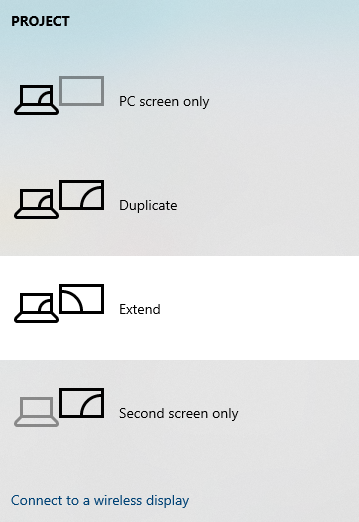
Que probar
Replace the video cable that connects the computer to the display to determine if the problem is with the cable.
Notas
Asegúrese de que el cable de sustitución cumple con las especificaciones requeridas.
If using a computer connected via an HDMI cable,use a Certified Premium High Speed HDMI cable whose certification can be verified on the HDMI.org website by scanning the HDMI certification QR code on the cable's packaging.
If using a computer connected via a USB Type-C cable, make sure the cable is no longer than 2 meters (6'6") long, and contains wiring to support SuperSpeed USB data (This wiring is required for DP Alt-Mode video signals).
Avoid using connection extenders or signal converters where possible and during troubleshooting.
The recommended resolutions are 3840 × 2160 @ 60Hz or 1920 × 1080 @ 60Hz.
La imagen de la pantalla está distorsionada.
Que comprobar
The SMART OPS module or AM60 appliance is securely installed in the OPS slot and its power light is on.
Todos los ordenadores conectados están encendidos y no están en modo de ahorro de energía.
If a computer’s input is currently selected, the computer’s video resolution and refresh rate match the podium’s native or supported resolutions and refresh rates.
Si un ordenador está conectado a la pantalla mediante un cable HDMI, el cable está certificado para alta velocidad (18 Gbps) y no es más largo que la longitud máxima del cable definida en el concentrador de cables y conectores SMART.
Que probar
Determine if the problem is with the currently selected input rather than with the podium by:
Pressing the Settings button on the utility bar and switching to another input using the OSD menu.
Disconnecting any cables from the podium’s HDMI Out and USB-C Out connectors (if used) to determine whether equipment connected to the HDMI or USB-C output port is causing the problem.
Turn the podium off, then on, and restart and any connected computers.
If a computer’s input is currently selected, replace the video cable that connects the computer to the podium to determine if the problem is with the cable.
Notas
Asegúrese de que el cable de sustitución cumple con las especificaciones requeridas.
If using a computer connected via an HDMI cable,use a Certified Premium High Speed HDMI cable whose certification can be verified on the HDMI.org website by scanning the HDMI certification QR code on the cable's packaging.
If using a computer connected via a USB Type-C cable, make sure the cable is no longer than 2 meters (6'6") long, and contains wiring to support SuperSpeed USB data (This wiring is required for DP Alt-Mode video signals).
Avoid using connection extenders or signal converters where possible and during troubleshooting.
The recommended resolutions are 3840 × 2160 @ 60Hz or 1920 × 1080 @ 60Hz.
Se ven líneas, grano u otro tipo de ruido visual en la pantalla.
Que comprobar
The SMART OPS module or AM60 appliance is securely installed in the OPS slot and its power light is on.
Todos los ordenadores conectados están encendidos y no están en modo de ahorro de energía.
If a computer’s input is currently selected, the computer’s video resolution and refresh rate match the podium’s native or supported resolutions and refresh rates.
Si un ordenador está conectado a la pantalla mediante un cable HDMI, el cable está certificado para alta velocidad (18 Gbps) y no es más largo que la longitud máxima del cable definida en el concentrador de cables y conectores SMART.
Que probar
Determine if the problem is with the currently selected input rather than with the podium by:
Pressing the Settings button on the utility bar and switching to another input using the OSD menu.
Disconnecting any cables from the podium’s HDMI Out and USB-C Out connectors (if used) to determine whether equipment connected to the HDMI or USB-C output port is causing the problem.
Turn the podium off, then on, and restart and any connected computers.
If a computer’s input is currently selected, replace the video cable that connects the computer to the podium to determine if the problem is with the cable.
Notas
Asegúrese de que el cable de sustitución cumple con las especificaciones requeridas.
If using a computer connected via an HDMI cable,use a Certified Premium High Speed HDMI cable whose certification can be verified on the HDMI.org website by scanning the HDMI certification QR code on the cable's packaging.
If using a computer connected via a USB Type-C cable, make sure the cable is no longer than 2 meters (6'6") long, and contains wiring to support SuperSpeed USB data (This wiring is required for DP Alt-Mode video signals).
Avoid using connection extenders or signal converters where possible and during troubleshooting.
The recommended resolutions are 3840 × 2160 @ 60Hz or 1920 × 1080 @ 60Hz.
La imagen tiembla o parpadea.
Que comprobar
The SMART OPS module or AM60 appliance is securely installed in the OPS slot and its power light is on.
Todos los ordenadores conectados están encendidos y no están en modo de ahorro de energía.
If a computer’s input is currently selected, the computer’s video resolution and refresh rate match the podium’s native or supported resolutions and refresh rates.
Si un ordenador está conectado a la pantalla mediante un cable HDMI, el cable está certificado para alta velocidad (18 Gbps) y no es más largo que la longitud máxima del cable definida en el concentrador de cables y conectores SMART.
Que probar
Determine if the problem is with the currently selected input rather than with the podium by:
Pressing the Settings button on the utility bar and switching to another input using the OSD menu.
Disconnecting any cables from the podium’s HDMI Out and USB-C Out connectors (if used) to determine whether equipment connected to the HDMI or USB-C output port is causing the problem.
Turn the podium off, then on, and restart and any connected computers.
If a computer’s input is currently selected, replace the video cable that connects the computer to the podium to determine if the problem is with the cable.
Notas
Asegúrese de que el cable de sustitución cumple con las especificaciones requeridas.
If using a computer connected via an HDMI cable,use a Certified Premium High Speed HDMI cable whose certification can be verified on the HDMI.org website by scanning the HDMI certification QR code on the cable's packaging.
If using a computer connected via a USB Type-C cable, make sure the cable is no longer than 2 meters (6'6") long, and contains wiring to support SuperSpeed USB data (This wiring is required for DP Alt-Mode video signals).
Avoid using connection extenders or signal converters where possible and during troubleshooting.
The recommended resolutions are 3840 × 2160 @ 60Hz or 1920 × 1080 @ 60Hz.
La imagen se ve oscura.
Que comprobar
Todos los ordenadores conectados están encendidos y no están en modo de ahorro de energía.
If a computer’s input is currently selected, the computer’s video resolution and refresh rate match the podium’s native or supported resolutions and refresh rates.
Si un ordenador está conectado a la pantalla mediante un cable HDMI, el cable está certificado para alta velocidad (18 Gbps) y no es más largo que la longitud máxima del cable definida en el concentrador de cables y conectores SMART.
Que comprobar
The Display brightness, Auto brightness, and Blue light filter settings are set appropriately.
Que comprobar
Todos los ordenadores conectados están encendidos y no están en modo de ahorro de energía.
If a computer’s input is currently selected, the computer’s video resolution and refresh rate match the podium’s native or supported resolutions and refresh rates.
Que comprobar
The SMART OPS module or AM60 appliance is securely installed in the OPS slot and its power light is on.
Todos los ordenadores conectados están encendidos y no están en modo de ahorro de energía.
If a computer’s input is currently selected, the computer’s video resolution and refresh rate match the podium’s native or supported resolutions and refresh rates.
Que probar
Determine if the problem is with the currently selected input rather than with the podium by:
Pressing the Settings button on the utility bar and switching to another input using the OSD menu.
Disconnecting any cables from the podium’s HDMI Out and USB-C Out connectors (if used) to determine whether equipment connected to the HDMI or USB-C output port is causing the problem.
Turn the podium off, then on, and restart and any connected computers.
If a computer’s input is currently selected, replace the video cable that connects the computer to the podium to determine if the problem is with the cable.
Notas
Asegúrese de que el cable de sustitución cumple con las especificaciones requeridas.
If using a computer connected via an HDMI cable,use a Certified Premium High Speed HDMI cable whose certification can be verified on the HDMI.org website by scanning the HDMI certification QR code on the cable's packaging.
If using a computer connected via a USB Type-C cable, make sure the cable is no longer than 2 meters (6'6") long, and contains wiring to support SuperSpeed USB data (This wiring is required for DP Alt-Mode video signals).
Avoid using connection extenders or signal converters where possible and during troubleshooting.
The recommended resolutions are 3840 × 2160 @ 60Hz or 1920 × 1080 @ 60Hz.
Check the connected computer’s brightness settings.
See the computer’s operating system documentation.
No hay imagen cuando se usa el receptor USB Tipo-C con un ordenador.
Que comprobar
El ordenador admite vídeo en el modo alternativo DisplayPort a través de USB tipo C.
Sugerencia
Busque el logotipo de Display Port
 o el logotipo de Thunderbolt 3 o 4
 junto al receptáculo de USB tipo C en el ordenador. Si no está allí, es posible que el ordenador no admita vídeo en modo alternativo de Display Port a través de un USB de tipo C.
El cable conectado en el receptáculo de USB tipo C es compatible con USB de alta velocidad (5 Gbps).
Sugerencia
Busque el logotipo de SuperSpeed USB
 o el logotipo de Thunderbolt en el cable. Si el cable no tiene el logotipo de SuperSpeed USB o Thunderbolt, es posible que no tenga el cableado interno necesario para transportar datos de vídeo en el modo alternativo de Display Port.
Se ven puntos brillantes en la pantalla.
Que probar
Determine if the problem is with the currently selected input rather than with the podium by:
Pressing the Settings button on the utility bar and switching to another input using the OSD menu.
Disconnecting any cables from the podium’s HDMI Out and USB-C Out connectors (if used) to determine whether equipment connected to the HDMI or USB-C output port is causing the problem.
Tome una fotografía de la pantalla y envíela a la asistencia técnica de SMART.
Nota
Si el servicio de asistencia técnica de SMART determina que el problema está en la pantalla y la pantalla está en garantía, puede optar a una sustitución.
Los colores no se ven correctamente.
Que tener en cuenta
Si se montan dos o más pantallas una al lado de la otra, es normal que se observen pequeñas diferencias en los colores de las pantallas. Este problema no es exclusivo de los productos SMART.
Que probar
Check the connected computer’s brightness settings.
See the computer’s operating system documentation.
Switch between inputs to determine whether the color issue occurs while connected to a specific input type only. If the podium’s screen appears normal but a specific video input does not, test the connection cables and video source equipment by temporarily replacing them.
If the screen is completely lacking one color or the color problems occur on the podium’s screen, take a photograph of the screen and send it to SMART support.
Nota
If SMART support determines that the problem is with the screen and the podium is under warranty, you may be eligible for a replacement.
La imagen aparece cortada o desplazada a la derecha o la izquierda.
Que comprobar
The connected computers’ video output is set to a resolution supported by the podium.
Que probar
Ajuste la configuración de vídeo de todos los ordenadores conectados, en especial el zoom, el recorte y el hipo-barrido.
See the computer’s operating system documentation.
Si la entrada de un ordenador está seleccionada actualmente y el escritorio del ordenador se extiende a varias pantallas, seleccione un modo de pantalla diferente. Si el modo está configurado actualmente para duplicar, cámbielo a extendido. Si el modo está configurado actualmente como extendido, cámbielo a duplicado.
Sugerencia
En ordenadores Windows, presione WIN+P para determinar si la salida de vídeo del ordenador está habilitada y configure la salida de vídeo para duplicar o extender el escritorio.
La imagen no llena toda la pantalla.
Que comprobar
The connected computer’s video connector is configured to output a supported video signal with a 16:9 aspect ratio.
Que probar
Adjust any connected computers’ video settings, particularly overscan.
See the computer’s operating system documentation.
Si la entrada de un ordenador está seleccionada actualmente y el escritorio del ordenador se extiende a varias pantallas, seleccione un modo de pantalla diferente. Si el modo está configurado actualmente para duplicar, cámbielo a extendido. Si el modo está configurado actualmente como extendido, cámbielo a duplicado.
Aparece una imagen persistente en la pantalla.
Que probar
Siga las recomendaciones del artículo de la base de conocimientos: Persistencia de la imagen o quemado en pantallas LCD.
No hay sonido o hay un problema con el sonido.
No hay sonido.
Que comprobar
If the podium is connected to an external audio system, the external audio system is turned on and not muted. The cables connecting the podium to the computer are securely fastened.
Notas
Connecting an audio cable to the display’s stereo 3.5 mm Out connector disables the internal speakers.
If a computer or other device is connected to the display using an HDMI cable, the computer or other device is configured to send HDMI video and audio, not digital DVI video.
Nota
HDMI cables can carry digital DVI video signals, which don’t include audio.
Que probar
If a computer’s input is currently selected, adjust the computer’s volume (80% recommended) and then adjust the podium’s volume. If the display is connected to an external audio system, adjust the audio system’s volume. If you’re using the integrated speakers, set the volume for the computer and any running applications to 80%, and then adjust the podium’s volume.
o
If you’re using an external audio system, set the volume for the computer, any running applications, and the display to 80%, and then adjust the external audio system’s volume.
Hay sonido, pero el volumen es bajo.
Que comprobar
If the podium is connected to an external audio system, the external audio system is turned on and not muted. The cables connecting the podium to the computer are securely fastened.
Notas
Connecting an audio cable to the display’s stereo 3.5 mm Out connector disables the internal speakers.
Que probar
If a computer’s input is currently selected, adjust the computer’s volume (80% recommended) and then adjust the podium’s volume. If the display is connected to an external audio system, adjust the audio system’s volume. If you’re using the integrated speakers, set the volume for the computer and any running applications to 80%, and then adjust the podium’s volume.
o
If you’re using an external audio system, set the volume for the computer, any running applications, and the display to 80%, and then adjust the external audio system’s volume.
El sonido se oye distorsionado o atenuado.
Que comprobar
If the podium is connected to an external audio system, the external audio system is turned on and not muted. The cables connecting the podium to the computer are securely fastened.
Notas
Connecting an audio cable to the display’s stereo 3.5 mm Out connector disables the internal speakers.
If you’re using the stereo 3.5 mm line Out connector, ensure that analog audio cable is not routed behind mains voltage power lines, electric motors, or other sources of electromagnetic interference.
Que probar
If a computer’s input is currently selected, adjust the computer’s volume (80% recommended) and then adjust the podium’s volume. If the display is connected to an external audio system, adjust the audio system’s volume. If you’re using the integrated speakers, set the volume for the computer and any running applications to 80%, and then adjust the podium’s volume.
o
If you’re using an external audio system, set the volume for the computer, any running applications, and the display to 80%, and then adjust the external audio system’s volume.
If you’re using the stereo 3.5 mm line Out connector, replace the existing analog audio cable with better quality cable.
Se oye un chirrido o un zumbido que proceden de la parte posterior de la pantalla.
Que tener en cuenta
These sounds are normal. All electronic displays emit some electrical noise. Such sounds might be more noticeable with some displays than with others. However, if you hear noise from the front of the podium, further investigation is required.
Que comprobar
If you’re using the stereo 3.5 mm line Out connector, ensure that analog audio cable is not routed behind mains voltage power lines, electric motors, or other sources of electromagnetic interference.
Que probar
Conecte todos los dispositivos a la misma toma o regleta de alimentación.
If you’re using the stereo 3.5 mm line Out connector, replace the existing analog audio cable with better quality cable.
El conjunto de micrófonos no capta el sonido.
Que comprobar
If you’re using an external computer, the computer’s audio settings are configured to use the SMART Board Mini Microphone as the input device.
The microphone is not muted or the microphone mute LED is not lit.
Que probar
Press the utility bar’s Mute button
 twice to ensure the mute indicator light matches the actual mute state.
o
Press the remote control’s Mute button
twice to ensure the mute indicator light matches the actual mute state.
La función táctil no funciona como se esperaba.
The podium doesn’t respond to touch.
Que probar
Remove the stylus nib from the stylus and wait 15 seconds. After 15 seconds, reinsert the nib.
If the irregular ink behavior continues, remove the stylus nib for a longer duration such as 60 seconds.
VéaseReplacing the stylus nib
The podium responds to touch intermittently.
Que tener en cuenta
Touch is not available immediately after switching inputs, waking, or turning on the podium. Wait until the connected computer is fully connected to the podium, then the connected computer will respond to touches on the podium.
Que comprobar
La última versión de SMART Product Drivers y SMART Ink está instalada y funcionando en todos los ordenadores conectados.
There is only one USB cable connecting the computer to the podium.
The USB cable between the podium and the computer doesn’t exceed the maximum cable length and supports the minimum USB data speed.
Que probar
Clean the screen.
If the pointer appears in the wrong place on input from a connected computer, orient the podium.
Reinicie la pantalla.
Remove any USB extenders, hubs, port replicators, or docking stations to improve the USB data connection while troubleshooting.
Update SMART Product Drivers to 12.27 or later.
When you touch the screen, the pointer doesn’t appear in the correct place.
Que tener en cuenta
Touch is not available immediately after switching inputs, waking, or turning on the podium. Wait until the connected computer is fully connected to the podium, then the connected computer will respond to touches on the podium.
El toque está orientado a las dimensiones de la pantalla del podio interactivo. Si la imagen de un ordenador conectado tiene una relación de aspecto diferente a la de la pantalla del podio (y como resultado aparecen barras de formato letterbox o pillarbox alrededor de la imagen del ordenador), la ubicación tocar no será precisa y tendrá que orientar el podio.
Que comprobar
La última versión de SMART Product Drivers y SMART Ink está instalada y funcionando en todos los ordenadores conectados.
There is only one USB cable connecting the computer to the podium.
The USB cable between the podium and the computer doesn’t exceed the maximum cable length and supports the minimum USB data speed.
Que probar
Clean the screen.
If the pointer appears in the wrong place on input from a connected computer, orient the podium.
Reinicie la pantalla.
Remove any USB extenders, hubs, port replicators, or docking stations to improve the USB data connection while troubleshooting.
Update SMART Product Drivers to 12.27 or later.
Touch on the connected computer goes to a different display other than the SMART Board Mini 727.
Que tener en cuenta
Touch is not available immediately after switching inputs, waking, or turning on the podium. Wait until the connected computer is fully connected to the podium, then the connected computer will respond to touches on the podium.
El toque está orientado a las dimensiones de la pantalla del podio interactivo. Si la imagen de un ordenador conectado tiene una relación de aspecto diferente a la de la pantalla del podio (y como resultado aparecen barras de formato letterbox o pillarbox alrededor de la imagen del ordenador), la ubicación tocar no será precisa y tendrá que orientar el podio.
Que comprobar
La última versión de SMART Product Drivers y SMART Ink está instalada y funcionando en todos los ordenadores conectados.
There is only one USB cable connecting the computer to the podium.
The USB cable between the podium and the computer doesn’t exceed the maximum cable length and supports the minimum USB data speed.
Que probar
Clean the screen.
If the pointer appears in the wrong place on input from a connected computer, orient the podium.
Reinicie la pantalla.
Remove any USB extenders, hubs, port replicators, or docking stations to improve the USB data connection while troubleshooting.
Update SMART Product Drivers to 12.27 or later.
El lápiz óptico y el borrador no funcionan como se esperaba.
The podium doesn’t respond to touch or writing with a stylus.
Que probar
Remove the stylus nib from the stylus and wait 15 seconds. After 15 seconds, reinsert the nib.
If the irregular ink behavior continues, remove the stylus nib for a longer duration such as 60 seconds.
VéaseReplacing the stylus nib
The podium responds to touch but not to writing with a stylus.
Que tener en cuenta
The stylus needs to be turned on before it will write or erase ink on the podium’s screen. The indicator light will be green when the stylus is on.
Que comprobar
The stylus is on and charged (green indicator light).
La punta del rotulador no está desgastada.
Sugerencia
Puede adquirir rotuladores de repuesto en la tienda de piezas de SMART.
La última versión de SMART Product Drivers y SMART Ink está instalada y funcionando en todos los ordenadores conectados.
You’re pressing the stylus tip firmly on the podium before moving the stylus.
Que probar
Press the stylus’s side button or eraser once to turn on the stylus. The indicator light will be green.
If the indicator light is orange or does not turn on, put the stylus in the charging tray to charge.
A green flashing light indicates charging.
Replace the worn stylus nib.
Al escribir en la pantalla, la tinta aparece en el lugar incorrecto.
Que tener en cuenta
El toque está orientado a las dimensiones de la pantalla del podio interactivo. Si la imagen de un ordenador conectado tiene una relación de aspecto diferente a la de la pantalla del podio (y como resultado aparecen barras de formato letterbox o pillarbox alrededor de la imagen del ordenador), la ubicación tocar no será precisa y tendrá que orientar el podio.
Que comprobar
La última versión de SMART Product Drivers y SMART Ink está instalada y funcionando en todos los ordenadores conectados.
You’re pressing the stylus tip firmly on the podium before moving the stylus.
Que probar
Clean the screen.
VéaseLimpieza de la pantalla
If the ink appears in the wrong place on input from a connected computer, orient the podium.
Reinicie la pantalla.
Use a known working stylus from another podium to check if the issue is being caused by the stylus.
The stylus draws before it physically touches the screen.
Que probar
Remove the stylus nib from the stylus and wait 15 seconds. After 15 seconds, reinsert the nib.
If the irregular ink behavior continues, remove the stylus nib for a longer duration such as 60 seconds.
VéaseReplacing the stylus nib
La escritura es intermitente.
Que comprobar
La última versión de SMART Product Drivers y SMART Ink está instalada y funcionando en todos los ordenadores conectados.
You’re pressing the stylus tip firmly on the podium before moving the stylus.
Que probar
Clean the screen.
VéaseLimpieza de la pantalla
Reinicie la pantalla.
Use a known working stylus from another podium to check if the issue is being caused by the stylus.
La tinta desaparece mientras escribe.
Que comprobar
La última versión de SMART Product Drivers y SMART Ink está instalada y funcionando en todos los ordenadores conectados.
You’re pressing the stylus tip firmly on the podium before moving the stylus.
Que probar
Clean the screen.
VéaseLimpieza de la pantalla
Reinicie la pantalla.
Use a known working stylus from another podium to check if the issue is being caused by the stylus.
Usted no puede escribir o dibujar en Microsoft Office.
Que comprobar
Microsoft Office 2013 o posterior está instalado en todos los ordenadores conectados.
La última versión de SMART Product Drivers y SMART Ink está instalada y funcionando en todos los ordenadores conectados.
El software SMART del podio no funciona como se esperaba.
Qué intentar
La imagen de la cámara parpadea.
The camera’s video is flickering.
Que tener en cuenta
The remote control only controls the camera and microphone array. It does not control the podium. The camera’s settings can only be changed with the remote control in an application that displays the camera’s image. Que comprobar
The camera frequency setting.
The electrical frequency of your region.
Make sure the camera's privacy shutter is open and you can see the camera lens.
Make sure the camera image is not muted. A muted camera image will be all black except for a 'no camera' symbol
 in the top-left corner. Press the camera mute button on the camera's remote control to unmute the camera’s image.
Que probar
To change the camera’s settings, open an application that displays the camera’s image. Use the remote control to change the image settings.
The image from the camera is black.
Que tener en cuenta
The remote control only controls the camera and microphone array. It does not control the podium. The camera’s settings can only be changed with the remote control in an application that displays the camera’s image. Que comprobar
The camera frequency setting.
The electrical frequency of your region.
Make sure the camera's privacy shutter is open and you can see the camera lens.
Make sure the camera image is not muted. A muted camera image will be all black except for a 'no camera' symbol
in the top-left corner. Press the camera mute button on the camera's remote control to unmute the camera’s image.Que probar
To change the camera’s settings, open an application that displays the camera’s image. Use the remote control to change the image settings.
La cámara no funciona.
The camera’s video is flickering.
Que tener en cuenta
The remote control only controls the camera and microphone array. It does not control the podium. The camera’s settings can only be changed with the remote control in an application that displays the camera’s image. Que comprobar
The camera frequency setting.
The electrical frequency of your region.
Make sure the camera's privacy shutter is open and you can see the camera lens.
Make sure the camera image is not muted. A muted camera image will be all black except for a 'no camera' symbol
in the top-left corner. Press the camera mute button on the camera's remote control to unmute the camera’s image.Que probar
To change the camera’s settings, open an application that displays the camera’s image. Use the remote control to change the image settings.
The image from the camera is black.
Que tener en cuenta
The remote control only controls the camera and microphone array. It does not control the podium. The camera’s settings can only be changed with the remote control in an application that displays the camera’s image. Que comprobar
The camera frequency setting.
The electrical frequency of your region.
Make sure the camera's privacy shutter is open and you can see the camera lens.
Make sure the camera image is not muted. A muted camera image will be all black except for a 'no camera' symbol
in the top-left corner. Press the camera mute button on the camera's remote control to unmute the camera’s image.Que probar
To change the camera’s settings, open an application that displays the camera’s image. Use the remote control to change the image settings.
El mando a distancia no funciona.
El mando a distancia no controla el podio.
Que tener en cuenta
The remote control only controls the camera and microphone array. It does not control the podium. The camera’s settings can only be changed with the remote control in an application that displays the camera’s image. Asegúrese de que el mando a distancia de la cámara tenga una línea de visión despejada hacia la parte frontal de la cámara. Que comprobar
El ajuste de frecuencia de la cámara.
La frecuencia eléctrica de su región.
Que probar
Para cambiar la configuración de la cámara, abra una aplicación que muestre la imagen de la cámara. Use el mando a distancia para cambiar la configuración de la imagen.
No puedo cambiar la configuración de la cámara.
Que tener en cuenta
The remote control only controls the camera and microphone array. It does not control the podium. The camera’s settings can only be changed with the remote control in an application that displays the camera’s image. Asegúrese de que el mando a distancia de la cámara tenga una línea de visión despejada hacia la parte frontal de la cámara. Que comprobar
El ajuste de frecuencia de la cámara.
La frecuencia eléctrica de su región.
Que probar
Para cambiar la configuración de la cámara, abra una aplicación que muestre la imagen de la cámara. Use el mando a distancia para cambiar la configuración de la imagen.
Solución de problemas de productos SMART relacionadosSi tiene algún problema con productos relacionados, consulte las páginas de solución de problemas de esos productos:

