SMART TeamWorks Contributor for Windows 10
Use the SMART TeamWorks Contributor app to collaborate in a meeting, whether you’re in the same room, across the country, or around the globe. The Contributor app lets you connect and contribute to a whiteboard session from your own device.
Note
This app is not available for use with SMART TeamWorks Room edition.
 Downloading the app
Before you download the app, make sure your device meets the following requirements:
Operating system: Windows 10 (version 1803 or later)
Minimum processor: Intel i3
Minimum RAM: 2 GB (4GB recommended)
Video requirements: 128 MB discrete VRAM
SSD: 64GB
Ethernet and wifi 802.ac (2.4/5.0Ghz)
To download the SMART TeamWorks Contributor app
Visit Downloads.
Select the Contributor app for your computer or devices' operating system: Windows, iOS, or Android.
Download the Contributor app.
Connecting to a whiteboard sessionYou can connect to a whiteboard session using either a direct link provided by the meeting organizer or by using the options in the SMART TeamWorks Contributor app.
Important
If you are using TeamWorks Connected edition, you must be on the same network as the meeting room computer to connect to the whiteboard session. However, if your organization has SMART TeamWorks Server, this limitation does not apply.
To connect to a whiteboard session using a link
If you receive a direct link for joining the whiteboard session from the meeting organizer or in an email, you can click it from your device to open the SMART TeamWorks Contributor app and join the whiteboard session.
To connect to a meeting’s whiteboard session
- Open the SMART TeamWorks Contributor app from your desktop.
Enter the meeting details provided by the meeting’s organizer.
OR
Scan the whiteboard’s QR code.
If a QR code doesn’t appear, SMART TeamWorks may have been configured to hide the QR code.
Click or tap
 .
.When you first connect to the whiteboard, you connect with read-only access, and you won't be able to contribute to the whiteboard. If you want to contribute, the meeting’s moderator must first give you write access. See Inviting participants and moderating a SMART TeamWorks whiteboard session.
To connect to a whiteboard session with ultrasonic paring
Ultrasonic pairing uses ultra-high frequency sound to transfer the credentials you need to connect to a whiteboard session. When ultrasonic pairing is turned on, devices with the SMART TeamWorks Contributor app installed can join a whiteboard session automatically. The feature also allows a meeting room with SMART TeamWorks Connected edition to join a session hosted on the SMART TeamWorks Contributor app.
To enable ultrasonic pairing in your SMART TeamWorks Contributor app, follow these steps:
Open the Contributor app from your desktop.
Click the ultrasonic pairing button to turn it on.
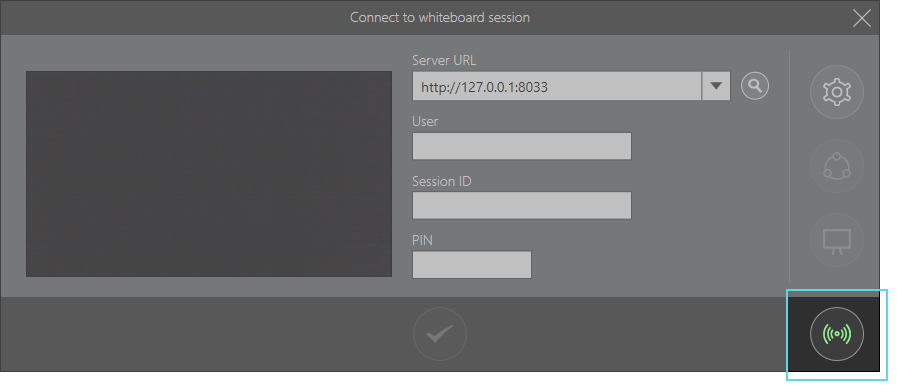
The icon turns green when ultrasonic paring is on.
When you enter the meeting room and open the Contributor app, your device connects to the whiteboard automatically.
Ultrasonic pairing is an optional feature that your IT administrator can enable during installation of SMART TeamWorks Connected edition.
Using the whiteboard toolsAfter you connect to a whiteboard session, you can use the whiteboard’s toolbar to make your own contributions.
Note
This toolbar may be disabled if the meeting’s moderator has not given you write access. See Inviting participants and moderating a SMART TeamWorks whiteboard session.

Icon | Description |
|---|---|
| Add, manage, and navigate pages in the whiteboard. See Adding and managing whiteboard pages. |
| Enter Drawing mode. |
| Enter Touch mode, where you can select and manipulate objects on the page. |
| Change the pen’s settings, such as the ink color, style, and thickness. |
| Change the whiteboard’s appearance. You can change the whiteboard color and style (lines, grid, and so on). |
| Insert a web browser object on the page. You can use the inserted web browser as you would a browser on a computer. See Inserting and using web browsers in the whiteboard. |
| Add text. Use the keyboard to type text, or if you have a microphone connected, you can use the text to speech feature. See Adding text to the whiteboard. |
| Add a sticky note to your page. |
| Open the File Manager. You can drag files from the File Manager onto the whiteboard page. See Inserting and working with files in the whiteboard. |
| Enable the lasso tool. Use this tool to select an area of digital ink to move, resize, or rotate. |
| Select an area of the whiteboard to capture in a screen shot. See Taking screen shots in the whiteboard. |
| Take a screen shot of the entire whiteboard page. See Taking screen shots in the whiteboard. |
| Record the meeting. See Recording meetings. |
| Activate voice commands. See Using voice commands. |
| Open the on-screen keyboard. |
| Start a Skype call. |
| Print the whiteboard contents. |
| Create and send a recap of the whiteboard session. See Ending a whiteboard meeting and creating recaps. |
| End the whiteboard session. See Ending a whiteboard meeting and creating recaps. |
| Minimize the whiteboard and return to the launcher. |



 Hosting your own whiteboard session (requires SMART TeamWorks Server)
If your organization has created a user account for you in the SMART TeamWorks Server web portal, you can host a whiteboard session from the Contributor app. You can start a whiteboard session from your device and other remote participants can connect to it. You don't need a physical meeting room that has SMART TeamWorks installed.
To host a session from the Contributor app, you'll need the following details from the IT administrator who manages the SMART TeamWorks server.
URL of the web portal
Your user name and password for your account on the web portal
You need to enter these credentials in the Contributor app before you can host a whiteboard session.
To enter credentials
Tap
 to open the Settings screen.
In the Service url field, enter the URL for the web portal, for example, https://webportal.smartteamworks.com.
- Enter your user name and password for your account on the web portal.
Tap Connect to return to the Connect to whiteboard session window.
After you enter your credentials, two options are enabled:
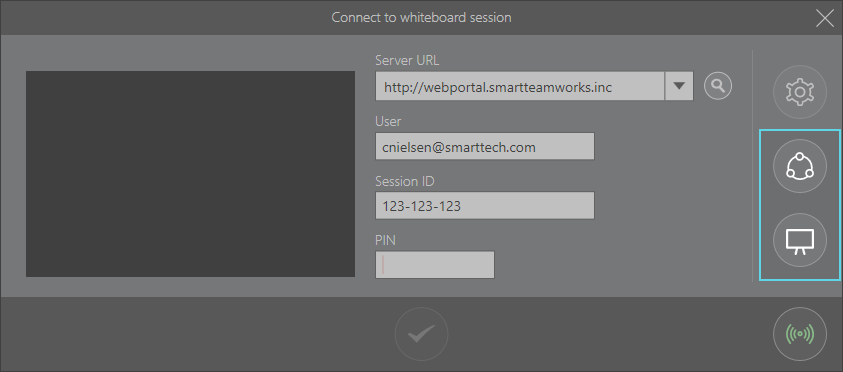
To host a whiteboard session
Click
 to open the Host Meeting window. This windows displays the meeting details that other participants use to connect to your whiteboard session.
Click Share link to invite people to join your whiteboard session.
Click Connect to meeting to start your whiteboard session.
Keywords |
|