Inserting and working with files in the whiteboard
When you add files to your page, such as images, videos, PDFs, or Word documents, they're inserted as dynamic objects. You can move, resize, or rotate them, and interact with them in a variety of other ways. Different types of object provide different options for manipulating them.
You can insert the following types of file into the whiteboard:
Notes
Some file types, such as Microsoft PowerPoint or Excel files, require that the program for that file be installed on the meeting room’s computer.
All files (except video files) are inserted as a PDF in the whiteboard page. PDF files are compatible with all devices, so when you send the files as part of a meeting recap, the recipients can open them.
 Inserting PDF or Microsoft Office files
To insert a file
In the whiteboard, tap
 to open the file manager.
Tip
Connect to your professional OneDrive account to add files:
Navigate to the file you want to insert.
Drag the file to the whiteboard page.
Tip
You can select multiple files at the same time to insert them into the whiteboard.
After a file is added to a page, you can perform additional actions on it.
Note
By default, you can insert a maximum of ten objects in a whiteboard page. To change this default, use the settings window’s Max objects per page option.
To work with file objects
If the file’s object toolbar isn’t visible, select the file to make it appear.
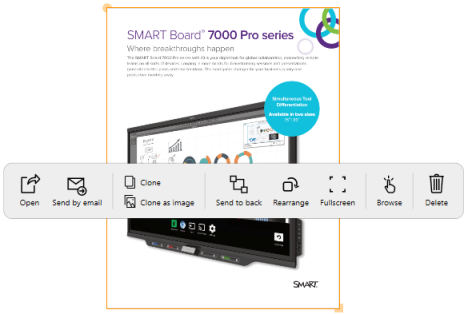
Use the following options to work with the object:
Open
Open the file in its default Windows program.
Send by email
If a default email sender is configured, this option appears to enable you to send the file via email.
Clone
Clones the file as a new file object in the whiteboard page
Clone as image
Clones the file as an image object in the whiteboard page.
Send to back
Sends the file object to the back layer of the page.
Rearrange
Rotates or resizes the file object. Use the yellow circle on the object’s border to rotate it, and use the yellow square to resize it.
Fullscreen
Expands the object to occupy the full screen. To exit fullscreen, select Move.
Browse
Opens Browse mode for browsing through the file’s pages.
Note
When in Browse mode, the object’s position and size is locked. To exit Browse mode, select [icon] then select Move.
Delete
Deletes the file from the whiteboard page.
Presenting multi-page PDF or Microsoft Office filesAfter inserting a file with multiple pages, such as a PDF or Word document, you can double tap the file object to expand it to full screen and start presenting the file. Swipe left or right to navigate through the pages, and use the SMART Board interactive display’s pens to draw or makes notes over the file. Any digital ink you add stays with the page.
Inserting imagesTo insert an image
In the whiteboard, tap
to open the File Manager.Navigate to the image you want to insert.
Drag the image to the whiteboard page.
Tip
You can select multiple images at the same time to insert them into the whiteboard.
After an image is added to a page, you can perform additional actions on it.
Note
By default, you can insert a maximum of ten objects in a whiteboard page. To change this default, use the settings window’s Max objects per page option.
To manipulate image objects
If the image’s object toolbar isn’t visible, select the image to make it appear.
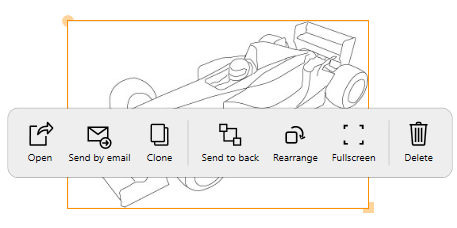
Use the following options to manipulate the object:
Open
Opens the image file in the computer’s default program for images.
Send by email
If a default email sender is configured, this option appears to enable you to send the image file via email.
Clone
Clones the image as a new image object in the whiteboard page
Send to back
Sends the image object to the back layer of the page.
Rearrange
Rotates or resizes the image. Use the yellow circle on the image’s border to rotate it, and use the yellow square to resize it.
Fullscreen
Expands the image to occupy the full screen.
Delete
Deletes the image from the whiteboard page.
Inserting videosTo insert a video
In the whiteboard, tap
to open the file manager.Navigate to the video file you want to insert.
Drag the video to the whiteboard page.
Tip
You can select multiple files at the same time to insert them into the whiteboard.
After a video is added to a page, you can perform additional actions on it.
To manipulate video objects
If the video’s object toolbar isn’t visible, select the video to show it.
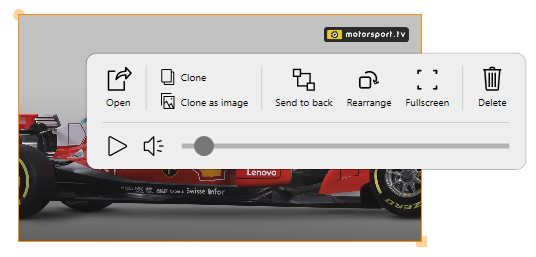
Use the following options to manipulate the video object:
Open
Opens the video file in the computer’s default program for video files.
Clone
Clones the video as a new video object in the whiteboard page.
Clone as image
Clones the video as an image object in the whiteboard page.
Send to back
Sends the video object to the back layer of the page.
Rearrange
Rotates or resizes the video object. Use the yellow circle on the object’s border to rotate it, and use the yellow square to resize it.
Fullscreen
Expands the video to occupy the full screen.
Delete
Deletes the video from the whiteboard page.
Keywords |
|