 A newer version of this software is available. Learn more
Inserting and using web browsers in the whiteboard
To insert web browsers
In the whiteboard, tap
 to insert the web browser in the page.
Note
By default, you can insert a maximum of two browsers in the same whiteboard page. To change this default, use the settings window’s Max browser per page option.
In the web browser’s navigation bar, type the address of the website you want to visit.
Interact with the browser object just as you would a normal browser, or use the object’s toolbar to perform different actions.
To work with web browsers in the whiteboard
If the object’s toolbar isn’t visible, select the object to make it appear.
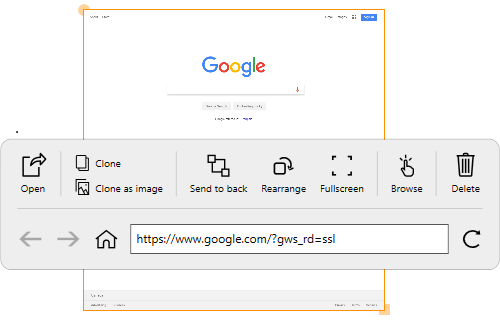
Use the following options to manipulate the browser object:
Open
Opens the default browser application in a new window.
Clone
Clones the browser as a new browser object in the whiteboard page.
Clone as image
Clones the browser as an image and inserts it in the whiteboard page.
Send to back
Sends the browser to the back layer of the page.
Rearrange
Rotates or resizes the browser. Use the yellow circle on the object’s border to rotate, and use the yellow square to resize.
Fullscreen
Expands the browser to occupy the full screen. To exit fullscreen, select Move.
Browse
Enters Browse mode.
Note
When in Browse mode, the object’s position and size is locked. To exit Browse mode, select [icon] then select Move.
Delete
Select to delete the browser.
Keywords |
|