Inviting participants and moderating a SMART TeamWorks whiteboard session
SMART TeamWorks Connected edition only
Remote and in-room participants can use the SMART TeamWorks Contributor apps to connect to your whiteboard session and start collaborating using their own devices. Once participants have connected to the whiteboard, you, as the meeting organizer, can change their participation access to read only or full access.
Important
Participants must be on the same network as the meeting room computer to connect to the whiteboard session. However, if your organization has SMART TeamWorks Server, this limitation does not apply.
 Starting a whiteboard session
Before participants can join, you need to start your whiteboard session. Depending on what edition of SMART TeamWorks your organization has, and if SMART TeamWorks Server is installed/configured or not, the process for starting meetings is slightly different.
Edition | How to start |
|---|---|
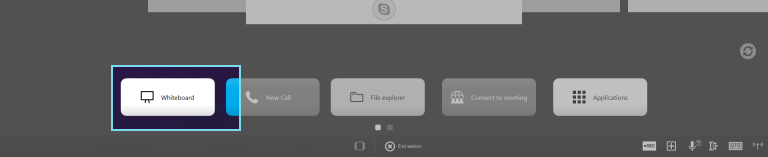
Room or Connected (no Server) | Tap the whiteboard button from the launcher.
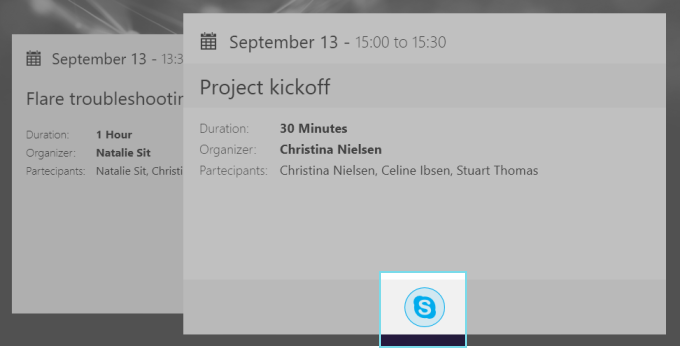
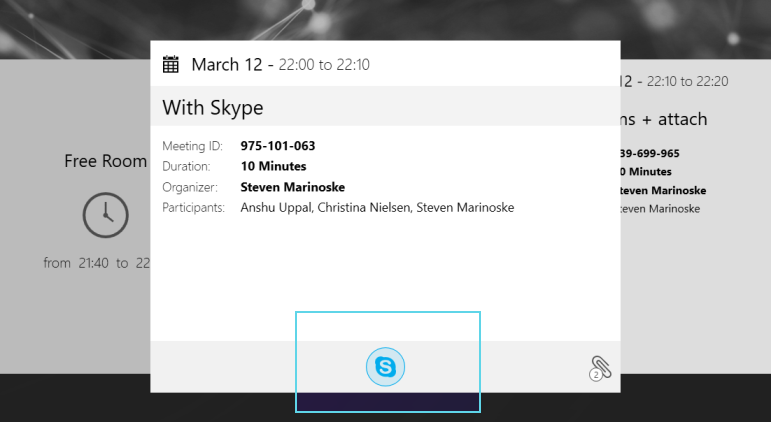
Note If a web conferencing application was added to a scheduled meeting, start it using the button in the calendar tile, then tap the whiteboard button to launch a whiteboard session.
|
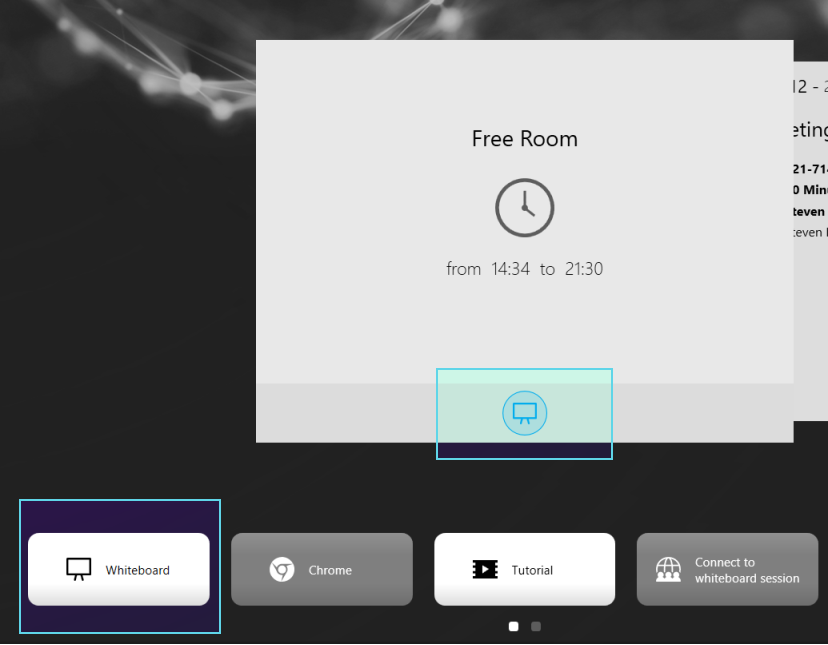
Connected with Server | To start an ad-hoc meeting
To start a scheduled whiteboard meeting
|
 Helping in-room and remote participants connect to your whiteboard session
Participants will use the SMART TeamWorks Contributor apps to connect to your session. For specific instructions of how to use each app to connect, click the following links:
To open the QR code for in-room participants
 to open the meeting information window which provides the QR code and information participants need to connect.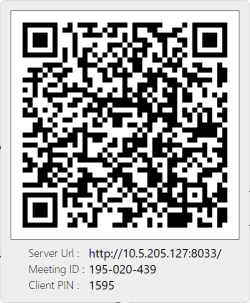
 will change to Inviting participants to join your whiteboard session (Server only)
After you’ve started your whiteboard session, you can quickly invite participants to join your session.
Note
This feature is only available if your organization has SMART TeamWorks Server installed.
To invite participants to join your whiteboard session
In the whiteboard and tap
 to open the Host Meeting dialog box.
Enter the email for the person you want to invite and tap
 , then tap Invite to meeting to send an email invite for your whiteboard session.
OR
Tap Copy link to save the link to the computer’s clipboard. You can then paste the link in an email or chat window for participants to use to join your whiteboard session.
Important
To connect, participants must have the SMART TeamWorks Contributor app downloaded on their device.
Managing participantsControl what access participants have when they connect to the whiteboard session using the SMART TeamWorks app on their own devices. The two types of access are:
Write: Enables multi-way collaboration where the participant sees the whiteboard on their device and can interact with it. They can add content, notes, make annotations, take screen caps, and do anything from the SMART TeamWorks app’s whiteboard that can be done on the meeting room’s SMART TeamWorks whiteboard.
Read: Participants can only view the whiteboard but do not have the ability to add anything. Their whiteboard’s toolbar will be grayed out.
The participant manager will indicate which person has which access.
 : This person has write access
[Blank]: This person has read access
 : This is indicates the session’s organizer.
To change participant access type
In the whiteboard’s toolbar, tap
 to open the participant manager.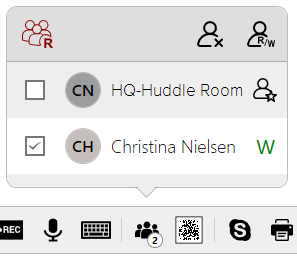
To change all participant’s access to read or write, tap the top-left icon.
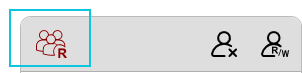
OR
Select the check box for the participant(s) whose access you want to change and tap the top-right icon.
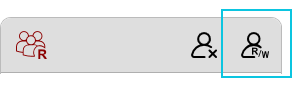
Note
These icons may appear differently depending on the current access permissions of the participants that are selected.
To remove a participant from the whiteboard session
In the whiteboard’s toolbar, tap
to open the participant manager.Select the check box for the participant(s) that you want to remove and tap the remove participant icon.
Keywords |
|