Adding text to the whiteboard
 Adding text
Use the Text button  in the whiteboard’s toolbar to add text to the page. You can add text using a keyboard or by using the voice to text feature. After you've added text to a page, it becomes a text object that you can manipulate in a number of ways. See Moving, resizing, rotating, and locking objects in SMART TeamWorks.
You can also write in digital ink, then convert the ink to text.
To add text
On the whiteboard toolbar, tap
to add a text object to the page.Note
By default, you can insert a maximum of ten objects in a whiteboard page. To change this default, use the settings window’s Max objects per page option.
Tap within the text object box to make the onscreen keyboard appear, and then type the text.
OR
Tap Speech to text and start speaking. SMART TeamWorks converts your speech to text on the page.
Note
Windows may prompt you for permission to use the microphone for this feature.
To convert ink to text
Write your text in digital ink.
Tap
 and draw a circle around the ink you want to convert to text.
From the object toolbar that appears, tap To Text.
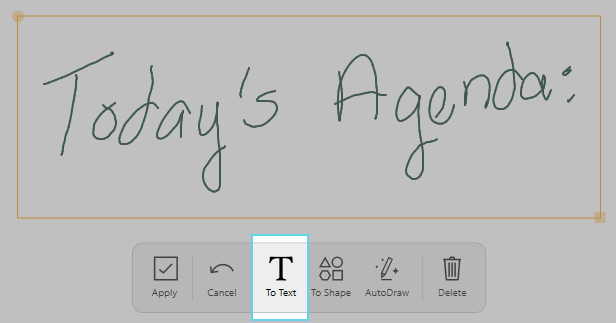
The ink is converted to text.
Tip
Tap Edit to make changes to the text after it’s been converted.

Manipulating text objectsAfter you've added a text object to a page, you can perform a number of actions on it:
Open the text in Notepad
Clone the text
Send the object to the back layer
Rotate and resize the text
Expand the text to full screen
Change the text's appearance
Edit the text
Delete the text
To manipulate text objects
If the text object toolbar isn’t visible, select the text object to make it appear.
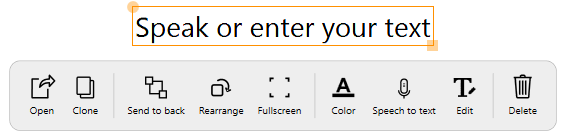
Use these options to manipulate the text object:
Open
Opens the text in Windows’ Notepad application.
Clone
Duplicates the object.
Send to back
Makes the object appear under the other objects on the whiteboard page.
Rearrange
Rotates or resizes the text. Use the yellow circle on the text object’s border to rotate, and use the yellow square to resize.
Fullscreen
Expands the object to full screen.
Color
Changes the text color.
Speech to text
Allows you to dictate to the whiteboard, and SMART TeamWorks converts your speech to text.
Edit
Allows you to edit the text.
Delete
Deletes the object.
Keywords |
|