About the display
The SMART Board GX Zero series gives you everything you need to get started with interactivity.
Tap a feature’s label in the diagram below to learn more about the feature:
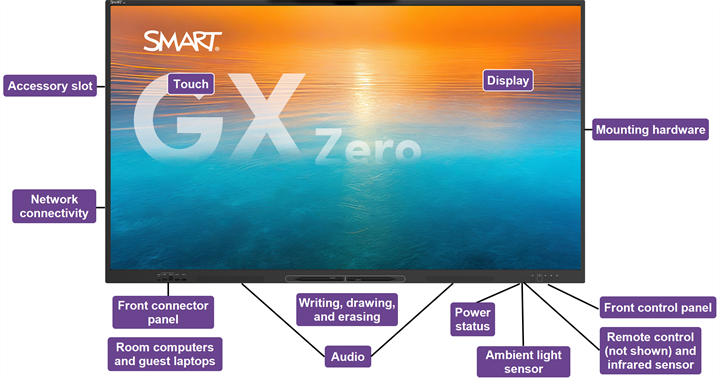
The display includes a comprehensive set of features and components.
 Touch
TouchYou can connect room computers and guest laptops to the display to view and interact with them. Do everything on the display that you can do on your connected computer—open and close applications, meet with others, create new documents or edit existing ones, visit websites, play and manipulate videos, and so on—by touching the display’s surface.
You can use an array of gestures within applications, including panning, scaling, rotating, and zooming in and out.
SeeUsing touch
DisplayThe 4K ultra-high-definition LED display provides optimal image clarity and wide viewing angles.
The display comes in three sizes: 65" | 75" | 86"
Caution
Prolonged focus on a fixed object, such as a display's screen, can contribute to eye strain and headaches. To protect eye health, follow the 20-20-20 rule: after 20 minutes of screen time, spend 20 seconds looking at something 20 feet (6 meters) away. Relaxing the eyes, looking around frequently, and blinking will also help prevent eye strain and fatigue.
Mounting hardwareYou can use VESA compliant wall mounts, such as SMART’s WM-SBID-200 wall mount (not included), to mount the display on a wall.
You can also mount the display on a SMART mobile stand.
SeeStands
Front control panelThe front control panel provides buttons for turning the display on and off, controlling the volume, freezing the screen, and displaying the Home screen.
Remote control and infrared sensorThe display’s infrared sensor is located in the control panel in the bottom-right corner of the display’s frame.
You can use the remote control to turn the display on and off, adjust input settings, and so on.
Ambient light sensorThe ambient light sensor is located in the bottom-right corner of the display’s frame. The sensor detects the brightness of the room and adjusts the screen’s brightness accordingly.
To enable or disable this feature, go to Input Advanced settingsScreenAutoLight (see Advanced settings).
Note
The ambient light sensor is disabled by default.
Power statusThe power status indicator light is located in the Power button in bottom-right of the display’s frame.
Writing, drawing, and erasingThe display comes with two pens you can use to write or draw on the screen from a connected computer.
With Object Awareness 1, the display responds automatically to the tool or object you’re using, whether it’s a pen, finger, or palm.
Network connectivityYou can connect the display to a network using an Ethernet cable. The display’s network connection is then shared internally with an OPS PC, if installed in the display’s accessory slot.
The two RJ45 jacks allow you to connect the display and an external device, such as a computer, to an Ethernet network.
AudioThe display includes two 20 W integrated speakers.
Front connector panelThe front connector panel includes connectors for USB peripherals and a computer or other input.
Room computers and guest laptopsYou can connect room computers and guest laptops to the display and view and interact with them.
The display comes with SMART software that you can install on connected computers to take full advantage of the display’s features.
Accessory slotYou can install an OPS-compatible device, such as a SMART OPS appliance, in the OPS accessory slot.
SeeOPS appliances
Caution
The accessory slot’s maximum available power is 90 W. The slot is not a limited power source. To reduce the risk of fire, make sure that accessories connecting to the slot satisfy the fire enclosure requirements of IEC 62368-1.