Connecting room computers and guest laptops
You can connect room computers and guest laptops to the display to view and interact with them.
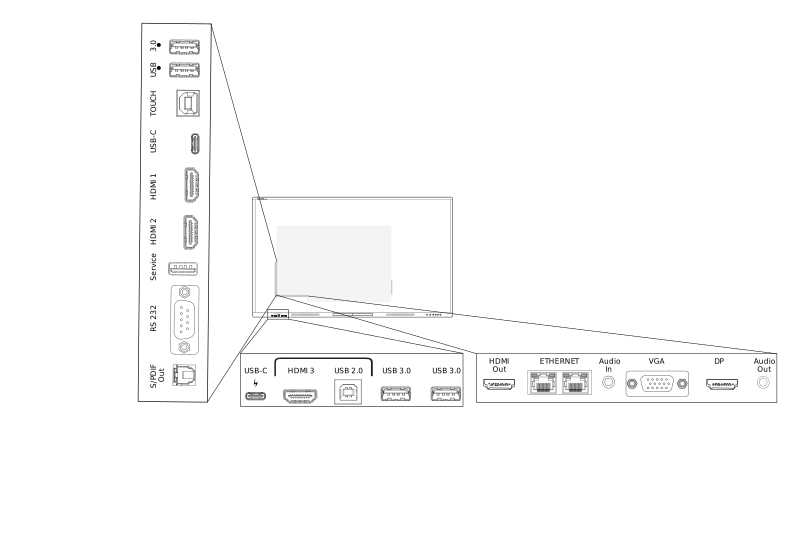
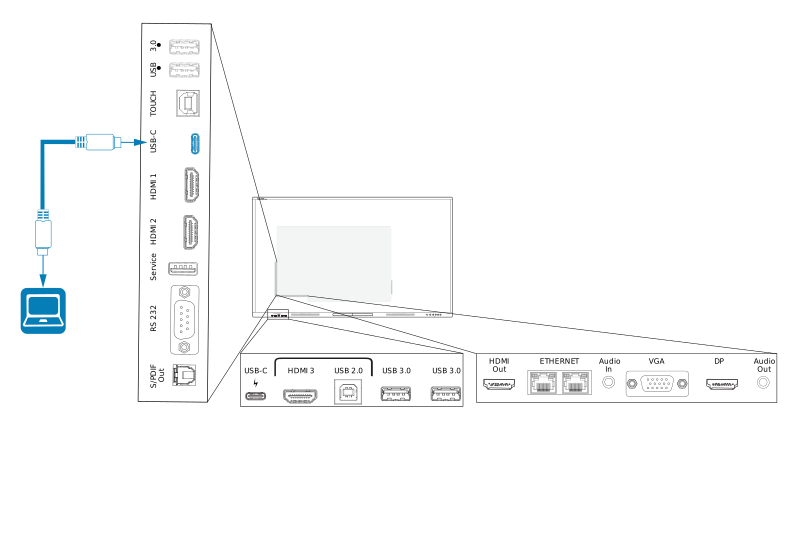
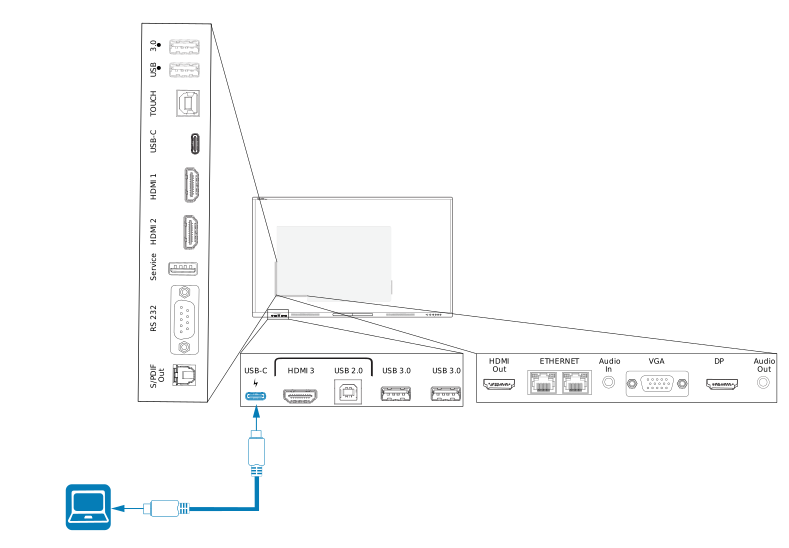
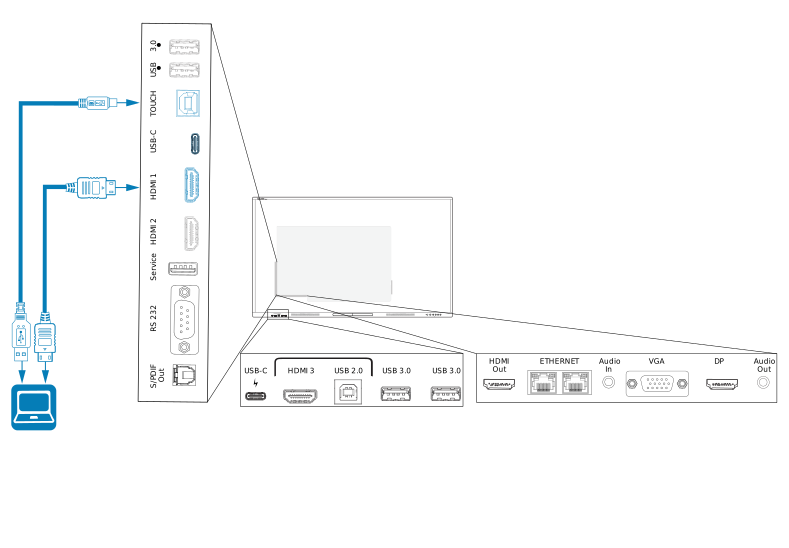
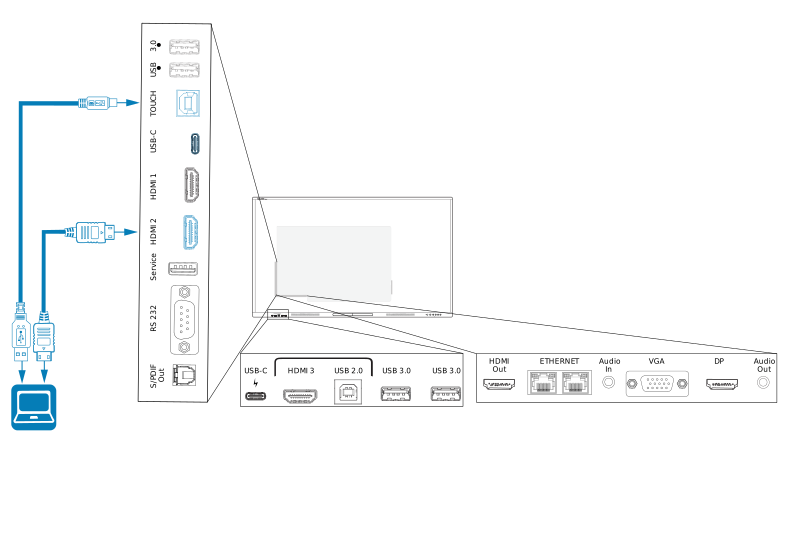
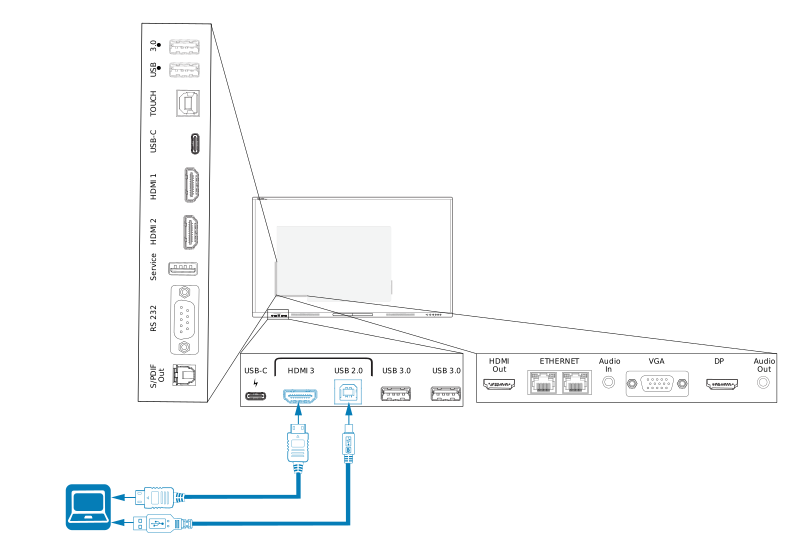
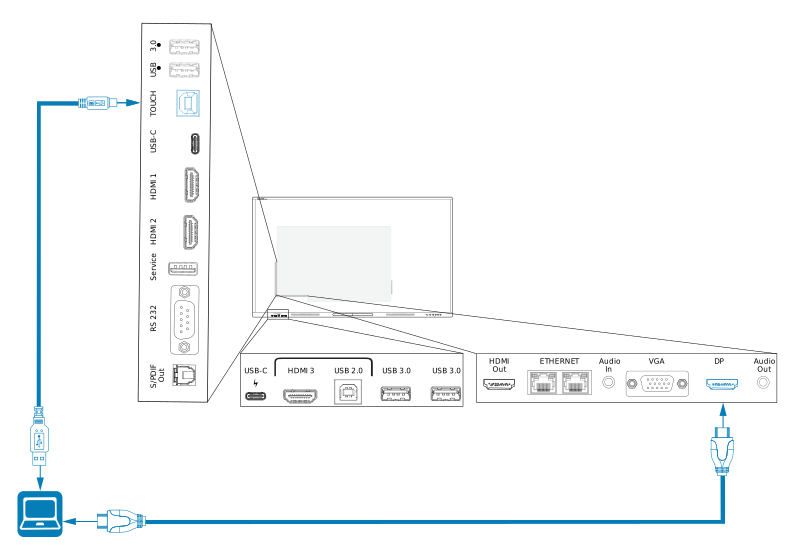
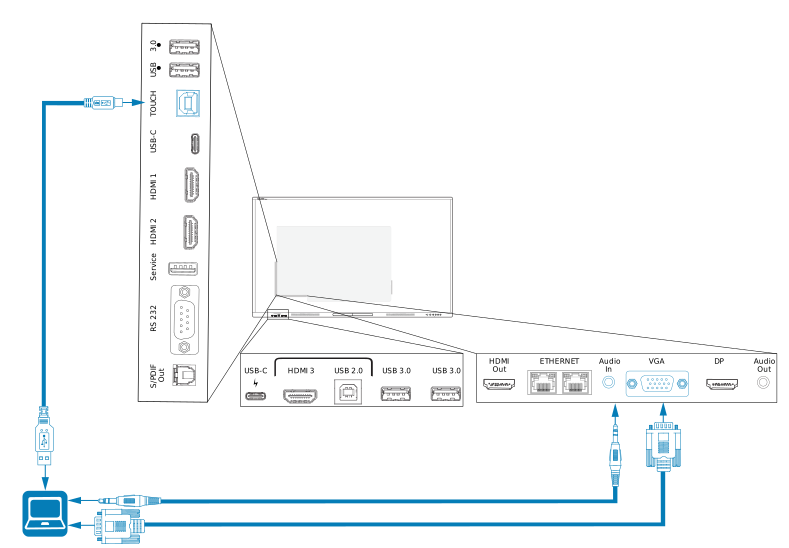
Tap the buttons below to see the locations of the connectors and the connector and cable information for the display’s input sources:
Warning
Ensure that any cables that cross the floor to the display are properly bundled and marked to avoid a trip hazard.
Caution
You must connect the USB cable that came with the display to a computer that has a USB compliant interface and that bears the USB logo. In addition, the USB source computer must be compliant with IEC 62368‑1. The source computer must be CE marked and carry safety certification marks for Canada and USA. This is for operating safety and to avoid damage to the display.
Notes
Install SMART software on computers you connect to the display.
Your organization’s installers might have connected cables to the display and run the cables behind a wall or under the floor to a desk or table where you can place your computer.
As shown above, HDMI 1, HDMI 2, VGA, and Display Port share the Touch USB Type-B receptacle on the side connector panel, and HDMI 3 uses the Touch USB Type-B receptacle on the front connector panel.
The USB Type-C connector on the front connector panel provides up to 15 W of power for charging connected devices.
 Viewing a connected computer or other device’s input
Connect a device to the display’s HDMI 1, HDMI 2, HDMI 3, USB Type-C 1, USB Type-C 2, Display Port, or VGA connectors.
Note
To enable touch control of the device, connect a USB cable to the associated USB connector. Devices connected to the USB Type-C connector don’t require an additional USB connection to enable touch.
Select the source using one of the following methods:
Using the Input settings menu
Using the remote control
Open the Toolbar by tapping one of the side Toolbar buttons
 (on either sides of the screen).
Tap the Input icon
 .
.
Press the Input button
.Note
A green circle
 appears around the currently selected input (PC, HDMI1, HDMI2, HDMI3, USB Type-C1, USB Type-C2, Display Port, or VGA). Inputs with a connected source have a green dot beside the input name, rather than a gray dot. The input name also appears in green text rather than gray when an input is connected.
Tap the computer’s input or use the navigation keys on the remote control to select the source and then press the OK button.
The device’s output appears on the display’s screen.
Setting a connected computer’s resolution and refresh rateThis table presents the recommend resolutions and refresh rates for the display’s inputs:
Input | Maximum resolution | Refresh rate |
|---|---|---|
USB Type-C, Display Port Alternate Mode | 3840 × 2160 | 60 Hz |
3840 × 2160 | 60 Hz | |
HDMI 2 | 3840 × 2160 | 60 Hz |
HDMI 3 | 3840 × 2160 | 60 Hz |
1920 × 1080 2 | 60 Hz | |
Display Port | 3840 × 2160 | 60 Hz |
PC 3 | 3840 × 2160 | 60 Hz |
If possible, set connected computers to these resolutions and refresh rates. See the computers’ operating system documentation for instructions.
Using recommended cablesSMART recommends the following varieties of cable:
Cable type | Maximum length | Recommendation |
|---|---|---|
Display Port | Use only certified Display Port 1.4 cables that have been tested to support the performance standard you require. | |
HDMI | Use only certified Premium High-Speed HDMI (18 Gpbs) cables that have been tested to support the performance standard you require. | |
VGA | Use VGA cables with all pins in their connectors fully populated and wired. | |
Stereo 3.5 mm | Use only shielded 3.5 mm cables Important Use only a 3.5 mm stereo jack (15 mm long barrel) to connect to the display. | |
USB 2.0 | Use a Hi-Speed (480 Mbps) USB 2.0 USB extender if the distance between the computer and the display is greater than SeeUSB extenders | |
USB 3.0 | SMART supports only installations that use directly connected video and USB cables, or AC‑powered extenders. You might be able to use higher-grade cables that exceed the recommended length. If you have problems with such a cable or an extender of any type, test the connection with a shorter cable before contacting SMART Support. | |
USB Type-C | USB-IF certified USB 3.2 Gen 1 Type-C cable, SuperSpeed (5 Gbps) support To use a USB Type-C cable for video, you need:
Note The USB Type-C connector in the display’s front connector panel can supply up to 15 W of power to connected devices. |
Using cables that exceed these maximum lengths may produce unexpected results, intermittent loss of picture, or degraded picture quality and USB connectivity.
Sharing USB Type-B receptaclesThe HDMI, VGA, and Display Port connectors on the rear connector panels (back of the display) all share a single USB Type-B receptacle on the rear, side panel. This means the touch system can be used with only one device connected to these video inputs.
The touch system can still be used with a device connected to USB Type-B receptacle even when one of the video connectors is connected to another display.
| USB Type-B receptacle | Video connectors |
|---|---|
| Touch |
|
Connecting USB drives, peripherals, and other devicesYou can use USB drives, peripherals, and other devices with a computer connected to the display using the USB receptacles on the display.