Connecting other devices
In addition to computers, you can connect a variety of other devices to the display:
USB drives and other peripherals
External displays
Room control systems
Warning
Ensure that any cables that cross the floor to the display are properly bundled and marked to avoid a trip hazard.
 Connecting USB drives and other peripherals
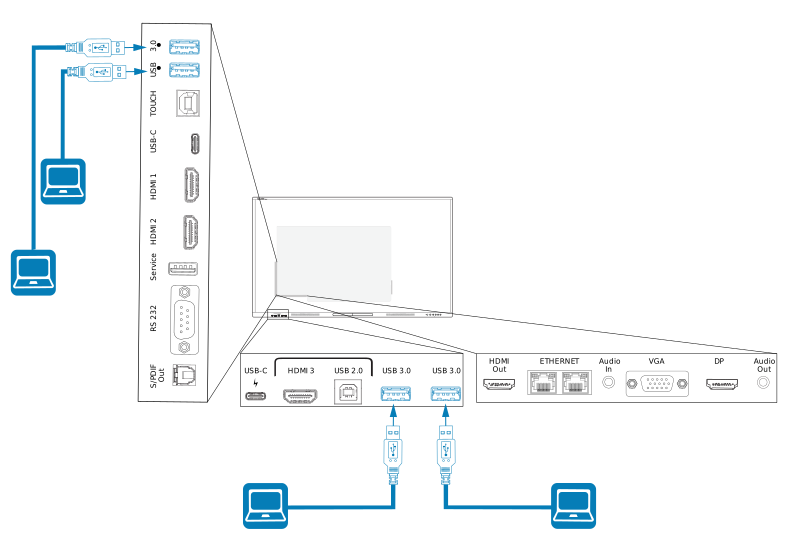
The display includes two USB 3.2 Gen 1 Type-A receptacles on the front connector panel and two more on the side connector panel. You can connect USB drives, peripherals (such as keyboards), and other devices to the USB 3.2 Gen 1 Type-A receptacles and use these devices with the display’s embedded OS or OPS slot computer. The display’s USB 3.2 Gen 1 Type-A receptacles will switch to the active input.
 Connecting an external display
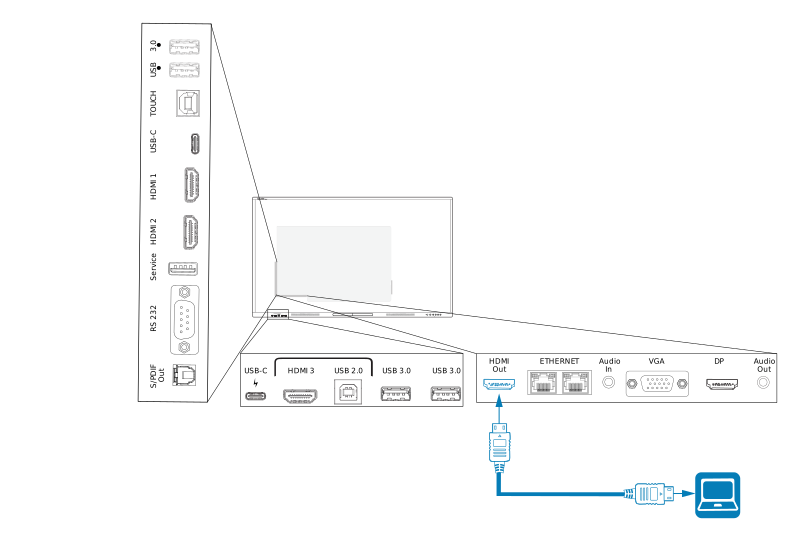
You can connect an external display using the HDMI 2.0 out connector on the connector panel.
The external display shows the same image as the display. This is useful when you’re using the display in an auditorium or other large space where a second display would be beneficial.
Important
If the connected external display doesn’t support High-bandwidth Digital Content Protection (HDCP), no image will appear on the external display. For full resolution output, connect a display that supports HDCP.
Connecting an external audio systemThe display includes two 20 W speakers, which are designed to provide sound at the front of a room. You might want to connect a third-party external audio system if you’re providing sound in a larger space.
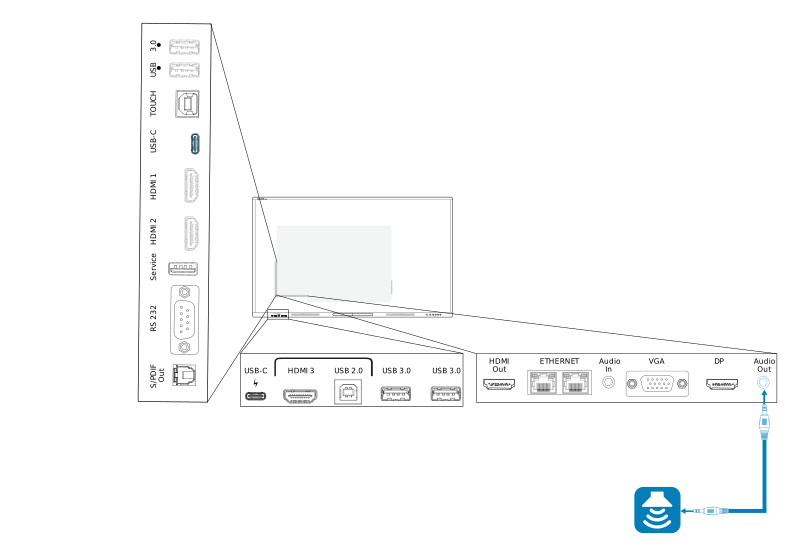
You can connect an external audio system to the display using the stereo 3.5 mm Out connector (pictured). You can also connect an external audio system directly to a room computer.
Important
Use a 3.5 mm stereo jack (15 mm long barrel only) to connect to the display’s stereo 3.5 mm Out connector.
Note
You can use the display’s volume controls to adjust the volume of an audio system connected to the display’s stereo 3.5 mm Out connector.
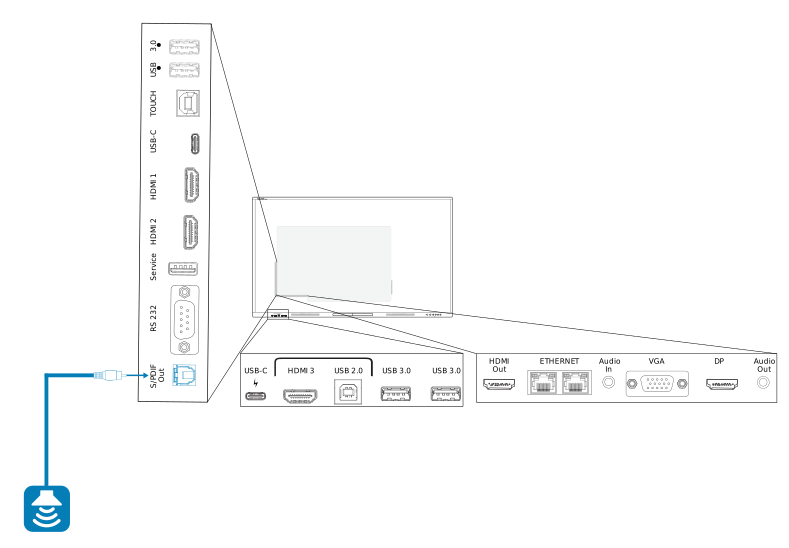
In addition to the stereo 3.5 mm Out connector, the display also provides a Sony/Philips Digital Interface (S/PDIF) Out connector (pictured). S/PDIF is a digital audio transmission medium. You need an audio receiver that supports S/PDIF to use this connection with an external sound bar or other audio system.
Note
When you connect an audio system to the display’s S/PDIF Out connector, the audio system’s volume controls, rather than the display’s, adjust the volume.
Connecting room control systemsA room control system enables users to control a room’s lighting, audio system, and possibly, the display. Some installations may require you to integrate the display with a room control system.
You can use the display’s RS-232 connector to connect a third-party external control system to the display.
Note
Displays are not compatible with centralized remote control systems, such as a universal remote control.