Accessories
A variety of accessories are available for the display:
OPS appliances
SMART wall mount (WM-SBID-200) for SMART Board displays
Stands
USB extenders
See alsosmarttech.com/accessories
 OPS appliances
The display includes an OPS accessory slot in which your organization can install a SMART OPS appliance:
SeeSMART OPS PC
Caution
The accessory slot’s maximum available power is 90 W. The slot is not a limited power source. To reduce the risk of fire, make sure that accessories connecting to the slot satisfy the fire enclosure requirements of IEC 62368-1.
Only SMART-provided OPS appliances are supported in SMART Board interactive displays. Third-party OPS appliances are not supported, and their use can lead to poor performance or damage to the display.
Do not install or remove the+ OPS appliance while the display is turned on. First make sure the power switch on the back of the display beside the AC power inlet is in the OFF (O) position. If you can’t reach the power switch, use the front control panel’s power button
 to put the display in Standby mode, and then unplug the display’s power cable from the power outlet.
After you have turned the display’s power switch off or unplugged it, wait at least 30 seconds before removing the appliance to allow its internal power supplies to discharge completely. You might also wait five minutes to give the appliance the opportunity to cool, if necessary.
Make sure the OPS appliance is secured to the display with screws through the two anchor points. Inadequately secured appliances can damage the display. (An OPS appliance’s anchoring screws are typically captive, although some simply include separate anchoring screws.)
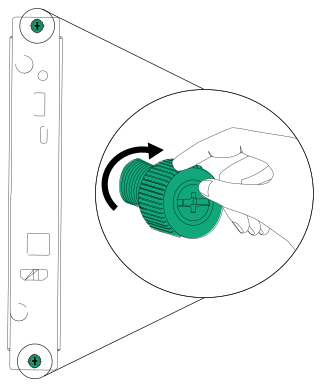
SeeOPS appliances
StandsIf you want to move the display from place to place, you can install it on a SMART mobile stand. If you are installing the display on a wall that cannot support the display’s full weight, you can install the display on a SMART floor stand.
Notes
If you want to use the 75" and 86" models (GX075-V3 and GX086-V3) with one of SMART’s electric height-adjustable stands, you must first attach a SMART wall mount (model WM-SBID-200, part #1031766, docs.smarttech.com/kb/171405) to the display before mounting the display to the stand. (This applies to the FSE-400, FSE-410, and FSE-420 models of mobile stand and the WSE-400 and WSE-410 models of wall stand).
For users in Australia and New Zealand: SMART does not provide stands for use in Australia and New Zealand, nor can we provide recommendations for stands from other vendors.
USB extendersAs noted in the display’s specifications, the USB connection between the display and computer should be no longer than
Extender | Specifications |
|---|---|
USB-XT |
See alsoExtending USB cables