SMART TeamWorks Contributor for iOS
Use the SMART TeamWorks Contributor app to collaborate in a meeting, whether you’re in the same room, across the country, or around the globe. The Contributor app lets you connect and contribute to a whiteboard session from your own device.
Note
This app is not available for use with SMART TeamWorks Room edition.
 Downloading the app
Before you download the app, make sure your iOS device is running iOS 11.3 or later.
To download the SMART TeamWorks Contributor app
Visit Downloads.
Select the Contributor app for your computer or devices' operating system: Windows, iOS, or Android.
Download the Contributor app.
Updating your display name and settingsWhen you connect your device to a whiteboard, the SMART TeamWorks app requires a display name and email. These details let the meeting’s organizer know who’s connected to the meeting. You can change or update these details at any time in the app’s settings.
To update the app’s settings
Tap
 to open the Settings screen.
Under User, enter a display name and your email address.
To use ultrasonic pairing for connecting to whiteboard sessions, turn on Ultrasonic Pairing.
Your changes are automatically saved.
Tap Done to return to the Home screen.
Connecting to a whiteboard sessionYou can connect to a whiteboard session by using a direct link provided by the meeting organizer or by using the options in the SMART TeamWorks Contributor app. You can also use ultrasonic pairing if you’re in the meeting room and ultrasonic pairing has been turned on.
Important
If you are using TeamWorks Connected edition, you must be on the same network as the meeting room computer to connect to the whiteboard session. However, if your organization has SMART TeamWorks Server, this limitation does not apply.
To connect to a whiteboard session using a link
If you receive a direct link for joining the whiteboard session from the meeting’s organizer or in an email, you can click the link from your device to open the SMART TeamWorks Contributor app and join the whiteboard session.
Note
If Chrome is the default browser on your iOS device, clicking a shared link for a SMART TeamWorks whiteboard session won't launch the Contributor app automatically. You can use one of the connection methods described below.
To connect to a whiteboard session using the app
From the home screen, tap Join a meeting.
Choose one of the following methods:
Option
Description
Scan QR code
Use this option when you are in the meeting room and you can see the SMART TeamWorks whiteboard on the meeting room’s interactive display.
Note
If the QR code isn’t visible, tap
 on the whiteboard’s toolbar to display it. See Inviting participants and moderating a SMART TeamWorks whiteboard session.
Manual setup
Use Manual setup if scanning the whiteboard’s QR code isn't an option. Enter the URL, Session ID, and PIN. The meeting organizer can provide these details.
To connect to a whiteboard session with ultrasonic paring
Ultrasonic pairing uses ultra-high frequency sound to transfer the credentials you need to connect to a whiteboard session. When ultrasonic pairing is turned on, devices with the SMART TeamWorks Contributor app installed can join a whiteboard session automatically. The feature also allows a meeting room with SMART TeamWorks Connected edition to join a session hosted on the SMART TeamWorks Contributor app.
To enable ultrasonic pairing in your SMART TeamWorks Contributor app, follow these steps:
From the home screen, tap
to open the Settings screen.Locate the Ultrasonic Pairing option and turn it on.
When you enter the meeting room, open the app and tap Join Session. Your device automatically connects to the whiteboard that is broadcasting the ultrasonic signal.
Ultrasonic pairing is an optional feature that your IT administrator can enable during installation of SMART TeamWorks Connected edition.
Using the whiteboardAfter you connect to a whiteboard session, the meeting’s organizer gives you write access for the whiteboard session.
Once you have write access, you can use the SMART TeamWorks app for iOS to:
Write or draw
Select, move, resize, and rotate objects
Zoom in and out
Add images, files, text, or sticky notes to the page
Attach files to the session’s File Manager
Take screen shots
- Change the whiteboard page’s background
Most of changes you make are visible to everyone who's also connected to that whiteboard, and you can see their changes as well.
To write or draw
Tap the mode selection toolbar in the bottom-left corner of the screen.
Tap
 to turn on Drawing mode.
Use your finger or a touch tool to write or draw on the whiteboard page.
To select, move, resize, and rotate objects
Tap the mode selection toolbar located in the bottom-left corner of the screen.
Tap
 to turn on Select mode.
Tap an object to select it. After it’s selected, use one of the following gestures:
Action Gesture Move
With one finger, press and drag the object.
Resize
With two fingers, pinch in or out to make the object smaller or bigger.
Rotate
With two fingers, twist the object left or right.
Tip
Selecting an object also shows the object’s toolbar with a list of available functions for that object. Common functions include writing or drawing on the object, changing the object's layer order, or making a copy of it. See To use the object toolbars to learn more about some of the common tools available for objects.
To zoom in and out
Tap the mode selection toolbar in the bottom-left corner of the screen.
Tap
 to turn on Zoom mode.
Use two fingers to zoom in or out of the whiteboard page. Your zooming actions are not visible to other whiteboard participants.
To add images, files, text, or sticky notes
Tap
 .
.Select one of the following:
Option Description Take a photo or video Use your device’s camera to take a photo or video and insert it in the whiteboard page.
Add from Photos Add a photo from your device’s camera roll.
Add from Files Add a PDF or image file from your device’s saved files.
Note
Only PDFs and image files are currently supported.
Add Text
Add text to the whiteboard page. When you select this option, your device's onscreen keyboard appears. Type your text and tap Done when you are finished typing your message.
Add Note
Add a sticky note to the whiteboard page. Once added, select the note and tap
 to enter edit mode.
The file is added to the whiteboard page.
To take screen shots
Tap
 .
.Select one of the following:
Option Description Screenshot Canvas
Take a screen shot of the entire whiteboard page.
Screenshot selection
Select an area to capture. The screen shot is saved in the
 File Manager.
To upload a file to the File Manager
Tap
to open the File Manager.Tap one of the following options:
Add from Files: Select and add a document saved in your device’s Files folder.
Add from Photos: Select and add a photo from your device's camera roll.
Camera: Take a photo and add it.
After the file is uploaded, the session participants can access your uploaded file in the whiteboard session’s File Manager.
To add a document or screen shot from the File Manager to the whiteboard
Tap
to view a list of files attached to the whiteboard session. These can be files the meeting’s organizer has attached in the meeting invitation or files other participants have added while connected to the whiteboard session.To insert a file from the File Manager into the whiteboard page, scroll to the file and tap it.
To change the whiteboard page’s background
Tap
.Tap Change Canvas Color.
Select the background you want to use. The change is applied automatically.
This table describes the tools available when you select an object in the whiteboard.
Icon
Description

Enter Browse mode for the selected object. This expands the object to full screen and lets you interact with it.
Enter Ink mode. Select a pen style, color, and thickness then draw over the object.

Bring the selected object to the front layer on the whiteboard page.

Send the selected object to the back layer on the whiteboard page.

Delete the selected object.
Creating a recap and viewing previously saved recapsYou can create a recap of the whiteboard. Recaps include snapshots of each whiteboard page in the session.
To create recap
Tap
 in the top-left corner of the screen.
OR
Tap
and tap Print.Tap Save.
Type a name for the recap and tap Save.
To view previously saved recaps
From the Home screen, tap
 to view a list of saved recaps.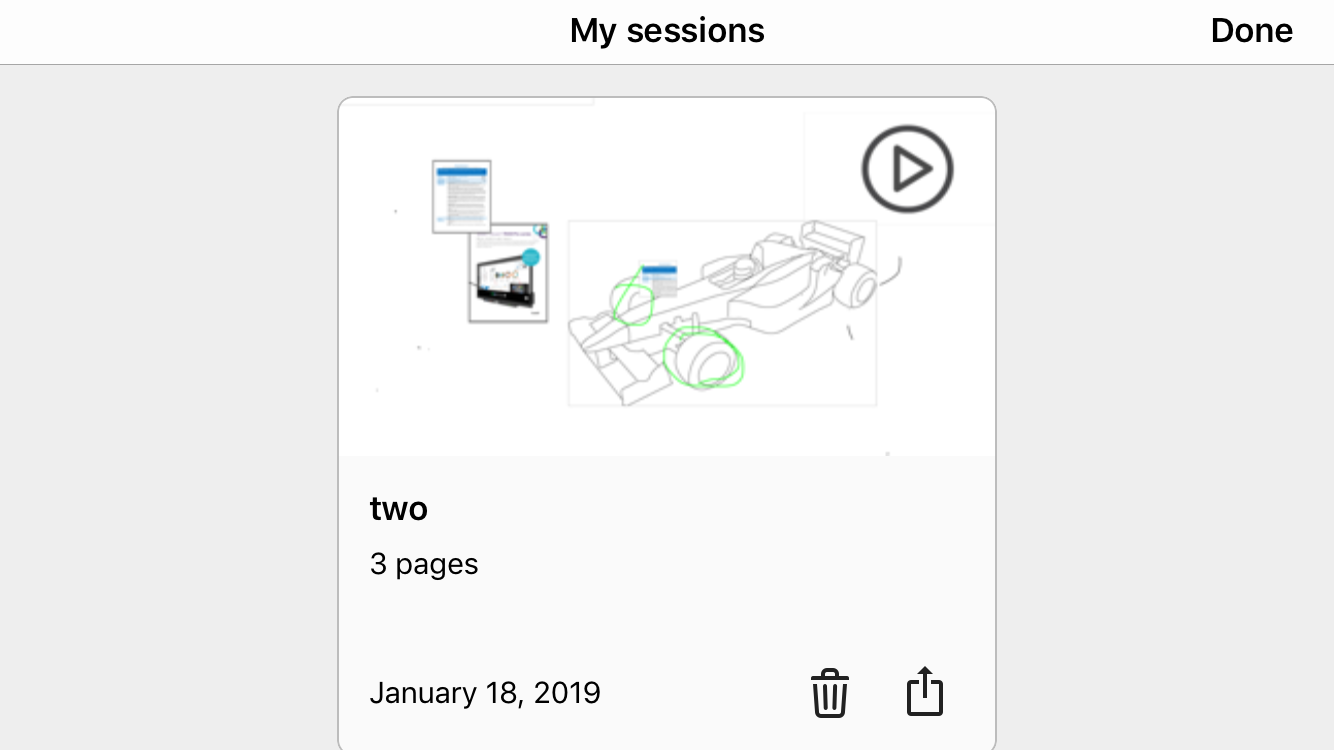
Tap the recap you want to view.
Hosting your own whiteboard session (requires SMART TeamWorks Server)If your organization has created a user account for you in the SMART TeamWorks Server web portal, you can host a whiteboard session from the Contributor app. You can start a whiteboard session from your device and other remote participants can connect to it. You don't need a physical meeting room that has SMART TeamWorks installed.
To host a session from the Contributor app, you'll need the following details from the IT administrator who manages the SMART TeamWorks server.
URL of the web portal
Your user name and password for your account on the web portal
To host a whiteboard session
From the Home screen, tap Host a session.
Enter the URL, user name, and password provided by the IT administrator.
Tap Sign in.
Keywords |
|