The Command History view
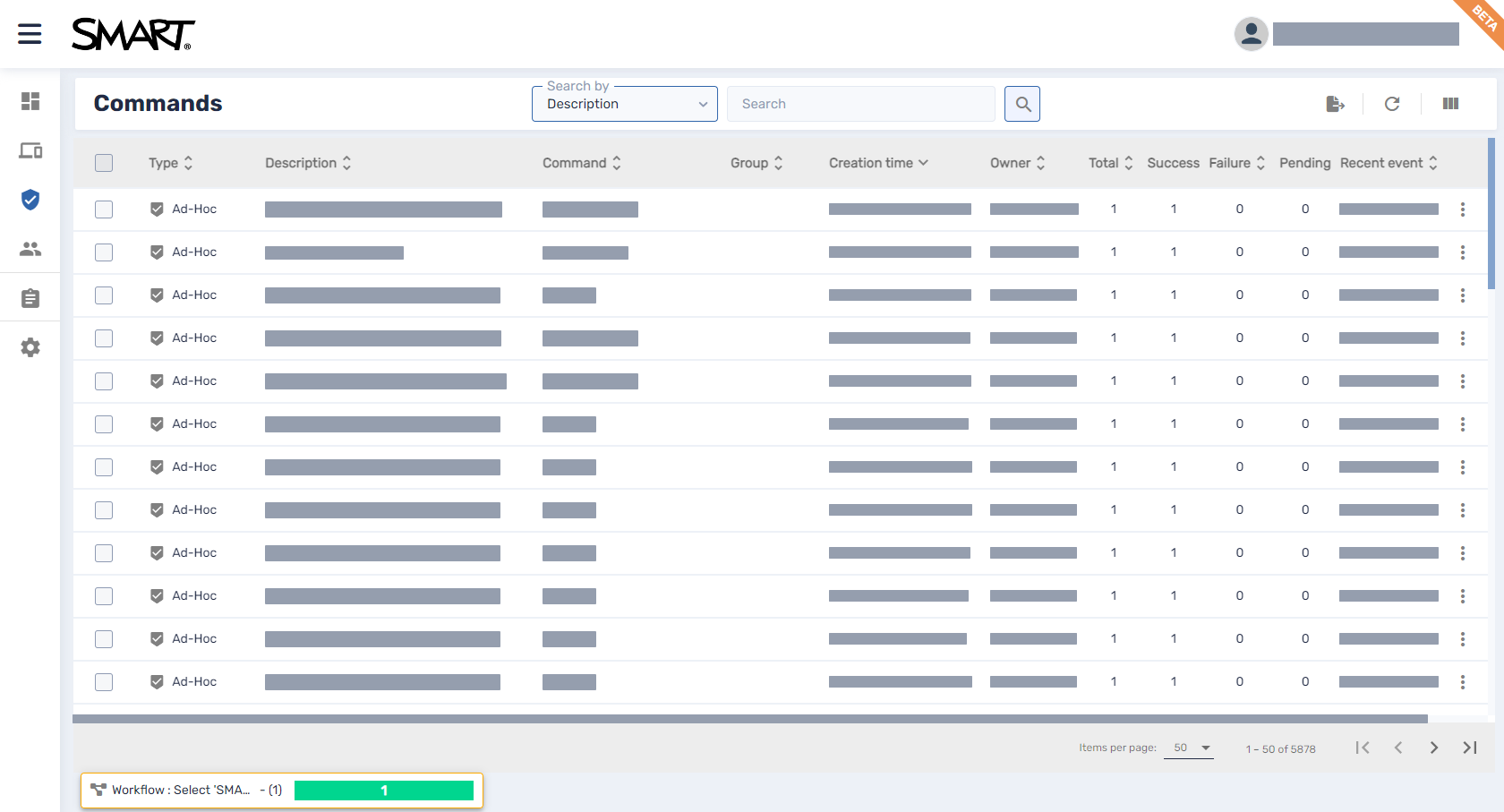
The Command History view provides a centralized list of all the commands currently running, previously run, and set to run by trigger on devices for which you have access.
Note
The color of each command’s icon indicates its status:
Icon color | Command status |
|---|---|
| Applies to a single device or multiple devices |
| Applies to a group but is not persistent |
| Applies to a group and is persistent |


For more information about groups and persistent commands, see Making group commands persistent.
From this view, you can:
Filter commands
View command details
Stop, restart, and edit currently running or trigger commands
Resend commands to all devices for which the commands apply or only to those devices for which the commands previously failed
Export command logs to CSV files
Make group commands persistent
To open the Command History view from anywhere in SMART Remote Management, click Commands in the menu.
 Showing and hiding columns
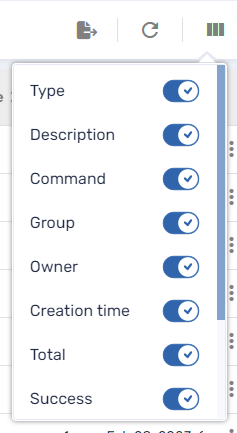
You can choose which columns appear in the Command History view by clicking Columns . Enable columns you want to show, and disable columns you want to hide:
Tips
You can sort commands by clicking
 beside the column headers.
You can change the order of columns by dragging a column’s header to its new position.

Finding commandsSelect one of the following columns in the Search by drop-down list:
Description
Device ID
Command type
Trigger name
In theSearchbox, type the text you want to search for in the selected column.
Click Search
 .
.
Viewing command detailsClick the command’s row.
The command’s status window appears.
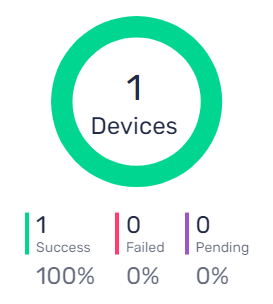
Successful commands appear in green.
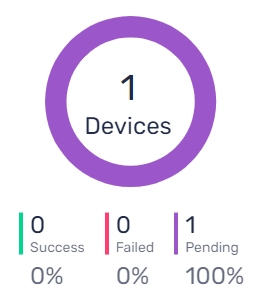
Pending commands appear in purple.
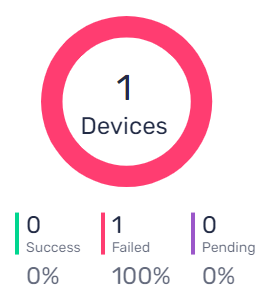
Failed commands appear in red.
Tip
Click More info in a command’s row to see why it failed.
Exporting command logs to CSV filesFrom the Command History view, you can export a command log to a CSV file for a single command, multiple commands, or all commands. SMART Remote Management sends the CSV file to the email address linked to your user account.
To export a command log
OptionalSelect the check boxes of the commands you want to include in the command log.
Click Export to CSV
 .
.A notification appears in the bottom-right corner of the browser window, and you receive an email from SMART Remote Management with the CSV file attached.