Components
The SMART kapp iQ board consists of the following components:
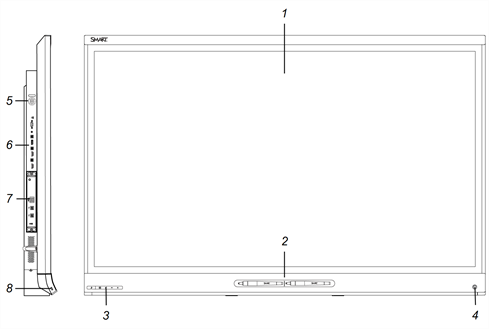
No. | Name | More information |
|---|---|---|
Pictured | ||
1 | Screen | |
2 | Pen with eraser (×2) | |
3 | Front control panel | |
4 | Presence detection sensor | |
5 | Menu control panel | |
6 | Connector panel | |
7 | SMART kapp iQ appliance | |
8 | ||
Not pictured | ||
9 | Speakers | |
 SMART kapp iQ appliance
The SMART kapp iQ appliance is installed in the accessory slot on the back of the board. Take advantage of SMART kapp iQ technology and access SMART software and other applications.
Caution
The accessory slot’s maximum available power is 60 W. The slot is not a limited power source. To reduce the risk of fire, make sure that accessories connecting to the slot satisfy the fire enclosure requirements of IEC 60950‑1.
ScreenThe screen sizes vary by model:
Model | Diagonal | Width | Height |
|---|---|---|---|
SMART kapp iQ 55 | 54 1/2" (138.4 cm) | 47 5/8" (121 cm) | 26 3/4" (68 cm) |
SMART kapp iQ 65 | 64 1/2" (163.9 cm) | 56 1/4" (142.8 cm) | 31 5/8" (80.4 cm) |
SMART kapp iQ 65‑V2 | 64 1/2" (163.9 cm) | 56 1/4" (142.8 cm) | 31 5/8" (80.4 cm) |
SMART kapp iQ 75 | 75" (190.5 cm) | 65" (165.2 cm) | 38 5/8" (93 cm) |
Diagonal
64 1/2" (163.9 cm)
Width
56 1/4" (142.8 cm)
Height
31 5/8" (80.4 cm)
Cameras in the corners of the screen track finger and pen positions across the board. The screen is surrounded by a channel that contains reflective tape.
Caution
Keep the reflective tape dry.
Do not remove or damage the reflective tape.
Important
Do not attach adhesive notes or other items to the screen because they will interfere with the cameras.
Do not place anything in the reflective tape channel because it will interfere with the cameras.
Pens with erasersThe board comes with two pens with erasers attached.
The board’s bottom frame includes magnetic holders for the pens. Removing a pen from the holders activates it, and you can use the pen to draw or erase digital ink.
Caution
When you return the pen to the magnetic holder, make sure it’s centered in its holder to keep it from falling and being damaged.
Front control panelThe front control panel contains the Standby, Input Select, Mute and volume control buttons.
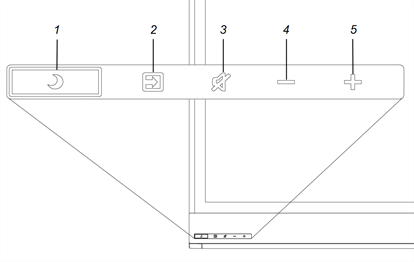
No. | Name | Procedure |
|---|---|---|
1 | Standby |
|
2 | Select |
|
3 | Mute |
|
4 | Decrease |
|
5 | Increase |
|
Important
If there is a film over the front control panel, remove it before using the front control panel.
In normal operation, all buttons are white.
The Standby button also functions as an indicator light:
Indicator light | Status | Procedure |
|---|---|---|
Solid white | Normal operation |
|
Off | Not receiving power |
|
Solid amber | DPMS (power management) mode |
|
Slowly flashing amber | Standby mode |
|
Flashing amber | No USB connection from the connected computer |
|
Slowly flashing white | SMART Board service not running on the connected computer |
|
 to exit DPMS mode.Presence detection sensor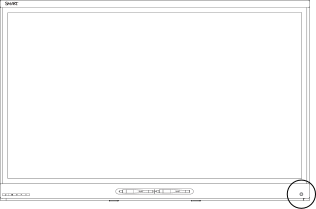
The board has a presence detection sensor on its bottom frame that can detect people up to 16' (5 m) away when the board is in Standby mode.
When the sensor detects people in the room, the board turns on. If the room is empty for a specified period, the board returns to Standby mode.
Internal speakersThe board includes two 10 W integrated speakers. You can also connect external speakers (see Connecting external speakers).