 A newer version of this software is available. Learn More
Deactivating access
Before you uninstall the software, you should deactivate it. This is particularly important if you chose to activate the teacher’s access using the product key method. If you chose to use the provision email method, you can deactivate a teacher’s access either before or after uninstalling SMART Notebook.
To return a SMART Notebook email provision in the SMART Admin Portal
Sign in to the SMART Admin Portal at adminportal.smarttech.com.
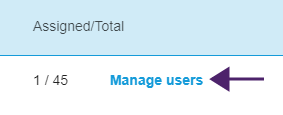
Click Manage users in the Assigned/Total column for the subscription from which you want to remove a user.
A list of assigned users appears.
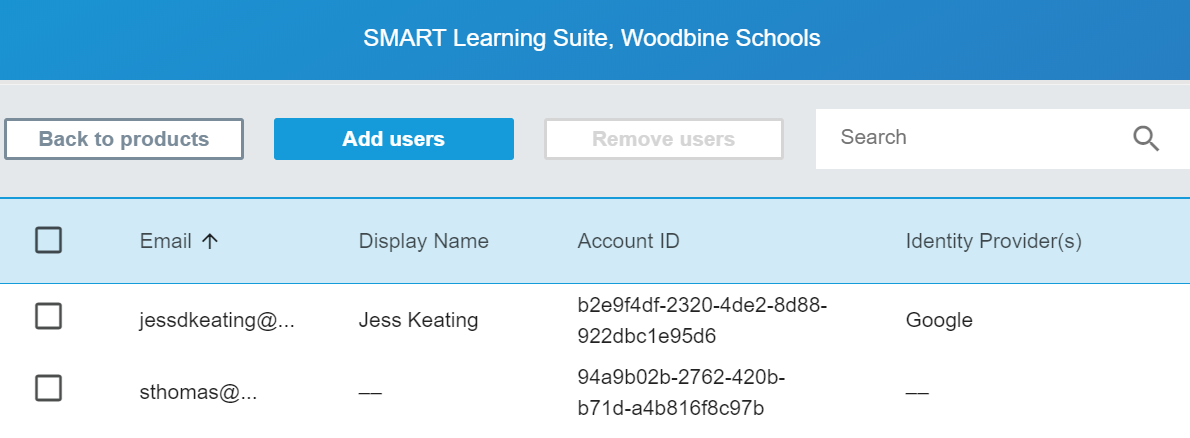
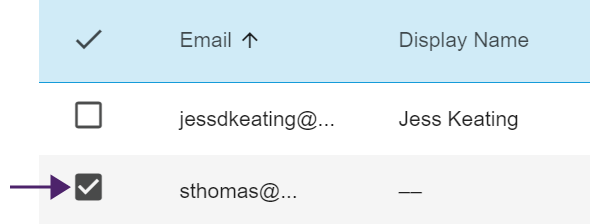
Select the user by clicking the check box beside the email address.
Tip
If you are looking through a long list of users, use the search bar in the top right corner of your screen.
Click Remove users on the main screen.

A confirmation dialog appears and asks if you are sure you want to remove the user.
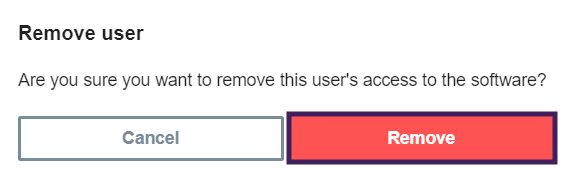
Click Remove to confirm.
To return a SMART Notebook product key activation
Open SMART Notebook.
From the Notebook menu, select Help > Software Activation.
Select the product key you want to return and click Manage Selected Product Key.
Select Return the product key so a different computer can use it and click Next.
Select Submit request automatically.
OR
Select Submit request manually if you aren't online or are having connection issues.
Keywords |
|
Related documents |