Manage settings on iQ 4 devices
You can use SMART Remote Management to manage settings for SMART Board interactive displays. You can also lock access to settings from SMART Board interactive displays with iQ so that users do not inadvertently change them.
To manage a device’s settings remotely using SMART Remote Management, you need to first create settings in SMART Remote Management. You can then apply the settings to an individual device, multiple devices, all devices that match a saved filter’s criteria, or a group. Alternatively, you can:
Use a trigger to apply settings at a scheduled time or when a specific event takes place.
Include the application of settings in workflows.
Note
Not all settings can be changed from SMART Remote Management. If there is a setting you want to be able to change from SMART Remote Management, submit a feature request to add this setting to a future version.
To create settings
Click Configurations

 Device Settings.
The Device Settings window appears.
Click Add New.
Type a name and description in the Name and Description boxes.
Enter the appropriate information in the remaining tabs:
Icon
Tab
Description

Wifi
Enable Set device wifi to enter the device’s Wi-Fi settings.
To make devices forget an existing Wi-Fi network, enable Forget wifi and type the existing network’s SSID in the Service Set Identifier (SSID) box.
Note
SMART doesn’t recommend connecting SMART Board interactive displays with iQ to hidden networks using SMART Remote Management settings. If you do, you might need to apply settings twice to connect the display to the network successfully, particularly if the display is connected to the internet through Ethernet (rather than Wi-Fi).

General
Control various settings for the device, such as allowing users to be added locally, volume adjustments, and so on.
Tip
Search for specific settings using the Search box at the top of the tab.

APN
Turn on Access Point Name (APN) settings and enter APN details.

Wallpaper
Set a wallpaper for the device.

Certificates
Install certificates on the device.

Smartboard settings
Choose to disable the Google Play store on iQ 4 devices. Other settings are not applicable to iQ 4 devices.
Note
For several settings, you can use a three-way toggle to enable the setting, disable the setting, or leave it set to its default state:
Toggle state
Action
Example

SMART Remote Management doesn’t modify the setting on the device.
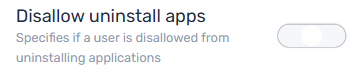
SMART Remote Management doesn’t modify the setting on the device. Whether users can uninstall apps depends on whether the setting is enabled or disabled by default on the device.

SMART Remote Management enables the setting on the device.
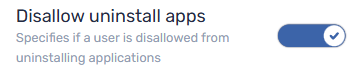
SMART Remote Management enables the setting on the device and users cannot uninstall apps as a result.

SMART Remote Management disables the setting on the device.
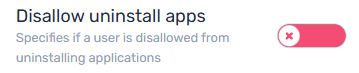
SMART Remote Management disables the setting on the device and users can uninstall apps as a result.
Click Confirm.
To apply settings
Click Devices
 to open the Devices view.
Choose one of the following options:
Option
Steps
Apply settings on a single device
Click the device’s row.
The device’s dashboard window appears.
Click Repositories actions, and then click Device settings.
The Device settings window appears.
Select the settings from the list and click Apply.
Apply settings on devices that match a saved filter
Click Filters
 to open the filters panel and then click Browse saved.
Click Actions
 in the saved filter’s row and select ConfigureDevice Settings.
The Device settings window appears.
Select the settings from the list and click Apply.
Apply settings on all devices in a group
If the groups panel isn’t visible, click
 Groups.
Click Actions
in the group’s row and select ConfigureDevice Settings.The Device settings window appears.
Select the settings from the list and click Apply.