Connecting room computers and guest laptops
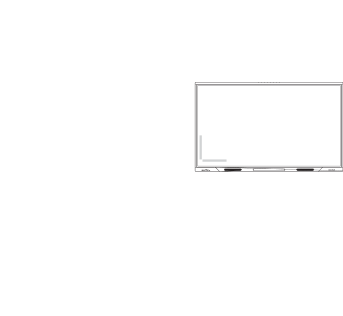
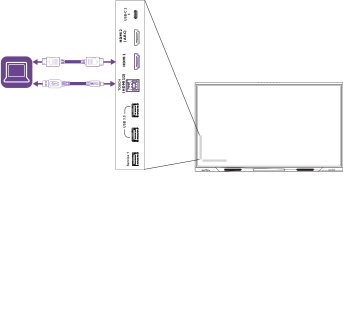
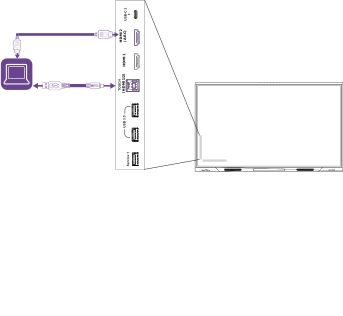
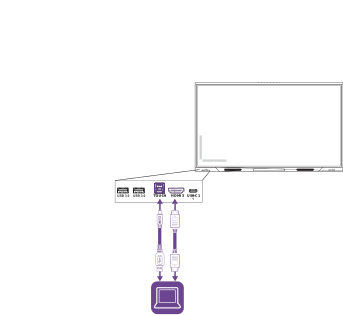
You can connect cables for room computers and guest laptops. By installing cables in advance, you make use of connectors that might not be accessible after the display is wall-mounted. You can then run the cables across floors or behind walls as needed.
- USB-C 1
- USB-C 2
- HDMI 1
- HDMI 2
- HDMI 3
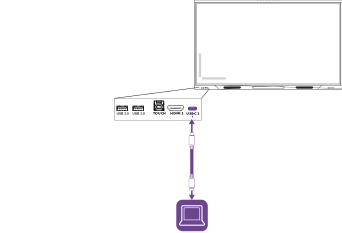
Connector | Standard | Connection type |
|---|---|---|
USB-C 1 | USB 3.2 Gen 1×1 (as DFP) Display Port 1.2 4-lane (as UFP) USB peripheral at 480 Mbps (touch) | Video/audio/touch/network |
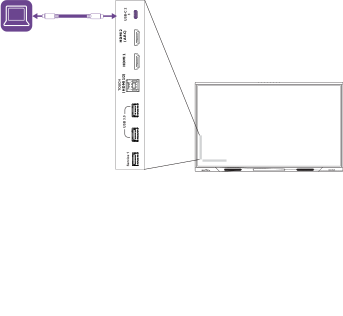
Connector | Standard | Connection type |
|---|---|---|
USB-C 2 | USB 3.2 Gen 1×1 (as DFP) Display Port 1.2 4-lane (as UFP) USB peripheral at 480 Mbps (touch) | Video/audio/touch/network |
Warning
Ensure that any cables that cross the floor to the SMART product are properly bundled and marked to avoid a trip hazard.
Caution
When connecting a USB cable to a computer, make sure the computer has a USB compliant interface and bears the USB logo. In addition, the USB source computer must be compliant with IEC 60950‑1 and/or IEC 62368‑1. The source computer must be CE marked and carry safety certification marks for Canada and USA. This is for operating safety and to avoid damage to the SMART product.
Notes
A room computer or guest laptop connected to the display through a USB Type-B or Type-C receptacle has access to any networks connected to the display by Ethernet while the computer is the currently selected input on the display.
Install SMART software on any computers you connect to the display.
Your organization’s installers might have connected cables to the display and run the cables behind a wall or under the floor to a desk or table where you can place your computer.
If a connected computer reports “Too many USB hubs” or “cannot start (code 10),” see the knowledge base article, SMART Board interactive displays and USB tier structure use.
 Viewing a connected computer’s input
Connect the computer to the display.
View the available inputs in one of the following ways:
Press Input
 on the front control panel.
Press Input
on the remote control.
The input selection menu appears.
Tap the computer’s input menu option.
Setting a connected computer’s resolution and refresh rateThis table presents the recommended resolutions and refresh rates for the display’s USB-C and HDMI inputs:
Resolution | Input aspect ratio | Mode | Refresh rate |
|---|---|---|---|
3840 × 2160 | 16:9 | UHD/2160p | 59.94 Hz/60 Hz 50 Hz 29.97 Hz/30 Hz 25 Hz 23.98 Hz/24 Hz |
1920 × 1080 | 16:9 | FHD/1080p | 59.94 Hz/60 Hz 50 Hz 29.97 Hz/30 Hz 25 Hz 23.98 Hz/24 Hz |
1360 × 768 | 16:9 | HD | 60.015 Hz |
1366 × 768 | 16:9 | HD | 59.79 Hz |
1280 × 720 | 16:9 | HD/720p | 59.94 Hz/60 Hz 50 Hz 29.97 Hz/30 Hz 25 Hz 23.98 Hz/24 Hz |
720 × 480 | 16:9 | 480p (DVD player) | 60 Hz |
This table presents the recommend resolutions and refresh rates for the display’s VGA input:
Resolution | Input aspect ratio | Mode | Refresh rate |
|---|---|---|---|
800 × 600 | 4:3 | SVGA 60 | 60.317 Hz |
640 × 480 | 4:3 | VGA 60 | 59.940 Hz |
If possible, set connected computers to these resolutions and refresh rates. See the connected computers’ operating system documentation for instructions.
Connecting USB drives, peripherals, and other devicesYou can use USB drives, peripherals, and other devices with a computer connected to the display using the USB receptacles on the display.