Using Palette

The Palette app lets you paint or draw on a digital canvas using a variety of tools from a toolbox, colors from a color box, and a color mixing palette.
 Palette tools and controlsTools and controls for creating and sharing your palettes
The Palette app has several tools and controls for creating and sharing your palettes.
Tool | Icon | Description |
|---|---|---|
Menu tools Tap the Menu icon | ||
Save |  | Save the image as a .png file. |
Import |  | Import a .png, .jpg, or .bmp image file onto the digital canvas. The image will be stretched to fill the background of the canvas. |
Exit |  | Exit the Palette app. |
Other controls | ||
Clear |  | Clear all digital ink. |
Undo |  | Reverse the effect of the last action. |
Redo |  | Reinstate the last action reversed with the Undo command. |
Sample |  | Sample a color from the image on the screen. |
Fill |  | Fill a bounded area with the currently selected color. |
Tools for painting, drawing, and erasing on the digital canvasThe Palette app has several tools for painting, drawing, and erasing on the digital canvas. Tools in the toolbox support multitouch painting and drawing.
Tool | Purpose | Description |
|---|---|---|
Toolbox | ||
 Pencil Pencil | Write or draw digital ink in the style of a pencil. | The pencil can be used for most writing applications. |
 Pen Pen | Write or draw digital ink in the style of a pen. | The pen is useful for teaching students handwriting. |
 Crayon Crayon | Write or draw digital ink in the style of a wax crayon. | The crayon works best with artistic work, such as painting and coloring pictures, rather than writing. |
 Paintbrush 1 Paintbrush 1 | Write or draw digital ink in the style of a narrow paintbrush. | The narrow paintbrush works best with artistic work, such as painting and coloring pictures, rather than writing. |
 Paintbrush 2 Paintbrush 2 | Write or draw digital ink in the style of a wider paintbrush. | The wider paintbrush works best with artistic work, such as painting and coloring pictures, rather than writing. |
 Charcoal pencil Charcoal pencil | Write or draw digital ink in the style of charcoal pencil. | The charcoal pencil works best with artistic work, such as painting and coloring pictures, rather than writing. |
 Air brush Air brush | Write or draw digital ink in the style of an airbrush. | The air brush works best with artistic work, such as painting and coloring pictures, rather than writing. |
 Eraser Eraser | Use a pen or finger as an eraser | Erase ink from the screen as needed. Multitouch is not supported. |
Palette | ||
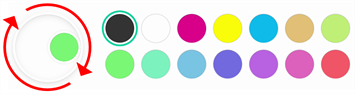
 | Customize an existing color. | Use the palette tool to create a new color by customizing a color from the ColorBox. Select a color to be blended with the currently selected color, then slowly mix the palette until you achieve the desired color blend. |
ColorBox | ||
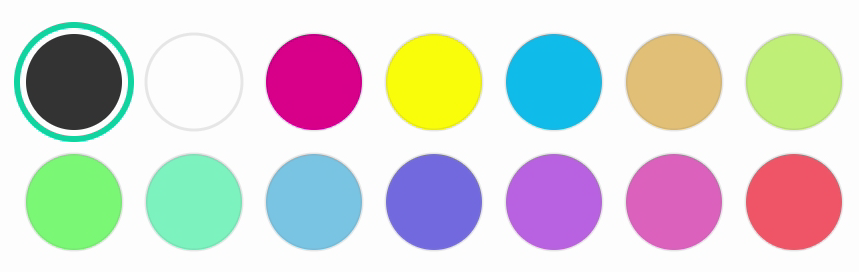 ColorBox ColorBox | Select a color to use when you paint or draw on the digital canvas. | Choose a range of colors to draw or paint with. You can also mix and customize colors in the Palette tool. |
Starting a new paletteOn the display’s Home screen, tap the Apps icon
 .
.The Apps menu appears.
Tap the Palette icon
.The Palette app opens.
Changing the backgroundTap the Menu icon
 .
.Tap the Import icon
.Browse to the image you want to use from the display’s storage or a USB drive.
Tap OKto import the image. The image appears on the digital canvas.
Note
The only way to delete the background is to start a new session.
Writing and drawing on a paletteSelect a painting or drawing tool.
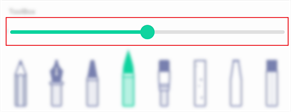
If you want, use the slider to customize the line thickness.
Select a color from the ColorBox.
If you want, use the Palette tool to customize the selected color. Start by choosing two colors to mix.
Use the display’s pens or your finger to paint or draw in digital ink.
Exiting a paletteWhen you’re done, tap the Menu icon
, then tap the Exit icon.Tip
If you want to keep the file, save your work before you exit.