Tour of the display for installers and administrators
If you need to install or maintain the display, take this tour to familiarize yourself with its components:
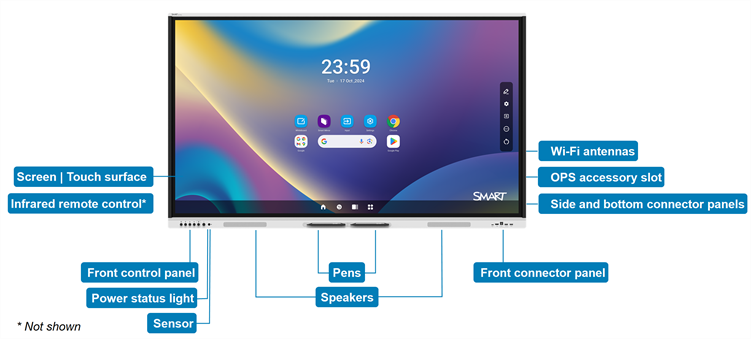
 Screen | Touch surface
The display comes in the following screen sizes:
65"
75"
86"
Caution
Prolonged focus on a fixed object, such as a display screen, can contribute to eye strain and headaches. To protect eye health, follow the 20-20-20 rule: after 20 minutes of screen time, spend 20 seconds looking at something 20 feet (6 meters) away. Relaxing the eyes, looking around frequently, and blinking will also prevent eye strain and fatigue.
The display’s advanced infrared touch technology supports up to 50 touch points (depending on the connected device’s operating system).
SeeUsing touch
PensThe display comes with two pens, which users can use to write or draw on the screen.
Replace a pen if its nib becomes worn to prevent damage to the screen or impairment of pen and finger detection.
SensorsThe display includes an infrared sensor that works with the infrared remote control and an ambient light sensor that can detect the brightness of the room and adjust the screen’s brightness accordingly.
You can enable or disable the ambient light sensor feature.
Power status lightThe power status light indicates the display’s status:
When the power status light is red, the display is in Standby mode.
When the power status light is blue, the display is in normal operating mode.
Infrared remote controlWhen you first install and configure the display, you can use the infrared remote control to turn the display on or off, switch inputs, and view and change settings.
After installation and configuration, you can give the remote to users for use with the display.
Front control panelThe front control panel provides buttons for turning the display on and off, controlling the volume, freezing the screen, and displaying the Home screen.
Front connector panelThe front connector panel includes connectors for USB peripherals and a computer or other input.
Side and bottom connector panelsThe side and bottom connector panels include connectors for multiple computers, peripherals, and other devices. They are typically used for room computers, peripherals, and other devices that are connected to the display all the time.
OPS accessory slotYou can install a SMART OPS appliance, such as a SMART OPS PC module, in the OPS accessory slot.
SeeOPS appliances
Wi-Fi antennasThe display comes with Wi-Fi antennas. You can use Wi-Fi or Ethernet to connect the display to your organization’s network. The display requires a network and internet connection for downloading software and firmware updates, as do Google services and some apps.
SpeakersThe display includes two integrated speakers, designed to provide sound at the front of a room.
As an alternative to using these integrated speakers, you can connect an external audio system.