Customizing the multistylus in the app

Customize the multistylus to match how you work using the SMART MultiStylus app on a display running iQ 4.7.2 or later.
Assign functions to the multistylus buttons, including instant tool switching, browsing controls, and air mouse actions. These settings let you move through material or control the display without interrupting your presentation or lesson. You can customize up to six different ink presets in Pen mode.
Note
The SMART MultiStylus app becomes available once a SMART Docking Station connects to a compatible SMART Board interactive display and a multistylus pairs with it. Open the app from the Apps menu to get started.
To customize ink settings
Open the SMART MultiStylus app
and follow the onscreen instructions to remove and replace the multistylus in the docking station.In Pen mode, tap the preset number you want to set.
Select the tool type, ink color, and line thickness.
To customize ink color, tap
 to expand the color picker.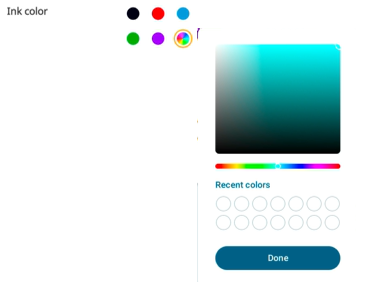
Create a custom color and tap Done to assign it to a pen present.
Tap Save to save the pen preset.
(Optional) Customize any Pen mode button command. These settings will apply across all pen presets.
Tap Save.
To customize air mouse settings
Open the SMART MultiStylus app
and follow the onscreen instructions to remove and replace the multistylus in the docking station.Tap Mouse mode.
Customize the LED button, arrows, or the eraser.
Tap Save.
To clear or reset multistylus settings
Open the SMART MultiStylus app
and follow the onscreen instructions to remove and replace the multistylus in the docking station.In Pen mode, under Pen preset, tap the preset number you want to reset.
Tap Clear preset
 Save.
Save.OR
In Mouse mode, tap Reset to default
Save.