 A newer version of this software is available. Learn more
Starting and ending meetings
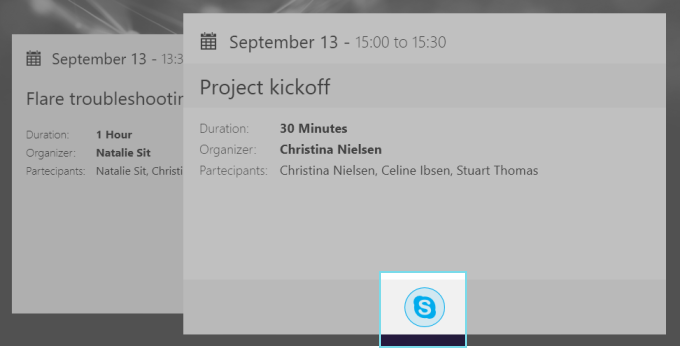
To start a scheduled meeting
In the launcher’s main view, tap the button that appears in the meeting’s calendar tile. Depending on the conferencing solution used for the meeting, the icon will adjust accordingly.
Note
Skype for Business must be installed on the computer to use this feature.
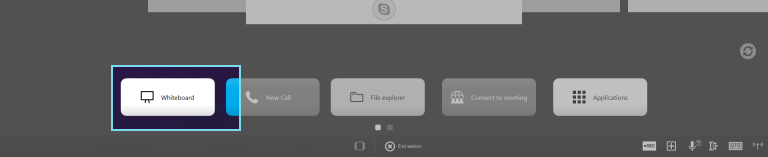
To start a whiteboard session
In the launcher’s main view, tap Whiteboard to launch a new whiteboard session.
To end a meeting
In the launcher, tap the End session button.
This ends the meeting and clears the whiteboard.
Note
If you attached any files to the whiteboard, you may be prompted to create a meeting recap. See Ending a whiteboard meeting and creating recaps.
Keywords |
|