Managing your class
With the class panel, you can manage your class by controlling lesson pacing, seeing which students are connected to your class, and removing students who shouldn’t be connected.
Tap in the Delivery mode toolbar to open the class panel and reveal its features and controls.

 Class name and class ID
Your class name and class ID appear at the top of the class panel.

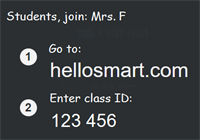
Tap the arrow next to your name and class ID to display the class code in the page area while your students are connecting.
Tip
Students can also scan the QR code or use the URL that appears to join. Using either of these methods removes the need for students to enter the class ID.
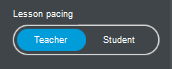
Lesson pacingUse Lesson Pacing to switch between controlling lesson navigation for the whole class and allowing students to navigate independently. Learn more about lesson pacing.
 Class list
Use the class list to see which students are connected to your class and the Edit Class List button to remove students from your class.
To see which students are connected to your class
In the Delivery mode command bar, tap
to open the class panel.When students sign in and connect to your class, their display name is shown in the class panel as well as the name they have associated with the Google or Microsoft account they used to sign in. Guests will appear with the display name they entered when joining and marked as (Guest).
Note
For users in SMART’s Global service region only.

To remove students from your class
In the Delivery mode command bar, tap
.The class panel opens.
Select Edit.
Check boxes next to the names of all connected students appear in the class panel.

Select the students you wish to remove from your class, then select Remove.
Tip
To remove all students from your class, select the Select All check box.
The selected students are removed from your class and are returned to the Lumio homepage.
Page conversion controlsOn presentation pages, opening the class panel also reveals controls for converting presentation pages during delivery. The page conversion controls appear in the page area when you open the class panel.
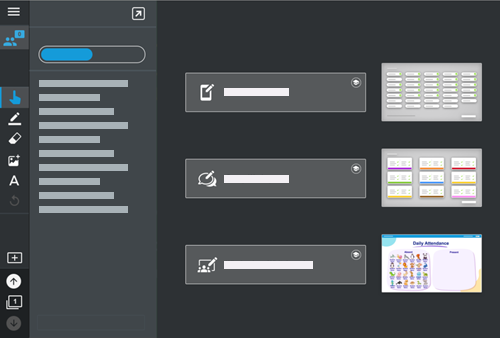
Select an option to convert the current page to an interactive activity page.