The Devices view
The Devices view displays information about the devices enrolled in SMART Remote Management to which you have access. The Devices view is the main view in SMART Remote Management for monitoring and managing devices.
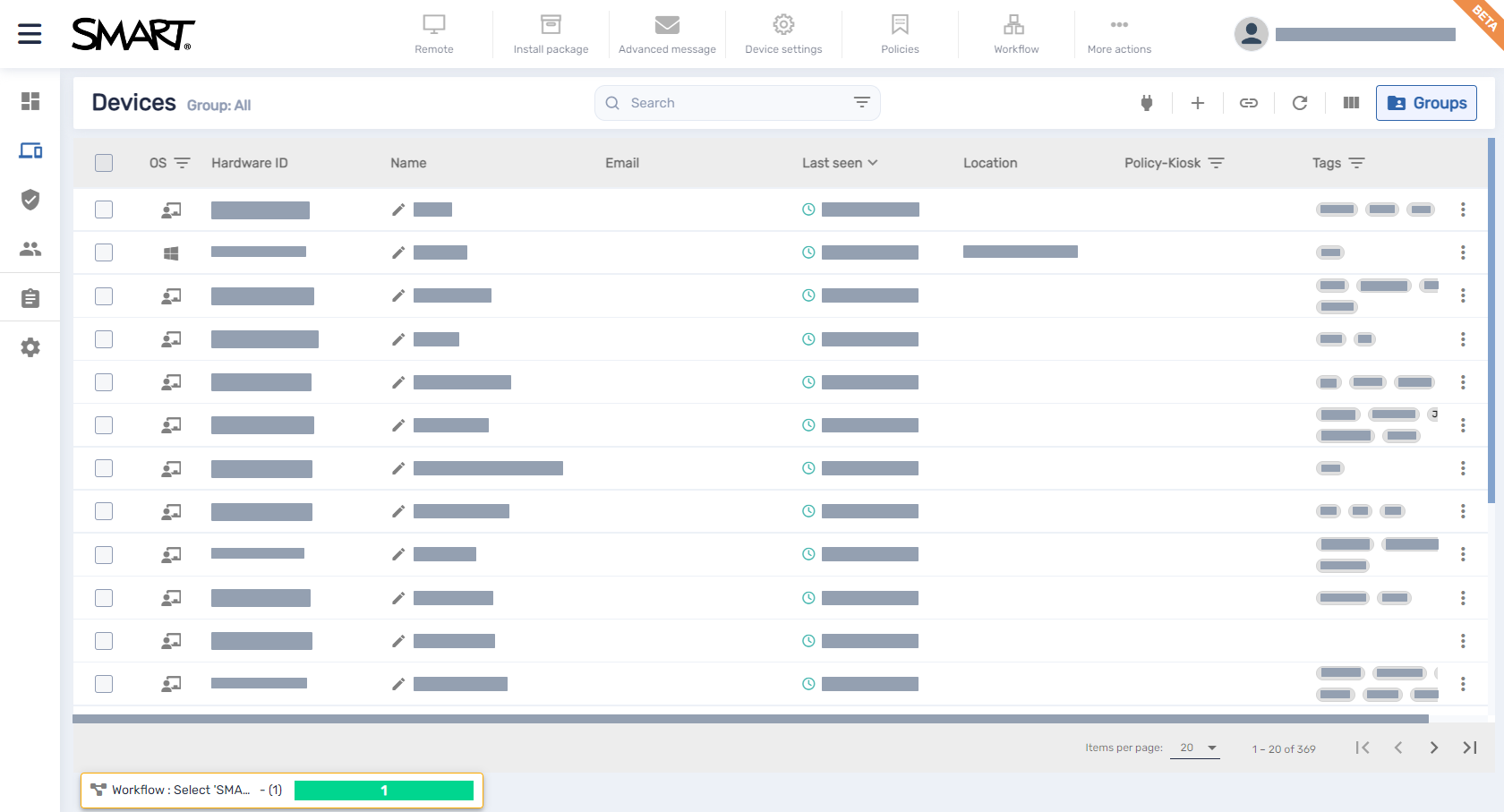
To open the Devices view from anywhere in SMART Remote Management, click Devices in the menu.
Note
As of winter 2025, this view has been updated with a new user interface (UI). For those still wanting to use the previous UI, you can turn off the toggle in the top-right corner.
In the Devices view, you can:
You can choose the columns that appear in the Devices view by clicking Columns . Enable columns you want to show, and disable columns you want to hide:
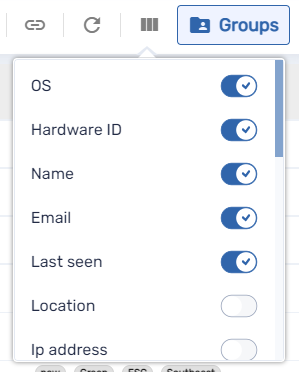
These are the columns you’d typically want to display for SMART Board interactive displays with iQ:
| Column | Description | Notes |
|---|---|---|
| OS | An icon representing the device’s type (operating system) | For SMART Board interactive displays with iQ, the icon is |
| Device ID | A unique identifier assigned by the device’s manufacturer | For SMART Board interactive displays with iQ, the unique identifier is the same as the display’s serial number. |
Device Name | The name for the device that appears on the device itself. It can be added during enrollment, but if left blank, this column will be empty for the device. | |
| Label | A name you give the device to identify it in SMART Remote Management | |
| Last seen | The date and time the device was last active | N/A |
| Policy-Kiosk | The policies applied to the device | N/A |
| Tags | The tags applied to the device | SeeUse tags |
| SMART Build Number | The build number of iQ software running on the SMART Board interactive display | For devices other than SMART Board interactive displays with iQ, this column is blank. |
 .
.Tips
You can change the order of columns by dragging a column’s header to its new position.

You can sort devices by clicking the header of the column you want to sort..
You can filter the list of devices based on values in some columns.
SeeFinding devices