Use schedulers and triggers
Not applicable for ChromeOS devices
Although you can run commands whenever you want on demand, you might prefer to initiate them at a scheduled time or in response to a specific event. Schedulers and triggers allow you to do this for all types of commands, including workflows.
SeeCreate workflows
Example
If you need to update software on devices every week, you can create a scheduler that deploys the appropriate software installation package during off-hours.
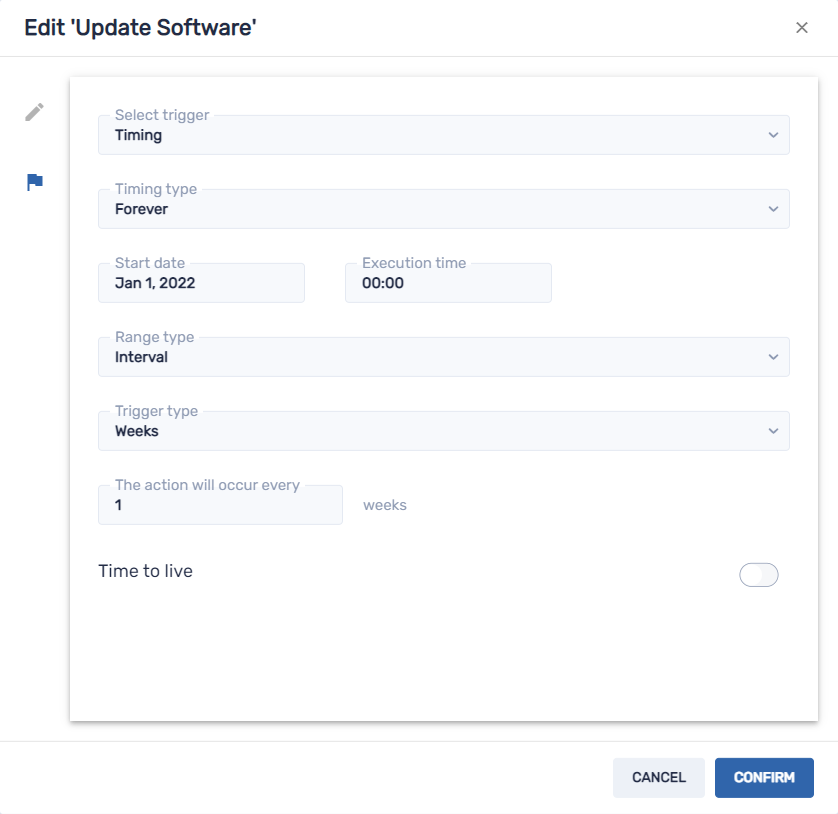
 Creating schedulers and triggers
You can create three types of schedulers and triggers:
Type | Description |
|---|---|
Timing trigger (Scheduler) | Run a command at a scheduled time once or at regular intervals |
Geofencing trigger | Run a command when a device enters or leaves a specified area |
Wi-Fi trigger | Run a command when a device joins or leaves a Wi-Fi network |
Tip
Use geofencing and Wi-Fi triggers with mobile devices that you want to maintain in a specific area or on a specific Wi-Fi network.
To create a scheduler
Click Automation

 Scheduler & triggers.
The Scheduler & triggers window appears.
Tip
If your organization created its domain account after May 2023, the Scheduler & triggers window includes sample schedulers that you can use as starting point for creating your own schedulers. These sample schedulers have turquoise icons.
Click Add New.
Type a name and description for the scheduler in the Name and Description boxes.
Click Add trigger
 .
.Choose the type of trigger:
Type
Steps
Timing trigger (Scheduler)
Select Timing in the Select trigger drop-down list.
Use the following settings depending on when you’d like the command to run:
Option
Settings
Run the command once
Under Timing type, select Once.
In Start date, select the date to run the command.
For the Execution time, select the time of day to run the command.
Run the command regularly for a specific length of time
Under Timing type, select From/To date.
In Start date, select the date to start running the command.
In End date, select the date you want to stop running the command.
For the Execution time, select the time of day to run the command.
Select an interval type in the Range type drop-down list and use the resulting drop-down list to specify the interval.
Run the command regularly indefinitely
Under Timing type, select Forever.
In Start date, select the date to start running the command.
For the Execution time, select the time of day to run the command.
Select an interval type in the Range type drop-down list and use the resulting drop-down list to specify the interval.
OptionalEnable Time to live and type the maximum time in seconds for the command to go live in the Time to live (seconds) box.
Click Confirm.
Geofencing trigger
Select Geofencing in the Select trigger drop-down list.
Using the map, zoom in to the area you want to use for the trigger.
Click Draw a circle
 and draw a circle around the area.
Note
The area must be at least 40 m in diameter.
Specify what happens when the device enters or leaves the area by selecting the appropriate option under On enter and On exit:
Select Start to start running the command when the device enters/leaves the area.
Select End to stop running the command when the device enters/leaves the area.
Select Nothing to do nothing when the device enters/leaves the area.
Click Confirm.
Wi-Fi trigger
Select Wifi in the Select trigger drop-down list.
Type the Wi-Fi network’s SSID in the SSID box.
Specify what happens when the device joins or leaves the Wi-Fi network by selecting the appropriate option under On enter and On exit:
Select Start to start running the command when the device joins/leaves the Wi-Fi network.
Select End to stop running the command when the device joins/leaves the Wi-Fi network.
Select Nothing to do nothing when the device joins/leaves the Wi-Fi network.
Click Confirm.
Initiating commands using schedulers and triggersAfter you have created schedulers and triggers, you can use them to initiate commands on a single device, multiple devices, all devices that match a saved filter’s criteria, or a group.
You can also use saved filters to initiate commands using a scheduler or trigger
To initiate commands using a scheduler or trigger
Click Devices
 to open the Devices view.
Click the device’s row to initiate the command on a single device and select Scheduler & trigger command.
OR
Use a saved filter to refine a list of deices to initiate the command on and then click Actions
 AutomateScheduler & triggers command.
OR
Initiate the command on a group of devices by locating the group’s row and selecting Actions
AutomateScheduler & triggers command.The Schedule & trigger command window appears.
Type a name for the scheduler- or trigger-based commands in the Command name box.
Click Select trigger.
The Scheduler & triggers window appears.
Select a scheduler or trigger from the list and click Add.
Click Select command and select from the following options:
Option
Subsequent steps
Advanced messaging
Select an advanced message.
Click Add.
AFW install/uninstall
Select Install or Uninstall.
Select the apps you want to install or uninstall.
Click Confirm.
Note
This option applies only to devices enrolled in Android for Work (AFW). However, Android for Work is not recommended for use with SMART Board interactive displays or SMART Board appliances.
Change agent password
Type the new agent password in the Password and Confirm password boxes.
Click Confirm.
Clear apps data
Click Add to list
 for each app for which you want to clear data.
Click Confirm.
Device alert
For each email address to which you want to send the alert, type the email address in the Add email, then press Enter box and press ENTER.
Tips
Your SMART Remote Management user account’s email address is included by default.
You can delete an email address by clicking its
 button.
Type the alert message in the Message box.
Click Confirm.
Device settings
Select settings.
Click Add.
Disable apps
Click Add to list
for each app you want to disable.Click Confirm.
Enable apps
Click Add to list
for each app you want to enable.Click Confirm.
Install package
Select an installation package.
Click Add.
Lock
N/A
Remote execute
Select a remote execution command.
Click Add.
Remove Google accounts from device
Select Remove all accounts to remove all Google accounts.
OR
Select Keep one account to retain one Google account and type that account’s email address in the Email account box.
OR
Select Remove accounts by condition to remove all Google accounts that meet the conditions you set.
Click Confirm.
Restart
N/A
Send files
Select files.
Click Add.
Send message
Type the message title and body text in the Message Title and Message Body boxes.
Click Confirm.
Shutdown
N/A
Sound siren
N/A
Uninstall packages
Click Add To List
for each app you want to uninstall.Click Uninstall Selected.
Wake on lan
To wake the target devices that match a filter’s or group’s criteria, select Filter or Group and select a filter or group from the drop-down list.
OR
To wake a single target device, select Device and type a target device’s ID in the Device ID box.
OptionalTurn on Advanced wake-on-lan settings and specify the broadcast address and port for execution if your network requires this information.
Click Confirm.
Wipe
N/A
Workflow
Select a workflow.
Click Add.
Click Confirm