Use groups
Groups are a way of organizing devices enrolled in SMART Remote Management. They allow you to align devices with real-world organizational boundaries. This creates a clear structure for applying settings, permissions, and workflows at scale.
Example
If you create a group called “SMART Board” and assign it the tags “1st Floor SMART Board” and “2nd Floor SMART Board,” the group will contain all devices with those tags:
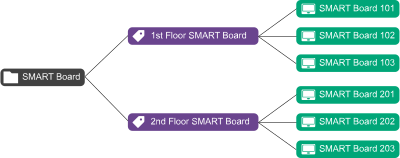
The relationship between tags and groups is many-to-many: You can assign multiple tags to a single group and a single tag to multiple groups. This allows you to create groups that are as simple or as complex as your organization needs.
Most of the commands you can run for a single device you can also run for a group. In addition, you can make commands persistent: if you assign a new device to a group in the future (by adding one of the group’s tags to the device), any persistent commands for that group run on the device automatically.
You can create, edit, and delete groups from the Devices view. When you create a group, you assign it at least one tag and, optionally, one or more installation packages. SMART Remote Management automatically deploys a group’s installation packages to any devices you add to the group (by adding one of the group’s tags to the device).
 Create a new group
By default, all enrolled devices are included in the All group, and any new devices you enroll are included in the New Devices group.
You can create additional groups using tags.
To create a new group
Click Devices
 to open the Devices view.
If the groups panel isn’t visible, click
 Groups.
Click Add Group
 .
.The Create new group window appears.
Type a name and description in the Group name and Group description boxes.
Click Tags
 .
.For each tag you want to add to the device, type the name for the tag in the Add tag, then press enter box and press ENTER.
Note
You must assign at least one tag to the group.
OptionalClick Packages
 , click Add Packages, select the installation packages you want to assign to the group, and click Update.
Notes
Installation packages you assign to the group are persistent: if you assign a new device to the group in the future, SMART Remote Management deploys the installation packages to the device automatically.
SMART Board interactive displays with iQ support persistent installation packages.
Other devices require version 11.5.1.1 or later of the Viso MDM agent to support persistent installation packages.
Click Save.
Tip
To edit or delete an existing group, click Actions
 in the group’s row and select Edit or Delete. (You can’t delete the All or New Devices groups.)
View all devices in a groupClick Devices
to open the Devices view.If the groups panel isn’t visible, click
Groups.Select the group you want to use.
The devices belonging to that group appear in the Devices view.