Create saved filters
You can use filters in the Devices view to refine the device list and run commands on all devices that meet your criteria. Unlike groups, which are manually maintained, saved filters are dynamic and update automatically based on device attributes. This is especially useful when you need to apply policies to devices that use the same operating system, because each policy is tied to a specific OS.
To streamline your workflow, create saved filters that can be used for common actions your organization wants to perform on enrolled devices. If you only need a temporary view, you can also create a one-time quick filter.
To create a saved filter
Click Filters
 in the Search bar.
Create the conditions for the filter. Click Add Condition to add multiple conditions as needed.
Example
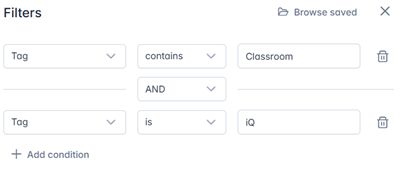
Click Save filter.
Type a name in the Filter name box.
OptionalChoose to make the filter private.
Click Save.
Tip
You can edit the filter by selecting it in the list, modifying its conditions, and clicking Edit Filter.
To filter devices
Click Filters
in the Search bar.Select the saved filter you want to use.
OR
Create the conditions for a one-time quick filter and click Quick Search.
Note
Click Add Condition to add multiple conditions as needed.
Example
Click Apply filter.
The devices that meet the filter’s criteria appear in the Devices view.
To run a command on all devices that meet a saved filter’s criteria
Click Filters
in the Search bar.Click Actions
 next to a saved filter and select the command you want to run on the devices that meet the filter’s criteria.