Installing the SMART TeamWorks 4 meeting server
The SMART TeamWorks 4 meeting server manages connectivity between SMART TeamWorks 4 meeting rooms and SMART TeamWorks 4 Contributor apps.
Installing the SMART TeamWorks 4 meeting server involves two main procedures:
Create a new site for the meeting server using the Internet Information Service (IIS) Manager.
Configure the meeting server's web.config file.
Note
To install the meeting server, you will use the RMS Meeting Server files you previously downloaded. See Downloading the installation files.
To create a new site for SMART TeamWorks 4 meeting server
Open File Explorer and browse to the IIS server’s file location. By default, the location is C:\inetpub\wwwroot\.
Create a new folder called MeetingServer.
Copy the files from the RMS Meeting Server folder to the MeetingServer folder you created in the previous step.
Right-click the MeetingServer folder and select Properties.
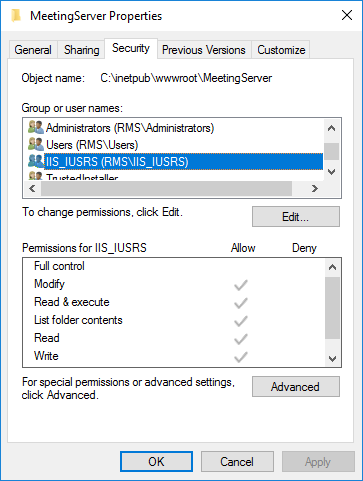
On the Security tab, select IIS_IUSRS l under Group or user names and click Edit.
Modify the permissions to give IIS_IUSRS Modify and Write permissions.
Important
Confirm that these permission settings are propagated to sub-folders and files.
Click OK to close the MeetingServer Properties dialog box.
Open Internet Information Service (IIS) Manager, right-click the Sites folder, and select Add website.
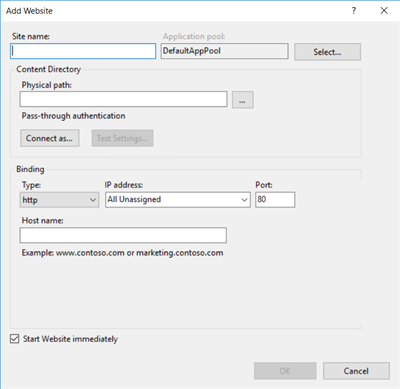
Make the following changes:
Field
Setting
Site name
Enter MeetingServer.
Physical path
Enter the path to the MeetingServer folder you created:
C:\inetpub\wwwroot\MeetingServer
In the Binding section, assign a dedicated IP address for the site, then use the following security settings:
Setting
Option 1 (recommended)
Option 2
Type
https
http
Port
443
80
Note
The recommended settings in Option 1 provide better security, but they are only available if at least one SSL certificate in installed on the Web Server IIS. If you do not have an SSL certificate, use the less secure Option 2 settings.
Enter a Host name in the format of meetings.companyname.com. For example, meetings.smartteamworks.com. This is your meeting server’s URL.
You will need this address later when you configure the web portal for the SMART TeamWorks 4 Server.
Note
This name should resolve within the local network or from internet, based on your choice and configuration.
Click OK to add the site and return to the main Internet Information Service (IIS) Manager window.
Confirm that the Application pool for the MeetingServer site has the following settings:
Field
Setting
Name
Enter MeetingServer.
.NET CLR version
.NET CLR Version 4.0.xxxxx
Managed pipeline mode
Integrated
After you finish adding the MeetingServer site, configure the web.config file.
To configure the Web.config file for the SMART TeamWorks 4 meeting server
Open File Explorer and browse to the MeetingServer folder you created: (C:\inetpub\wwwroot\MeetingServer).
Use an online service to generate a unique machine key for your installation, such as AllKeysGenerator (allkeysgenerator.com/Random/ASP-Net-MachineKey-Generator.aspx).
Important
You need a machine key generated for ASP.Net 4.5 framework.
Copy the machine key and save it to your computer. You need this key for configuring the SMART TeamWorks 4 meeting server and the SMART TeamWorks 4 web portal.
Open the Web.config file in a text editor and find the
<system.web>section. Configure the following settings:httpRuntime maxRequestLength="307200"Where
maxRequestLength=307200(default)This sets the maximum file size (in bytes) users can upload in SMART TeamWorks 4. Set this accordingly with the value you set in the maxAllowedContentLength parameter (see step 5).
httpRuntime executionTimeout="900"Where
executionTimeout=900(default)This sets the timeout (in seconds) for HTTP requests.
<globalization uiCulture="en-US" culture="en-US"Where both instances of
"en-US"are replaced with your organization’s culture.machineKey validationKey="2D32F2D5D2D569938C8E99B4D4DC263A80F7842CBE2D2F1638323D68081BE795542A2472A5D15054A22267EC59941BDDE50386818C9103B02121BB8E60B5E312"decryptionKey="A47E22BC79E0808F9B6959F6A4DCFAAFD48627473C8DADA46856DA2767E5FF05" validation="SHA1" decryption="AES"Where
machineKey validationKey= the unique machine key you generated in step 2.
Find the
<system.webServer>section and the<requestFiltering>sub-item and configure the following settings:requestLimits maxAllowedContentLength="314572800"Where
maxAllowedContentLength=314572800(default)This sets the maximum file size (in bytes) users are allowed to upload in SMART TeamWorks 4. Set this accordingly with the value set in the maxRequestLength parameter (see step 4).
Find the
<connectionStrings>section and configure the following settings:<add name="RMSEntities" "metadata=res://*/Entities.RMSModel.csdl|res://*/Entities.RMSModel.ssdl|res://*/Entities.RMSModel.msl;provider=System.Data.SqlClient;provider connection string="data source=YOUR_SQL_SERVER;initial catalog=YOUR_RMS_DATABASE;user id=YOUR_DB_USERNAME;password=YOUR_DB_USERPWD;multipleactiveresultsets=True;application name=EntityFramework""Where:
YOUR_SQL_SERVERis the host name or IP address of your SQL Server.YOUR_RMS_DATABASEis the name of your SMART TeamWorks 4 database. For example, TWDatabase. See RMS Database installation.YOUR_DB_USERNAMEis the user name for the user you created to access the SMART TeamWorks 4 database. See To create a new user with SQL authentication.YOUR_DB_USERPWDis the password of the user you created to access the SMART TeamWorks 4 database. See To create a new user with SQL authentication.
Save the file.
From the Internet Information Service (IIS) Manager, restart the MeetingServer site.
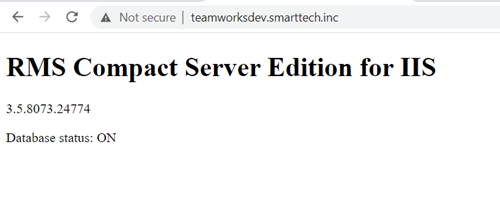
Test the new SMART TeamWorks 4 meeting server by opening a browser and entering the IP address or the URL for the server. You should see a page something like this one:
Keywords |
|