RMS Database installation
Before installing the SMART TeamWorks 4 Server database, complete the following steps:
Set up server authentication
Create a new user with SQL authentication.
Create a new database using the collate Latin1_General_CI_AI.
Populate the new database.
These steps are described below.
To set up server authentication
Open SQL Server Management Studio.
In the Object Explorer, right-click the server node and select Properties.
On the Security page, select SQL Server and Windows Authentication mode.
Click OK.
To create a new user with SQL authentication
Open SQL Server Management Studio.
In the Object Explorer, browse to the Security > Logins folder.
Right-click the Logins folder and select New Login.
Complete these actions:
Enter a Login name and password
Tip
Record these credentials for easy reference. You will need them later in this process.
Select SQL Server Authentication.
Clear the Enforce password policy check box.
Click OK.
Open SQL Server Management Studio.
In the Object Explorer, browse to the Databases folder.
Right-click the Databases folder and select New database.
Complete these actions:
On the General page, enter a name for the database (for example, TWDatabase).
On the Options page, select the collate Latin1_General_CI_AI.
Click OK to create the new database.
In the Object Explorer, browse to the new database folder, and then to Security > Users.
Right-click the Users folder and select New user.
On the General page, enter the SQL user credentials you created in the previous process.
On the Owned schemas page, select the following schemas:
db_datareader
db_datawriter
db_owner
On the Membership page, select db_owner.
Click OK.
To finish creating the new database (optional)
Important
The following additional steps for creating a new database for the SMART TeamWorks 4 server are general guidance and may not apply to your organization’s environment. Only follow these steps if they apply to your organization.
Allow both inbound and outbound communication for SQL port 1433 through the firewall on the computer where the new database for the SMART TeamWorks 4 Server is being installed.
Confirm that the SQL server’s authentication property is set to SQL server and Windows Authentication mode. This property is located in the Security page of the Server Properties window for the SQL server.
Set the TCP port as 1433 for protocols for SQL express, by following these steps:
Open SQL Server Configuration Manager.
Expand the SQL Server’s Network Configuration node, then select Protocols for SQLEXPRESS.
Enable the TCP/IP protocol, then double-click it to open its properties.
Open the IP Addresses tab, and for all the IPs that appear, specify the TCP Port as 1433 and leave the TCP Dynamic Ports blank.
To populate the SMART TeamWorks 4 Server database
From the SQL Server Management Studio menu, select File > New > Query with current connection.
Browse to the SMART TeamWorks 4 installation files you downloaded (see Downloading the installation files) and open the RMS Database Scripts folder.
Open the latest create database.sql script in the SQL Server Management Studio query window you opened in the first step.
Execute the query.
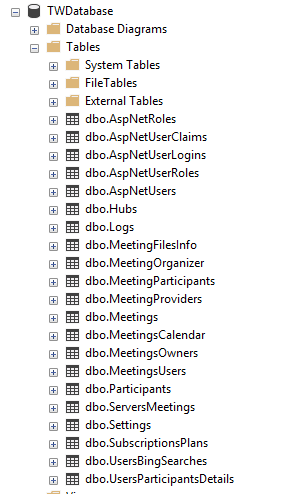
After the database is created, a list similar to this one appears in the SQL Server Management Studio:
Keywords |
|