Making accessible lessons
Teachers can enhance lessons for student by making them accessible. Small changes, like adding alt text and instructional audio to lesson pages and objects, help all students engage with lesson content, including those who use screen readers or other assistive tools.
 Design tips for screen reader support
These simple design tips help your lessons work well for all students, including those using screen readers or other assistive tools.
Tip | Note |
|---|---|
Logical reading order | Arrange content top-to-bottom, left-to-right. |
Keep elements separate | Avoid grouping multiple items unless necessary. If grouped, add alt text to the group. |
Minimize text boxes | Fewer boxes means easier navigation for screen readers. |
Avoid handwriting with the pen tool | Drawings aren’t read aloud. If needed, group them and add alt text. |
Lock elements | Prevent accidental movement once your design is finalized. |
Instructional audio first | Screen readers read audio before other content—use it for key directions. |
For more tips on accessibility best practices:
Adding alt text to annotationsAlt text allows screen readers to describe images, shapes, diagrams, and other non-text annotations to students on a lesson page.
To add alt text to annotations
Open a lesson in editing mode.
Click an annotation on the lesson page.
Click the arrow
 to expand the menu and select Add alt text.
Write a description of what the annotation shows.
Tip
Alt text should:
Describe the element
Explain why it matters for learning
Be short and clear
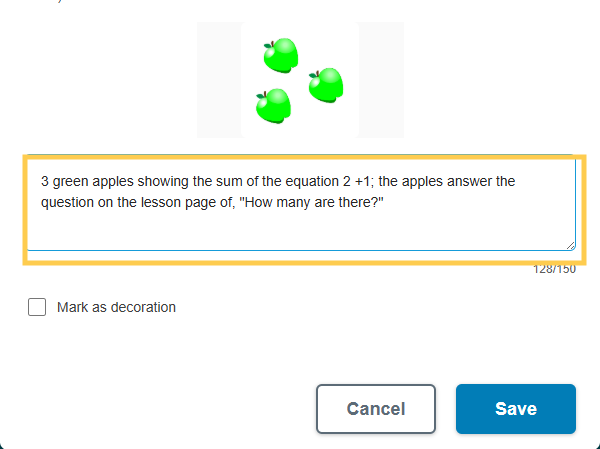
Click Save.
You can edit the alt text at any time by clicking the object, then the
arrow, and selecting Edit alt text.
Marking annotations as decorationsNot all annotations need to be read aloud. Screen readers will skip decorative annotations, making navigation faster for students.
To mark an annotation as a decoration (or remove alt text)
Click an annotation on the lesson page.
Click the arrow
to expand the menu and select Add alt text or Edit alt text.Select the Mark as decoration check box.
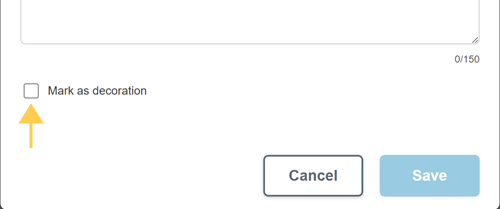
Click Save.
The screen reader will skip this annotation.
Accessible activitiesThe following activities support screen readers:
Whole-class Whiteboards
Group Workspaces
Individual Handouts
Shout it Out
Response
Note
Game-based activities do not currently support screen readers.