iQ 4.7 system software (early access)
Download | MX (V5), M Pro: RX, MX (V5) Plus, QX (V2) Pro: |
Version | 4.7.0 |
Build | MX (V5), M Pro: 4.7.0.8096 RX, MX (V5) Plus, QX (V2) Pro: 4.7.0.9096 |
Date | April 1, 2026 |
This release is intended for organizations that want to validate their workflows, explore new features, or transition to the new sign‑in experience on a limited number of devices today, ahead of planned widescale summer rollout. Administrators who prefer PIN‑based access will find the new sign‑in option particularly valuable, especially while Shared Access Mode is not yet fully enabled.
Important
Displays must be running iQ 4.6.0 or 4.6.1 before updating to iQ 4.7.
Installing an earlier iQ version is not supported after updating to version 4.7 or later.
 Installing this version on a SMART Board interactive display
On your computer, download the BIN file and save it to your computer’s desktop.
Copy the BIN file to the root directory of a FAT32 formatted USB drive.
Note
The USB drive must accommodate at least 2 GB, and be no larger than 32 GB.
Ensure the interactive display is turned on.
Connect the USB drive to the display USB receptacle at the front of the display.
In the dialog box that appears, tap OK.
Note
If no dialog box appeared, the update file is not the most recent version, or the interactive display already has the latest system software.
Caution
Do not disconnect the USB drive or turn the display off until the installation is complete.
The installation will take several minutes. The screen will turn black, and the display will restart several times. When the installation is complete, the display restarts.
Note
If the iQ system software doesn’t install, restart the display and try to install the system software again. If you still encounter issues while installing the software, visit this troubleshooting page for solutions.
Release notesRelease date: | April 1, 2026 |
Versions: | MX (V5), M Pro: 4.7.0.8096 RX, MX (V5) Plus, and QX (V2) Pro: 4.7.0.9096 |
Summary | iQ 4.7.0 introduces Android 15, new AI capabilities, Google Slides integration, an optional sign‑in flow, and faster user creation. This release is opt‑in, giving schools early access ahead of the broader summer rollout and allowing them to adopt changes at their own pace. Notes
|
Expand the sections below to learn more about what’s new in this latest iQ 4 release.
Whiteboard
Highlights
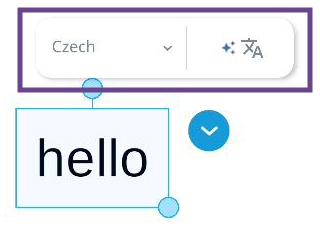
Translate ink to text: You can translate text annotations in Whiteboard into 59 languages by using SMART’s secure local artificial intelligence tool. Turn on the translation toolbar in Whiteboard settings.
Sticky notes: You can create sticky notes on the whiteboard from the secondary toolbar.
Lines/arrows tool: Insert line annotations and set the line style. You can choose arrows, thickness, and color using the floating toolbar that appears next to the selected line.
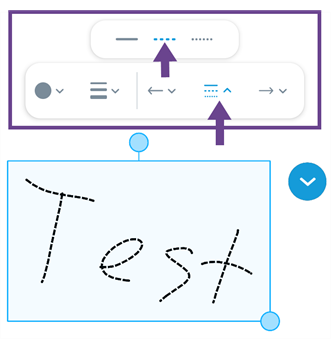
Floating toolbar for line objects: You can now more easily adjust the appearance of line objects using a floating toolbar that appears next to the selected object.
Improved video previews: When searching for videos to insert, you can now preview a video directly in its thumbnail before adding it to the whiteboard.
Google Slides integration: Save Whiteboards as Google Slides into your Google Drive for easy access and sharing.
Presentation clicker support: You can use a wireless presentation clicker, such as the SMART MultiStylus, to move forward and backward through whiteboard pages.
Resolved issues
Whiteboard stopped responding when iQ was configured for Shared Use mode.
Measurement tools were inserted at the center of the canvas instead of the user’s current view point.
Certain ReadyMade Content background images were removed when using the Clear All option, even though these backgrounds were locked.
The whiteboard toolbar did not appear when the display size setting was configured to the largest or second-largest option.
When using an AM60 and an HDMI cable is plugged into some host panels’ ports, using palm erase caused the Whiteboard app to crash.
Known issues
A student might be taken to a non-collaborative version of the whiteboard page if the teacher has set the Lesson Pacing to “Student”.
When the default save location is set to Lumio, it may take 5-10 seconds to open a new Whiteboard
Sometimes converting a page with a ready-made template into a Handout activity causes the whiteboard app to close unexpectedly.
When students join a Whole-class Whiteboard activity from their devices, annotations made with the equation editor don’t appear in the main display. In some cases, adding an equation may also cause the Whiteboard to close unexpectedly.
(SMART Board RX displays only) In some cases, the pen may not update to the new color you've selected. This can happen after a lot of writing and using undo/redo multiple times.
Sometimes, after opening a Lumio lesson in the whiteboard app, adding images to a page too quickly can cause them not to load properly.
If you open a Lumio file with an equation in the whiteboard app and then open the participation panel and click Start Session, the file may occasionally freeze or become unresponsive.
Ellipsis buttons appear disabled, but remain usable, although they can create issues with game-based activities.
The Japanese keyboard creates only English characters in the Whiteboard.
Some parts of the Whiteboard interface may not be visible onscreen when the text or display size in Android is set to the two largest settings.
Text created with the Ink to Text tool becomes distorted after being resized.
The whiteboard may freeze when the Open File and Pen Tool buttons are pressed at the same time. Quit and reopen the app to restore functionality.
Known incompatibilities
When opening a file in the Whiteboard app, if the file has any widgets added from iQ 3, these widgets will not appear.
Files library
Known issues
Sometimes, a PDF file is created when trying to copy a SMART Notebook file from Google Drive to a local folder location or copy a file between Google Drive folders.
SMART Mirror
Highlights
Refreshed interface: SMART Mirror now has an updated user interface with a cleaner, more modern look and feel. The refreshed design makes it easier to navigate and provides a more intuitive screen‑sharing experience.
SeeSMART Mirror
Settings
Highlights
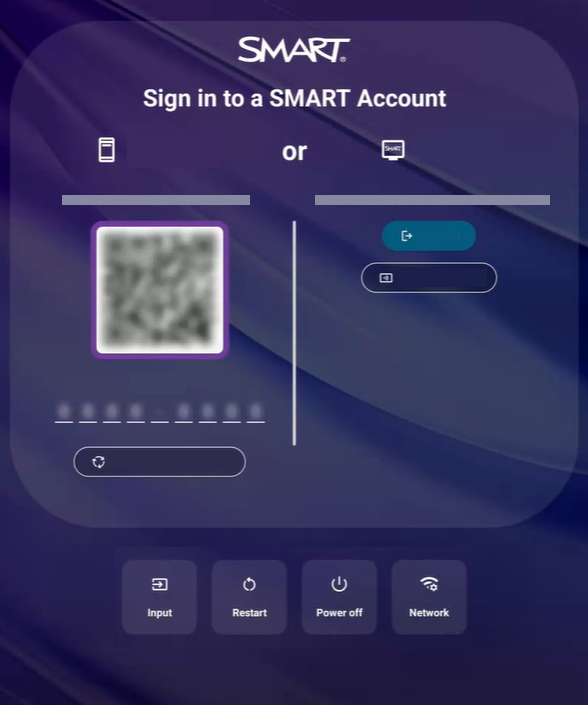
Remove access to public profile: There is a new setting that enables admins to remove access to the public profile and require that all users sign into a SMART Account to use the display. The setting is located in the SMART section.
SMART Tools & Utilities
Highlights
Annotate in Multi-Window and Split Screen: Android 15 lets you ink across different app layouts such as split screen.
Here is how this inking works:
Dynamic activation: If the first app you ink on supports native ink, like the Whiteboard or Lumio, you ink directly in the app. If the first app you ink in does not support native ink, like Chrome, the ink overlay layer appears.
Always on top: The ink overlay layer stays on top of all apps after it is active. All ink goes to the overlay layer, even if you write on an app that supports native ink. Dismiss the overlay layer to return to native ink.
Notes
Native inking works only when the input source is full screen.
If the input is in split screen, a window, or a grid, the ink overlay layer starts.
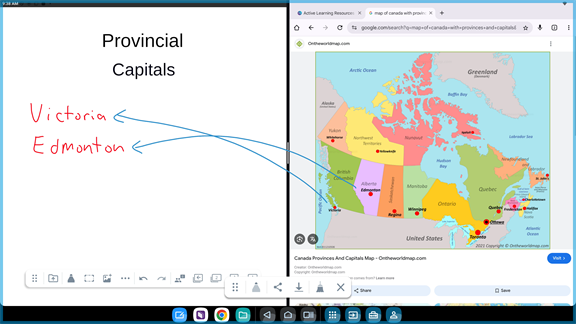
Annotation visibility: A highlighted frame around the annotation area now clearly identifies when the acetate layer is active.
System software
Highlights
Android 15 operating system: Android 15 is the latest version of the Android operating system for the SMART Board intended to extend the functional lifespan of the display with new features and updates.
Google Gemini: This is the default digital assistant when signed in with a Google account.
Faster sign-in with a SMART Account: New SMART Account users will no longer see the setup wizard when they first create their profile on a display.
Remove access to public profile:Admins can remove access to the public profile and require that all users sign into a SMART Account to use the display, ensuring all activity on the display is done securely within a user’s private profile.
Resolved issues
On SMART Board RX series displays, the microphone mute button on the convenience panel may become unresponsive when a computer is connected to the USB-C1 port without an external power source. Unplugging the computer restores functionality.
Known issues
When the display is waking up from sleep, switching to the Home screen can sometimes take several seconds to load.
The Japanese IME on-screen keyboard creates English characters.
In the Chrome browser app, microphone audio may occasionally sound choppy when recording from a website.
In some cases, the display does not enter sleep mode when external devices (for example, laptops or webcams) are connected.
For system stability, when using the display with an HDMI-CEC peripheral, the display should be set to the iQ experience as the default input.
On macOS, the Freeze Frame feature does not block touch input. When you use Curtain or Freeze Frame while a macOS device is connected through USBC or HDMI, touch input on the panel may still pass through to the connected device.
Android Quick Share does not work after a user signs out. The recommended method to share files between the SMART Board and other devices wirelessly is via SMART Share.
Repeatedly moving the PIP app window to the top of the screen and opening the Android notification center may result in touch issues.
On SMART Board MX (V5) series displays, ink may intermittently not appear when writing and erasing at the same time.
When a SMART AM60 appliance is inserted into a SMART Board 6000 series display, touch and pen sometimes do not work. Restarting the display will resolve this issue.
Known incompatibilities
ARC and eARC soundbars might not work when connected to the HDMI4 port. Instead, connect these devices to HDMI2 for best compatibility.
On SMART Board MX (V5) and RX series displays, computers connected to the VGA port will not be able to use USB peripherals (such as USB drives) connected to the display. Connect computers using HDMI or USB-C to access USB peripherals on the computer.
Shared Access mode cannot be used with Android Enterprise’s Work profiles as they are mutually exclusive features. Shared Access mode will be removed if an admin enrolls the display into Android Enterprise, such as Microsoft InTune, and enables the Work Profiles feature.
The Microsoft Teams app version 1416/1.0.0.2026015202 or newer cannot use connected USB webcams. SMART is currently monitoring this situation and will provide updates when they are made available.
SMART Remote Management
Resolved issues
When attempting to switch to a new Wi-Fi network, the display is successfully switched to new the Wi-Fi network, but the old one is saved.
The “
smartcli networking wifi” command does not work. As a result, admins cannot control Mac address randomization.
Known issues
SMART Remote Management might not report Wi-Fi SSIDs, even if the connection is still active on the display.
After stopping a scheduled command, the display might still execute the command when additional users sign in.
The SMART Board tab on the Device Info page is missing some information, and the titles are cut off on the page.
Sometimes, devices may not be removed from the SMART Remote Management (SRM) web portal. Try to remove the device again. If the issue continues, clear the SRM app data or storage, and then try again.
Known incompatibilities
SMART Remote Management might not be able to install application packages from the Play Store if the package provided by Google is a split APK.
The "Device Name" syncs only to the remote management console when the device is first enrolled, and changes made to the devices name from the remote management console does not sync to the device.