Removing access to the public profile
Admins can remove access to the public profile and require that all users sign into a SMART Account to use the board. When enabled, a lock screen with sign-in instructions will be shown whenever the board is not signed into a SMART Account profile, ensuring all activity on the board is done securely within a user’s private profile.
To disable the public profile
Browse to Settings

 SMARTRequire SMART Account sign in.
Tap the switch to enable the setting.
Optional: Tap the switch to enable Allow guest user.
Insert a USB drive into the display and tap +Create a new certificate.
Type a name for the certificate and tap Confirm.
Tap Restart to apply the changes.
Note
Store the USB drive in a safe place for later. You will need the certificate to disable this setting.
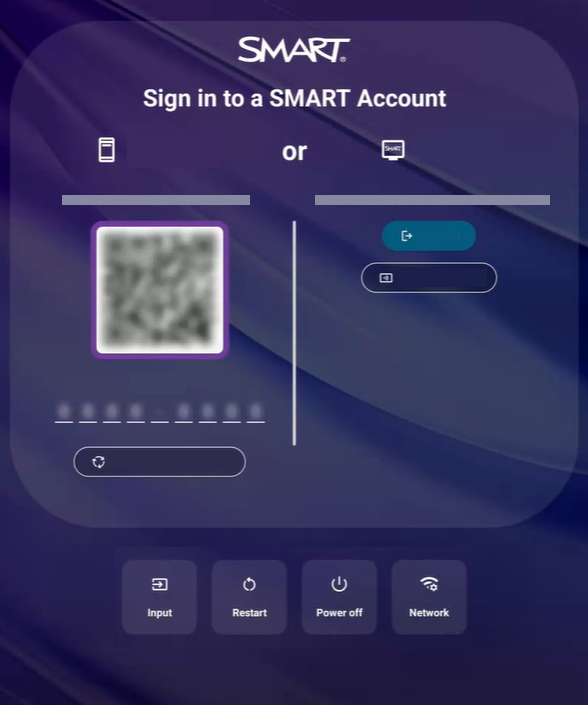
To disable the SMART Account sign in
Turn on the display and insert the USB drive with the created certificate into the display.
From the sign in screen, browse to Settings
SMARTRequire SMART Account sign in.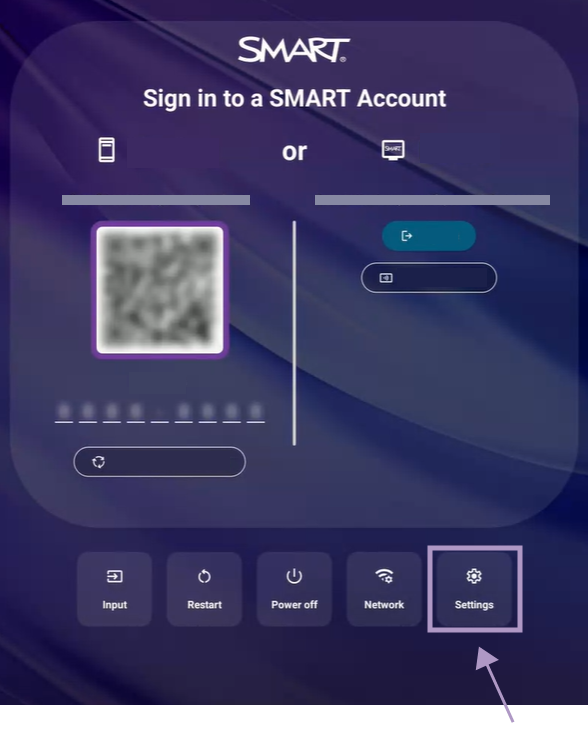
To remove SMART Account sign in, tap the certificate you used to create the setting, and restart the display when prompted.