 Newer SMART Board interactive display series are available. Learn more
Connecting power and turning on the display for the first time
The final step in installing and configuring the display is to connect power and turn it on. When you first turn on the display, a setup wizard appears. Follow the steps in the wizard to complete the setup.
To connect the display to power
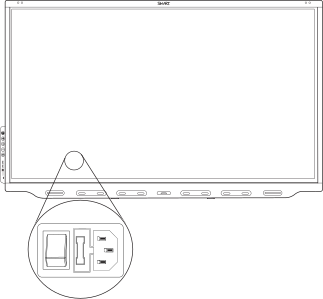
Connect the supplied power cable from the AC power inlet on the back of the display to a power outlet.
Note
Refer to the display’s specifications for power requirements and power consumption information (see Specifications).
To turn on and set up the display for the first time
Important
Install the OPS PC module before you turn the display on.
Note
If a USB drive is connected to the display’s service port receptacle, do not remove the USB drive. The USB drive may contain an important firmware update.
Flick the switch beside the AC power inlet to the ON (I) position.
Press the Power button
 on the front control panel or remote control
Select your preferred language, and then tap Next.
Select your country, and then tap Next.
Select your time zone, and then tap Next.
Set the date, and then tap Next.
Set the time, and then tap Next.
Name the display, and then tap Next.
If the display isn’t using a wired network connection, select a wireless network, and then tap Next.
Important
The display needs an internet connection for downloading and installing important updates. Ask the network administrator to confirm that the network has been correctly configured for the iQ experience. For more information about network configuration, see Connecting a SMART display with the iQ experience to a network.
Select the apps you want to appear in the Apps Library, and then tap Next.
Tip
To change which apps appear in the Apps Library, see Application settings.
Tap Finish.
The Welcome screen appears.