Remotely view and control devices
You can use SMART Remote Management to start a remote view or control session with a device. You can see and interact with a device’s screen as if you were in the room with the device. A remote view or control session is particularly useful when you need to help a user troubleshoot an issue with a device.
Whether you can remotely control a device or only view its screen depends on the following:
The type of device
Type of device
Level of access
SMART Board iQ 4 and 3 devices
View and control
SMART Board GX (V3) and earlier interactive displays
View and control
Whether you have permission to view or control devices remotely
Note
If the Require users permission for remote control option is enabled as described below, the user must grant permission before you can interact with the device.
To require user permission before starting a remote view or control session
Click

 Account Settings
 .
.The Account settings window appears.
Click Remote control
 .
.Enable Require users permission for remote control.
Click Save.
To start a remote view or control session
Click the device’s row.
The device’s dashboard window appears.
Click Remote.
The remote window appears, and you can view or control the device.
If the remote window appears black, click the Home button on the left side of the window (see below).
Tip
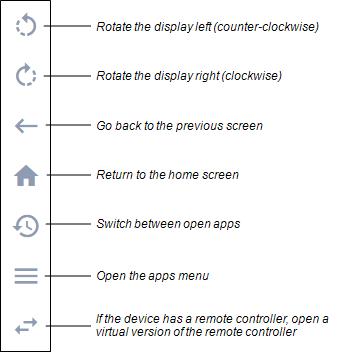
Use the buttons on the left side of the window to navigate the device:
Click Devices to open the Devices view.
To end a remote view or control session
Click the X in the top right corner of the remote window.