Create and manage user accounts
After setting up the domain account for your organization, you can create and manage other user accounts.
A person’s access to SMART Remote Management varies according to the following factors:
The type of user account you assign them
You can assign the user an Admin or User account type. The Admin and User account types have limited access, as shown in the following table:
Feature
Domain account admin
Admin
User
View the devices dashboard

Use SMART Remote Management features
Add users

Manage domain account settings
Delete the domain account
Note
The domain account admin is the one you created when you first set up SMART Remote Management and has complete access to the domain account.
The permissions you grant them
You can grant the user permissions to different features in SMART Remote Management. The permissions are independent of the assigned profile.
Permission
Description
Telemetry
View the device dashboard
Settings
Change a device’s settings remotely
Remote View
View (but not control) a device remotely
Remote Control
View and control a device remotely
Power Manage
Restart, shut down, or wake a device remotely
Packages Install
Install apps on devices
Packages Manage
Manage installation packages
Device Location
View a device’s current location
Remote Execute
Send remote execution commands and scripts to SMART Board interactive displays and Android and Windows devices
Device List Manage
Manage the list of devices in the Device view
Device tags
Add or remove tags from devices and groups.
Billing
View billing information in the domain account dashboard
Account Config
Manage domain account settings
Device Lock
Lock and unlock a device
Device Wipe
Return a device to factory settings
Policies
Add or remove allowlist, blocklist, and other policies to a device
The tags you assign to their user account
You can assign tags to users to control which devices and other users those users can access in SMART Remote Management.
Example
The user jperez@smarttechnologies is assigned the tag “1st Floor SMART Board” so can access only devices and users also assigned the tag “1st Floor SMART Board”:
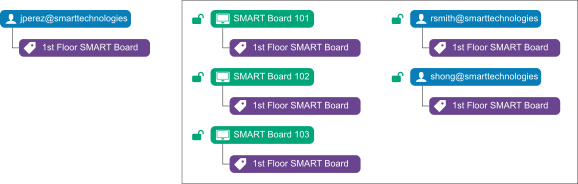
If you assign more than one tag to a user, the user can access only devices and users with the matching set of tags.
Example
The user jperez@smarttechnologies is assigned the tags “1st Floor SMART Board” and “Science Lab SMART Board” so can access only devices and users assigned both of these tags:
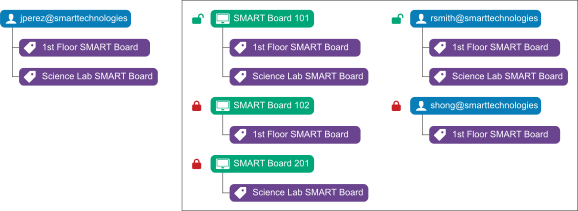
If you don’t assign tags to a user, the user has access to all devices enrolled in SMART Remote Management and all users.
You can create an account with a password for a user in SMART Remote Management or allow the user to sign in to SMART Remote Management using a Google or Microsoft account.
To create an account with a password for a user
Click

 Users to open the Users view.
Click Add new user
 .
.The New user window appears.
Select Viso user in the Select user drop-down list.
Type a name, email address, and password for the user.
Select a user type for the user from the User type drop-down list.
OptionalIf the user should see SMART Remote Management in a language other than the default, select a language from the language drop-down list.
OptionalIf you want to limit the user’s access to devices and other users with assigned tags, type a name of each tag you want to assign to the user in the Add a tag and press enter box and press ENTER.
Click Change User Permissions.
The User permissions window appears.
Disable any permissions you don’t want to grant to the user and click Confirm.
Click Confirm.
To allow a user to sign in to SMART Remote Management using a Google or Microsoft account
Click
Users to open the Users view.Click Add new user
.The New user window appears.
Select Google account or Microsoft account from the Select user drop-down list.
Type the email address associated with the Google or Microsoft account in the Email address box.
Note
SMART Remote Management sends an email to this address.
Select a user type for the user from the User type drop-down list.
OptionalIf the user should see SMART Remote Management in a language other than the default, select a language from the Select language drop-down list.
OptionalIf you want to limit the user’s access to devices and other users with assigned tags, type a name of each tag you want to assign to the user in the Add a tag and press enter box and press ENTER.
Click Change User Permissions.
The User permissions window appears.
Disable any permissions you don’t want to grant to the user and click Confirm.
Click Confirm.
SMART Remote Management sends an email to the email address you specified in step 4. The user can then click Confirm my account in the email to confirm the use of the Google or Microsoft account to sign in to SMART Remote Management.
Important
A Google or Microsoft account can be linked to only one SMART Remote Management domain. If you want to link a Google or Microsoft account to another domain, you must first remove it from the first domain.
Note
If the user doesn’t receive the email from SMART Remote Management, click the user’s row in the Users view, and then click Resend confirmation email.