Using the remote control
The display comes with an infrared remote control.
Use the infrared remote control to turn the display on or off, switch inputs, control the volume and more. You can also use the remote control to open the on-screen menus and change the display’s settings.
Important
Do not subject the remote control to strong shock.
Keep the remote control away from liquids. If it gets wet, wipe it dry immediately.
Do not expose the remote control to heat or steam.
Do not open any part of the remote control other than the battery compartment.
Notes
The remote control is paired with the display out of the box. You don’t need to pair it manually.
When using the remote control, point it directly at the display’s infrared sensor.
The display allows basic control via the HDMI inputs (HDMI CEC). For example, if you connect a BlueRay player to an HDMI input and turn it on, the CEC will turn on the display and select that input automatically.
Disable HDMI CEC in Input & Output settings.
This image and table describe the remote control’s functions.
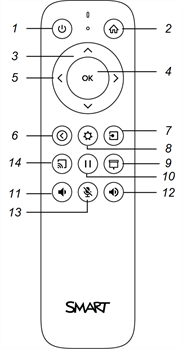
No. | Name | Procedure |
|---|---|---|
1 | Power | Press to wake the display or put it back to sleep. Note Be aware that touch is not available immediately after waking or turning on the display. Wait a few seconds, and then the display will respond to touch. Press and hold for five seconds to turn off or restart the display. |
2 | Home | Press to return to the default input. |
3 | Up and down buttons | Press to navigate to menu options in the settings. |
4 | OK | Press to select a menu option in the settings. |
5 | Left and right buttons | Press to change the value of the selected setting. |
6 | Back | Press to go one step back in the navigation history. |
7 | Input | Press to switch inputs. |
8 | Settings | Press to open display Settings. |
9 | Screen shade | Press to hide screen contents behind a screen shade. |
10 | Freeze frame | Press to freeze and unfreeze the screen. |
11 | Volume up | Press to increase the volume. |
12 | Volume down | Press to decrease the volume. Press and hold to mute the volume. |
13 | Microphone mute | N/A |
14 | N/A | This button is not used. |