This product is discontinued. Learn more
Using touch
You can do everything on the display that you can do at your computer—open and close applications, meet with others, create new documents or edit existing ones, visit websites, play and manipulate videos, and so on—by touching the display’s surface.
You can use a variety of gestures within applications, including panning, scaling, rotating, and zooming in and out.
The display’s HyPr Touch with EMR technology provides industry-leading touch and digital ink performance, resulting in virtually no lag and zero contact detect height.
The display’s support for up to 20 simultaneous finger touch points, four pen touch points and two eraser touch points enables you and other users to interact with objects on the screen at the same time.
Note
Not all gestures work in all applications. Refer to an application’s documentation to learn which gestures it supports.
Pan (one finger)

Pan (two fingers) / scroll
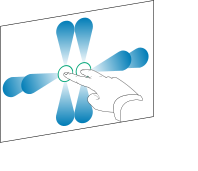
Pinch to zoom in / scale (enlarge)
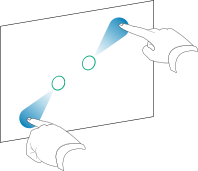
Pinch to zoom out / scale (reduce)

Rotate

Flick
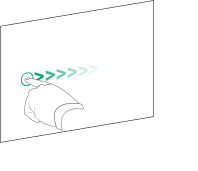
Erase with palm
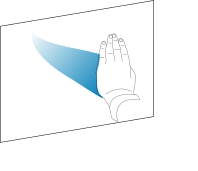
Erase with fist