Updating the transmitter's firmware
When available, updates to the SMART SoundFlow system transmitter's firmware are included with the display’s iQ system software updates.
To update the transmitter's firmware
The transmitter's firmware updates automatically when you connect it to the display's service port using the included USB-A to USB-C cable. The display's iQ software controls this update. It happens in two cases: you connect the transmitter before an iQ software update starts, or you connect it after an update that includes new transmitter firmware.
All LEDs on the transmitter light solid yellow while its firmware is updated.
Note
The SMART SoundFlow system's transmitter goes offline while its firmware updates.
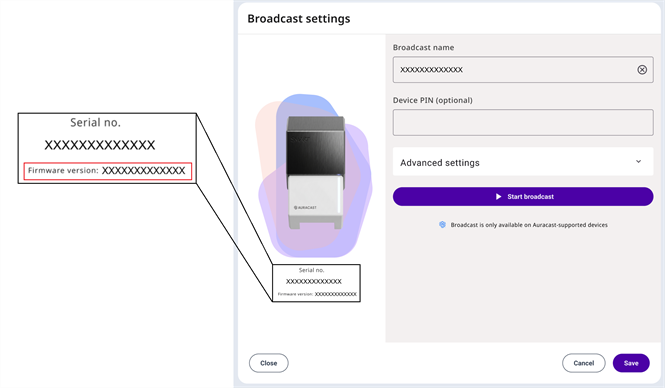
To check the transmitter's firmware version
Note
The SMART SoundFlow app is available on a display only when a SoundFlow transmitter is connected to it.
From the display’s Home screen:
tap SMART Tools

 SMART SoundFlow
 .
OR
open the Apps menu
 , and tap SMART SoundFlow.
The SMART SoundFlow app opens.
The transmitter's current firmware version appears on the lower left side of the SMART SoundFlow app’s home screen.