Capturing images and videos to a USB drive
Use the USB port on the SMART Document Camera to save images and videos to a USB drive. To do this, set your document camera to Camera mode and connect a USB drive to the document camera.
Tip
You can also capture images and videos to your computer using SMART Notebook or SMART Document Camera 650 software.
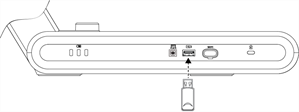
Then, using the remote control or document camera’s control panel, press the Capture  button to save an image, or press the or Record
  button to start recording video. Press the Record button again to stop recording. When you are ready to view the files, connect the USB drive to a computer or interactive display.
Models |
|
Keywords |
|
Related documents |