 A newer version of this software is available. Learn more
Using whiteboard background templates
In addition to adding lines, a grid, and changing the color of the whiteboard page, you can use one of the template backgrounds in a meeting. The templates that come with SMART TeamWorks are useful in scenarios such as scrums, sprint reviews, brainstorming, and value propositions.
Note
At this point, you are not able to upload your own template.
To add a background
Open a blank whiteboard page and tap
 to view all the background options.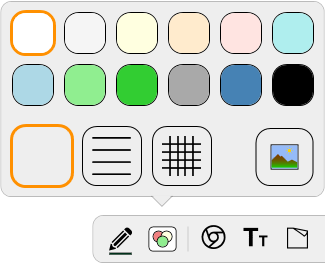
Tap
 .
.Select one of the available backgrounds.
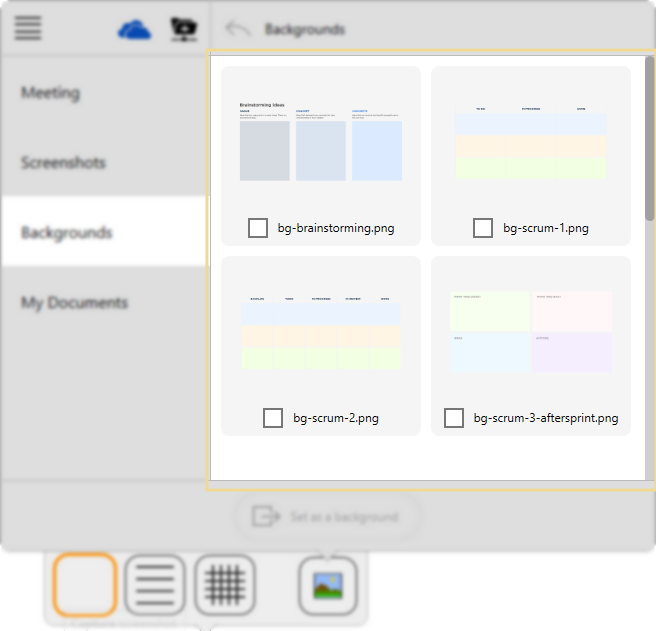
Tap Set as background.
SMART TeamWorks inserts the template on the page.
To remove a background
Tap
and tap  .
.
Keywords |
|