 This software is discontinued. Learn more
Using the screen share app on the display
When sharing screens to the SMART Board display with iQ, you can share up to four devices, depending on the display you have and which iQ appliance is installed.
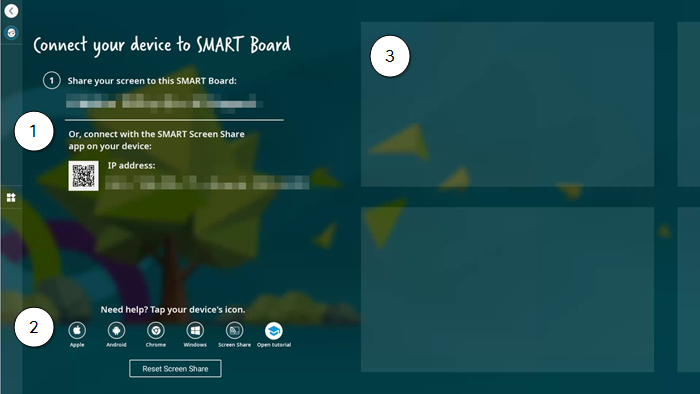
When you open the screen sharing app on the display, SMART Screen Share’s home screen appears:
No. | Description |
|---|---|
1 | Information used for connecting devices, such as the display’s name and IP address, appears in this section. Open the SMART Screen Share app on your device and either scan the QR code or enter the IP address shown. For specific instructions on connecting your device, see the menu on the left side of this page. |
2 | Tap the icon for your device to get instructions for connecting your device to the display or to open a tutorial to learn how to use SMART Screen Share. |
3 | When multiple devices are connected, the SMART Screen Share home screen appears with thumbnails of each shared device’s screen. You can tap a shared device’s thumbnail to view it full screen. To return to the home screen, tap Back If permissions are enabled, a message appears in the thumbnail window asking whether to allow the device to connect. |
 in the command bar.