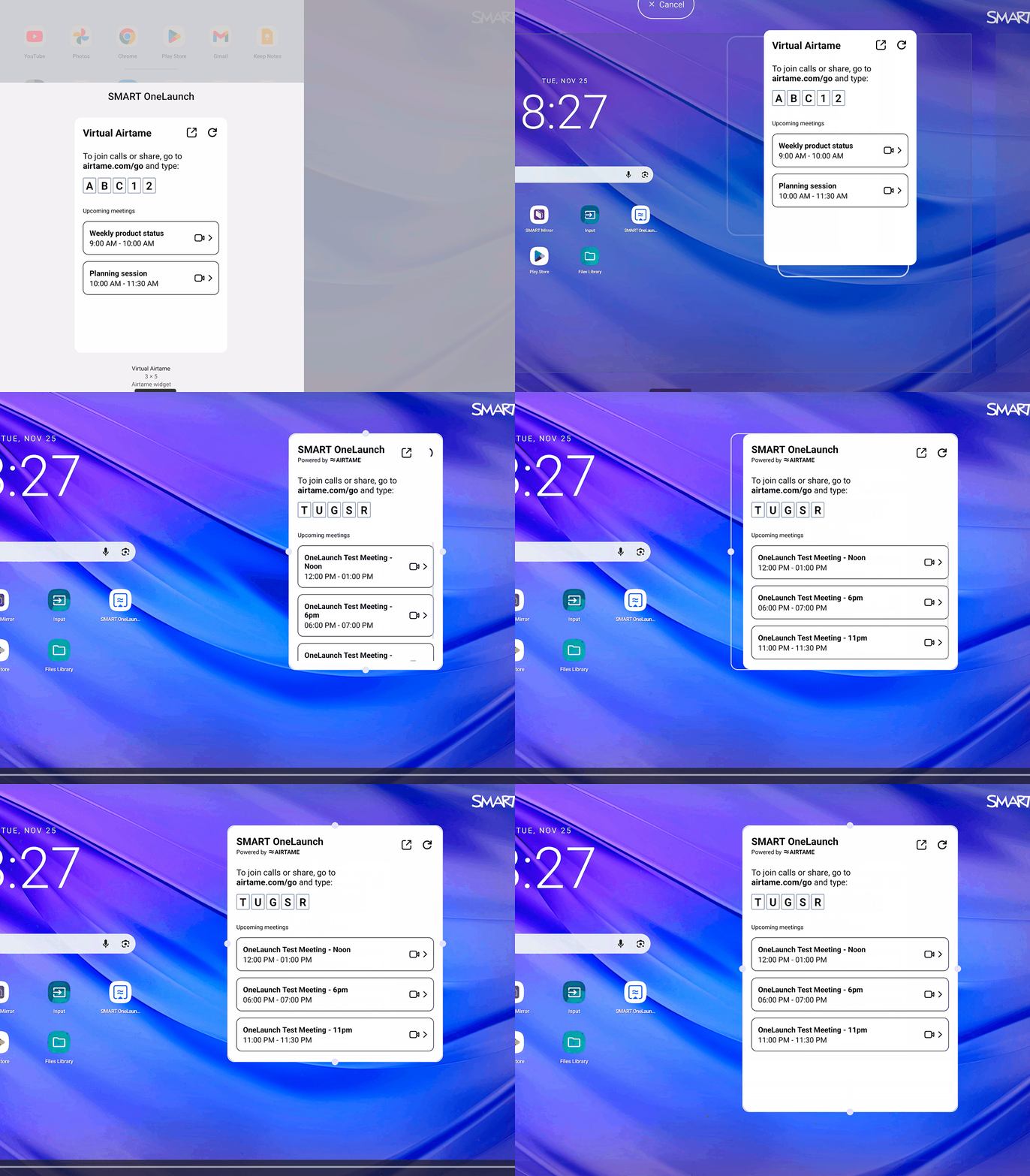
Adding the SMART OneLaunch widget to the Home screen
You can add the SMART OneLaunch widget to the iQ 4 Home screen for easy access when starting or joining meetings and to see upcoming room availability.
There are two ways to add the widget to the Home screen.
To add SMART OneLaunch widget to the Home screen by resetting your Home screen
Note
This will reset your Home screen, including icons and placements.
If you want to keep your customized Home screen, add SMART OneLaunch widget to the Home screen manually.
Tap Settings

 SMARTHome screen.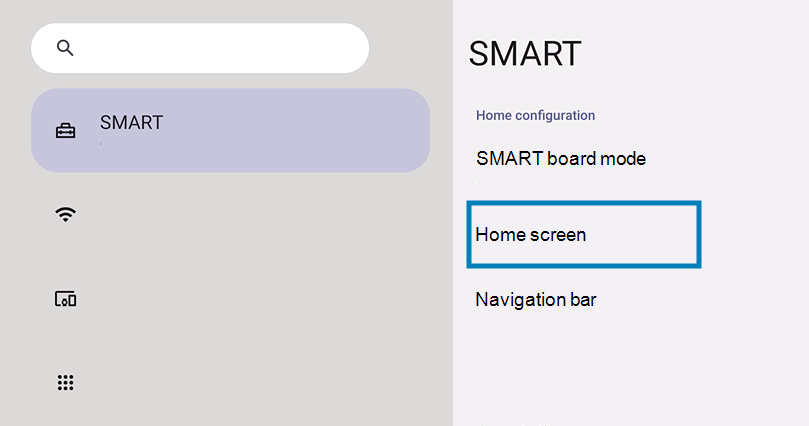
Tap Default iQ Home screen and select one of the following Home screen options:
Business with SMART OneLaunch: Standard setup that includes Google PlayStore, integrated Google Search bar, and Google apps icons on the Home screen
Business Essentials with SMART OneLaunch: Simplified setup that removes Google-related icons and options from the Home screen.
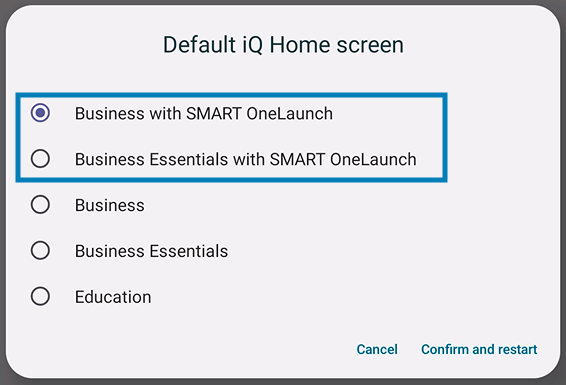
Tap Confirm and restart.
Wait for the display to restart and apply the new settings. The widget will be added to the Home screen.
To add SMART OneLaunch to the Home screen manually
Press and hold any empty spot on the Home screen to open the Home screen settings.
Tap Widgets.
Tap and drag the SMART OneLaunch widget onto the Home screen.
Note
When adding the SMART OneLaunch widget for the first time, you will be prompted allow Adding the SMART OneLaunch widget to the Home screen to access all functionality.