Generating lesson activities with Lumio AI Assist
Teachers can use AI to automatically generate interactive Lumio activities grounded in their own lessons. AI Assist analyzes lesson content and suggests activities at the right instructional moments, using a range of activity types like quizzes, polls, games, handouts, and more.
Notes
Lumio AI Assist is enabled by default for organizations that have purchased the Spark Plan for Lumio. Admins can enable or disable Lumio AI Assist in SMART Admin Portal.
Lumio AI Assist can also generate questions when you’re specifically creating a quiz-based activity.
To use AI Assists to generate activities
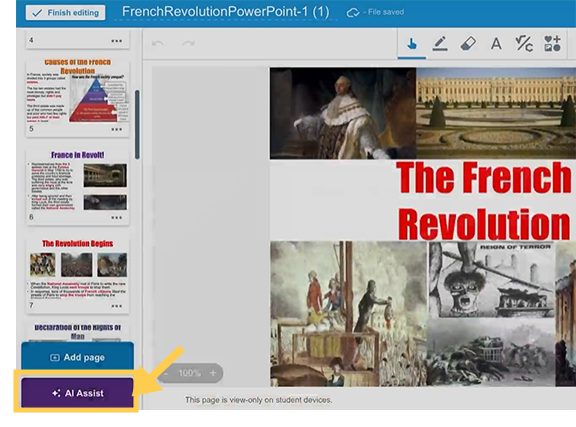
Import or open a lesson in Edit mode.
Click AI Assist from the bottom-left corner.
Choose at least one way for AI Assist to enhance your lesson, then customize the rest of the optional settings.
Tip
You can use AI Assist to create activities that don’t require student devices.
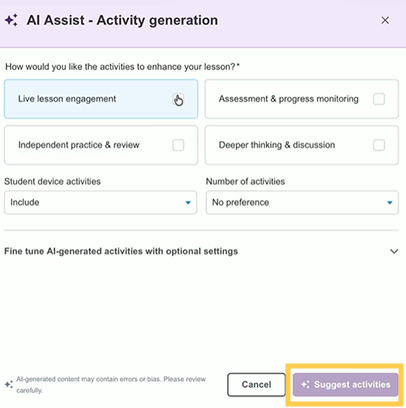
Click Suggest activities.
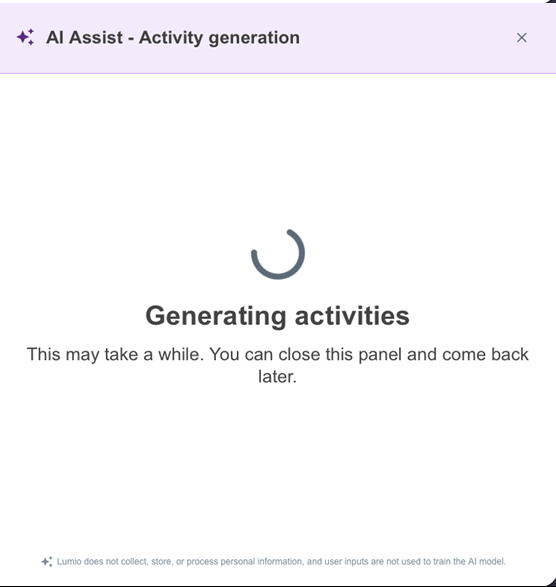
AI Assist analyzes the lesson, identifies key teaching moments, and suggests activities to support your instructional goals.
Tip
You can close the AI Assist panel and keep working while your activities generate. Click AI Assist at any time to reopen the panel and check your progress.
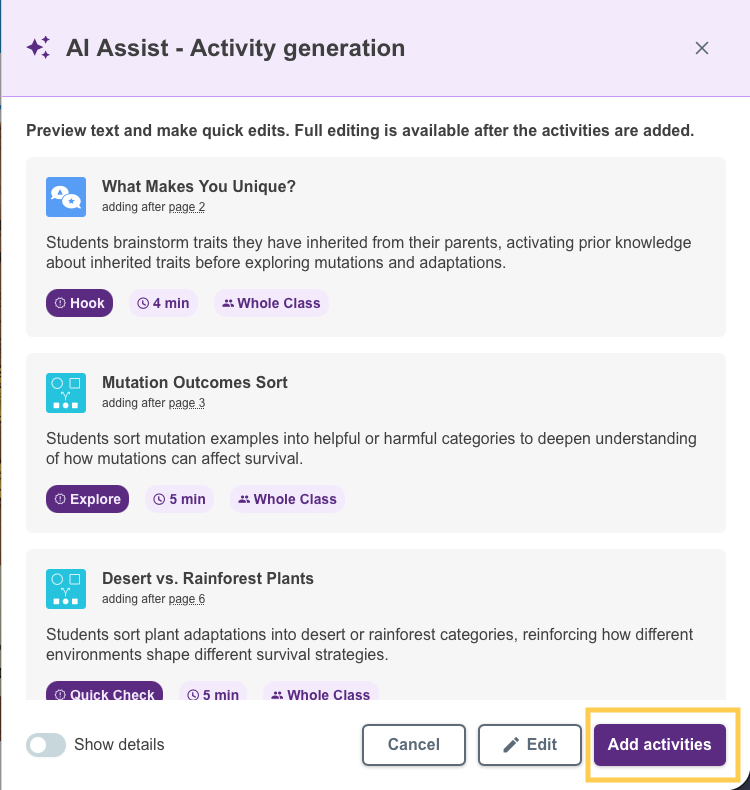
When AI Assist finishes, preview the suggested activities in the right panel. Each activity includes the instructional purpose, estimated duration, delivery mode, and how it’s intended to be delivered to the class.
Tip
Click Show details to preview the full activity.
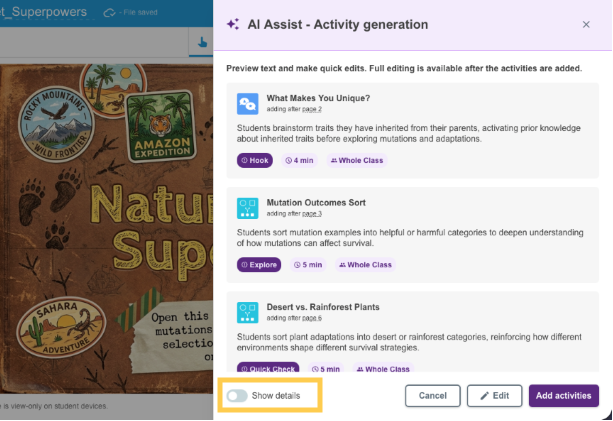
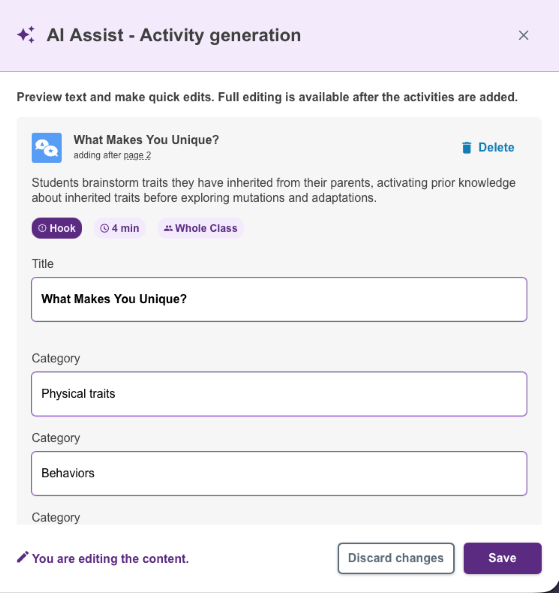
(Optional) Click Edit to make quick edits to text or delete activities, then click Save. Full editing is available after the activities are added.
Click Add activities to insert the activities into your lesson.