Working with objects in a whiteboard or lesson file
Select an object to work with it. A selection rectangle appears around the object. You can lock an object so it can’t be altered.
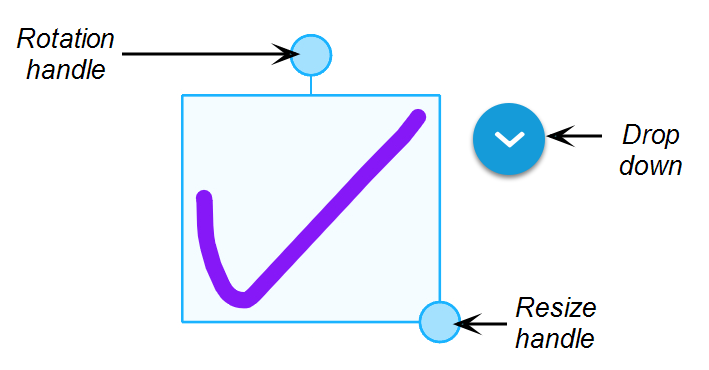
To select an object
Tap Select
 .
.- Touch the screen and draw a circle around the objects you want to select.
A selection rectangle appears.
To move an object
Move an object by selecting it and dragging it.
To rotate an object
Tap the object to select it.
Drag the object’s rotate handle.
To resize an object using the resize handle
Tap the object to select it.
Drag the object’s resize handle to make the object larger or smaller.
To resize an object using a gesture
Tap the object to select it.
Drag your fingers away from each other to make the object larger.
OR
Drag your fingers toward each other to make the object smaller.
Note
Make sure your fingers are both within the object when you begin the gesture.
Tap the object to select it.
Tap
 and then tap Duplicate.
You can duplicate the object as many times as you like.
To group and ungroup objects
Use the
tool to draw a box around the objects.Tap
and then tap Group.You can now move, rotate, and resize the grouped objects as you would any other object.
To ungroup the items, tap
and then tap Ungroup
Tap the object to select it.
Tap
and then tap Delete.The object is deleted. To restore an object you just deleted, tap
 .
.
To use the infinite cloner on an object
Tap the object to select it.
Tap
and then tap Infinite Cloner.Now you can tap and drag the original object to create a clone of it. Continue tapping and dragging to create as many copies of the original object as you need.
To bring an object to the front or send it to the back
Tap the object to select it.
Tap
and then tap Bring to front or Send to back.
Tap the object.
Tap
and then tap Lock.The object is locked in place and can’t be moved or altered.
To unlock an object
Tap the object to select it.
Tap
and then tap Unlock.The object can now be moved or altered.
Tap
.
To redo an action
Tap
 .
.