Use SMART Share
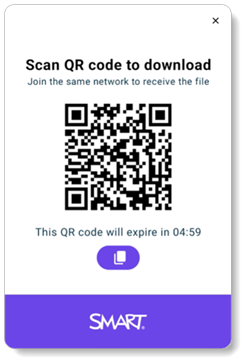
SMART Share is built to make file sharing intuitive, secure, and seamless—whether you're in a classroom or a meeting room. Use it to share content such as PDFs, videos, whiteboard files, and images. It’s also available to share YouTube videos and saved screen shots.
What you need to know when using SMART Share
To use SMART Share, the display and the device must be on the same WiFi network. Currently, it does not work if the display is connected to the network using ethernet.
SMART Share has a file limit of a 100MB and can only be used to share one file at a time.
For added security, the QR code and link expires after 5 minutes. If it expires, tap to regenerate it and continue sharing.
SMART Share supports up to 10 simultaneous downloads for files up to 50MB, and up to 5 downloads for files between 50MB and 100MB.
SMART Share is not available in split screen mode.
Different ways to use SMART Share
Share a YouTube video
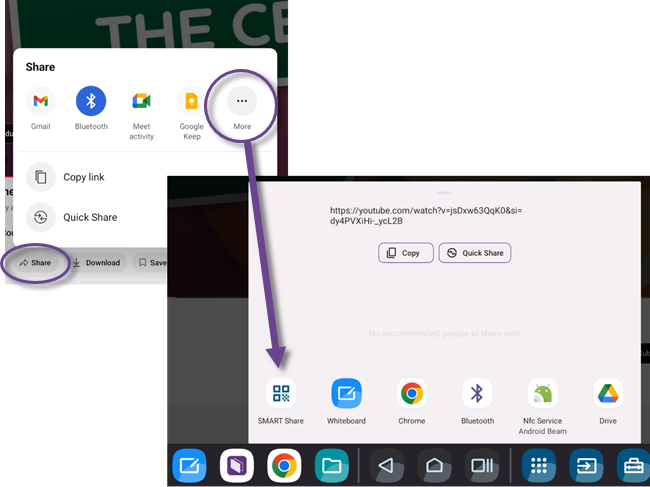
Share a screen shot
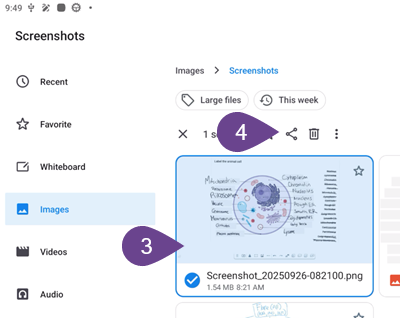
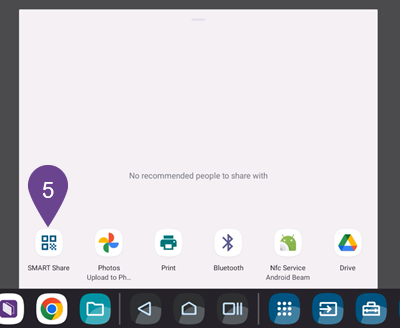
Use the Screen capture tool to capture the current screen. The screen shot is saved to the Files Library and from there, you can select the saved capture and share it.

Share whiteboard files
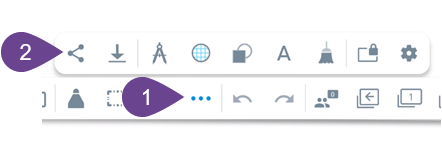
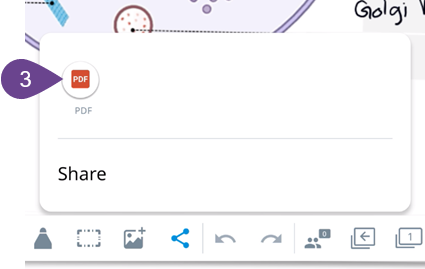
On the whiteboard’s toolbar, tap More 
 Share
Share  , then select a file format. You’ll then be able to select SMART Share.

Share files saved in the Files Library
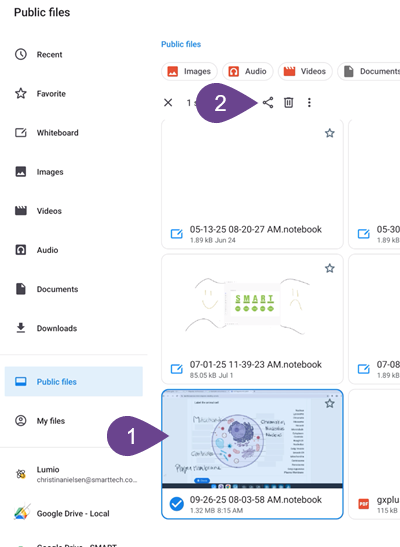
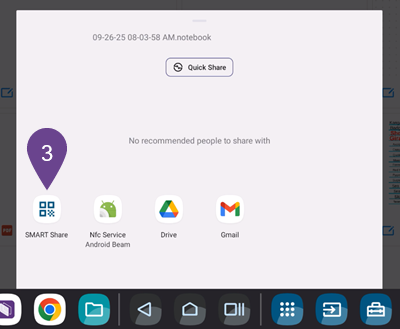
Open the Files Library and locate the file you want to share. Select it and the share it.
Note
Sharing is not available for files saved to cloud accounts such as your Lumio, Google Drive, or OneDrive.