Write and draw in apps using the ink overlay
Ink overlay (also known as an acetate) adds a transparent writing layer on top of the content shown on the display. It lets you highlight, underline, draw, or add notes without changing the original content beneath. This feature is supported in apps such as the Browser. You can also use the freeze frame feature to pause the screen and then use the ink overlay over any app, including other inputs.
Note
To use this feature, make sure the Annotation setting is enabled.
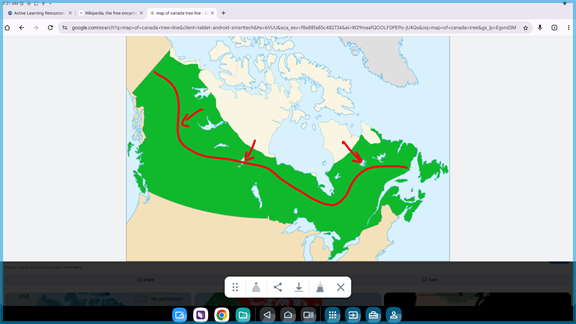
To begin using the ink overlay, use a display’s pen and begin writing on the screen. When you add an ink overlay, a blue frame displays around the edge of the current window, and the overlay’s toolbar appears.
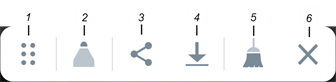
No. | Tool | Description |
|---|---|---|
1 | Move toolbar | Move the position of the toolbar by pressing and dragging it to a new location. |
2 | Pen controls | Change the pen style. Tap the pen icon to open options for changing the style, color, and thickness of the ink. |
3 | Share | Share to another user, QuickShare, Drive, Gmail, or SMART Share. |
4 | Save | Save a copy of your markups as a .notebook file. By default, the file saves to Public Files in the files library and can be opened in the Whiteboard app. The file will have an image of the screen and the ink overlays you added appear as moveable objects. |
5 | Clear all | Clear all ink. |
6 | Close | Close the toolbar. |
Use freeze frame and ink overlay
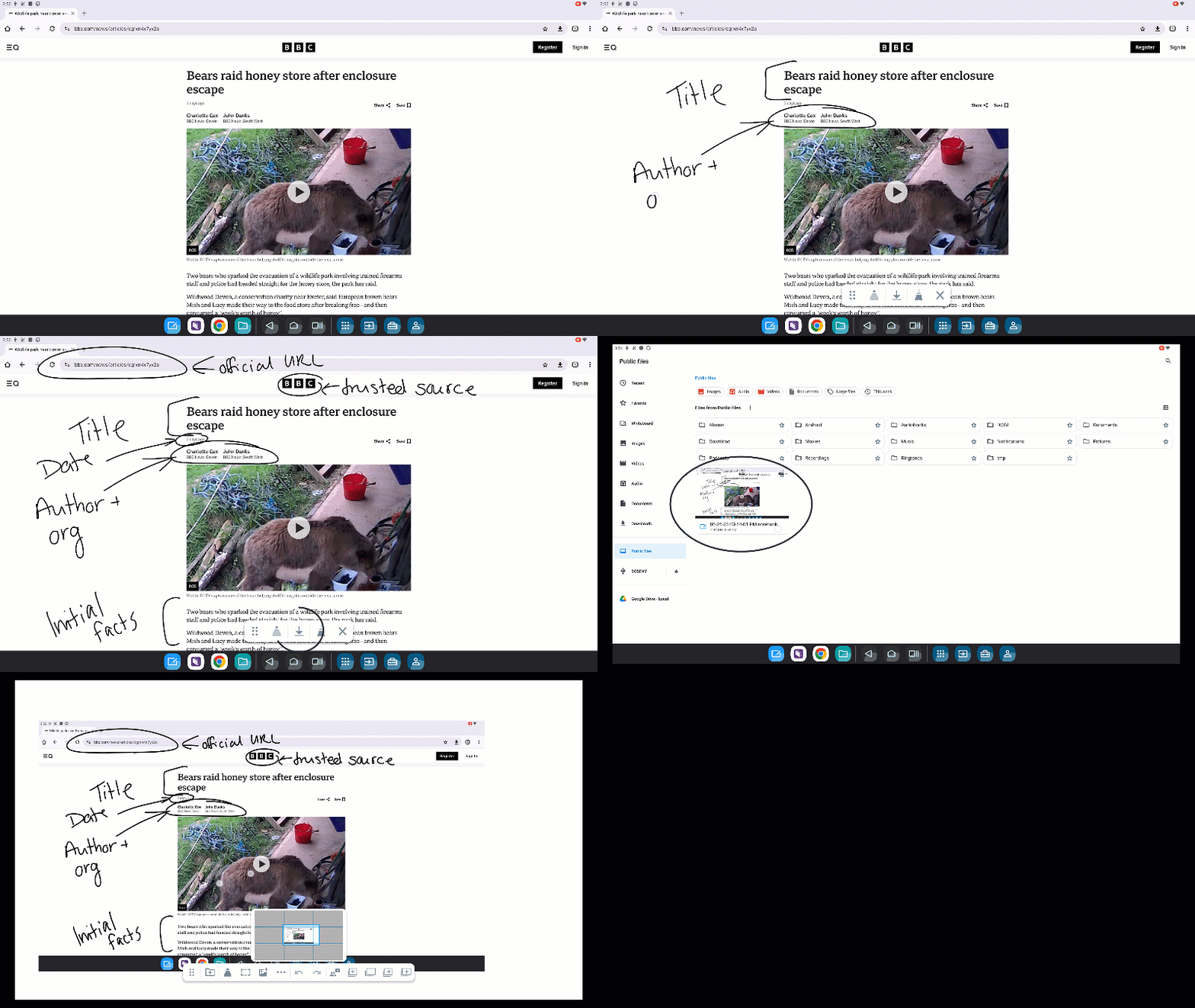
By using the freeze frame tool, you can apply an ink overlay on top of any content on your screen. Tap SMART Tools on the navigation bar (if the navigation bar is not visible, swipe up from the bottom of the screen to view it) and tap
 to freeze the current frame. Or, use the Pause button on the display’s convenience panel or remote control (if applicable).
Then you can use the display’s pen to mark up the content.
Use ink overlay over multiple windows or split-screens
Available in iQ 4.7 only.
You can apply an ink overlay across multiple app layouts, including full-screen and split-screen.
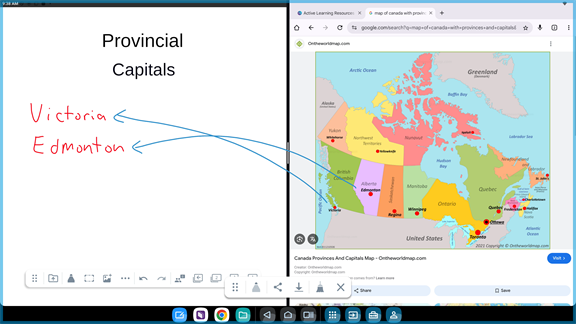
If the first app you start inking on supports ink directly, like the SMART Whiteboard or Lumio, the native inking will show over the first app, but not the other screen. For the inking to show over both, start in an app that doesn’t have native ink, like Chrome.
Once the ink overlay is active, it stays above all apps, even if you move or resize windows. Any inking on the screen goes to the overlay, including any inking you do on an app that supports native inking. To go back to inking directly in an app that has native inking, select Clear all from the overlay’s toolbar.
Note
SMART Ink or any other native inking experience within an input will only work if the input is opened in full screen on the board