Connecting for the first time in SMART InkScan
To pair your device with the display and then send your scan
In the InkScan app, open your scan, tap Export
 , and then select Share to SMART Board.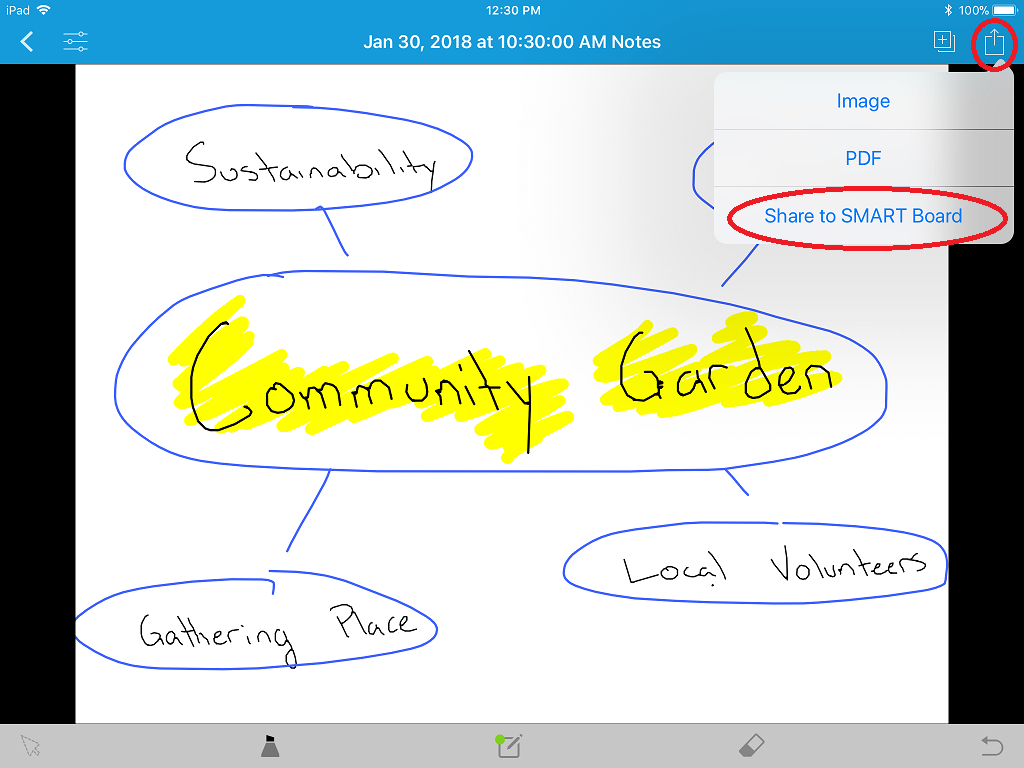
A confirmation dialog appears.
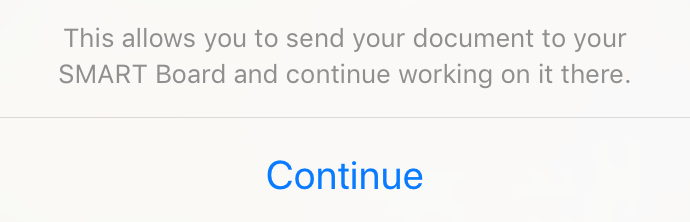
Tap Continue.
Note
If you aren’t signed in to your SMART account on your device, you’re led through the sign-in process before the next step.
The option to connect with a code appears in the InkScan app.
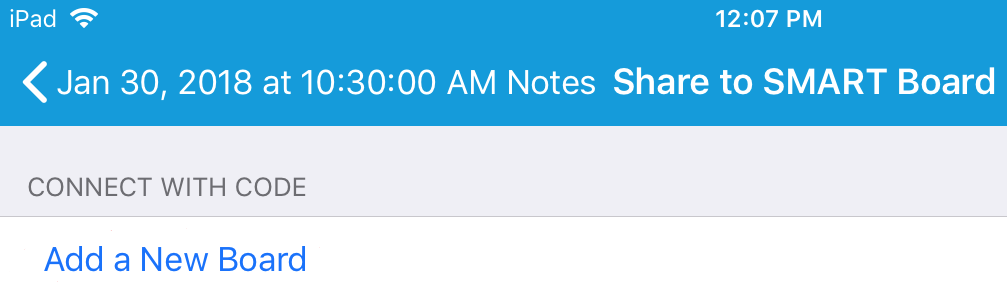
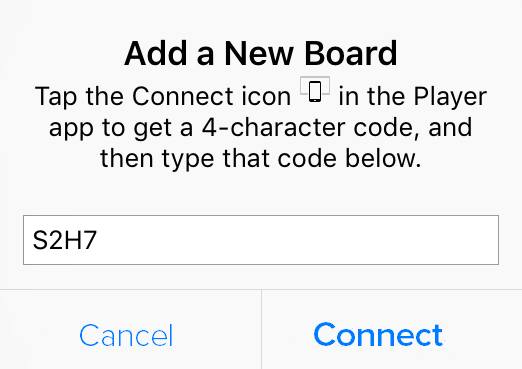
Tap Add a New Board.
A dialog appears with instructions for pairing with the display.
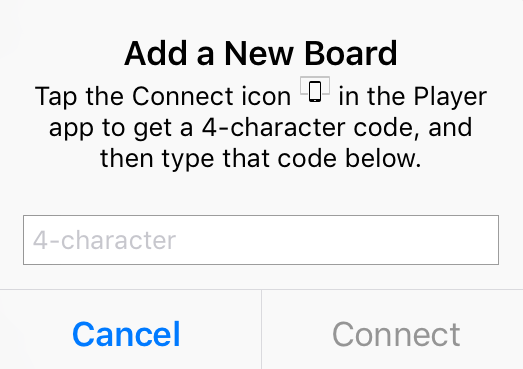
Generate a pairing code at the display:
Open the iQ app launcher by tapping the Home
 button at the bottom of the display screen.
Tap the Player icon
 .
.Tap the Share button
 .
.A four-digit code appears on the display screen.
In InkScan, enter the four-digit code you just generated and tap Connect.
On the display, a confirmation appears, indicating that pairing was successful.

In InkScan, the sharing options appear with your board identified:
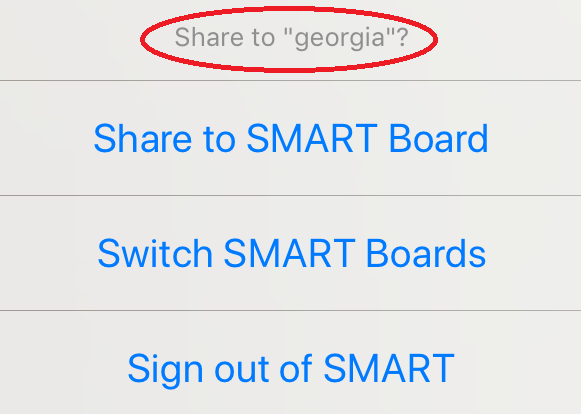
Select Share to SMART Board.
InkScan loads and then displays this message:
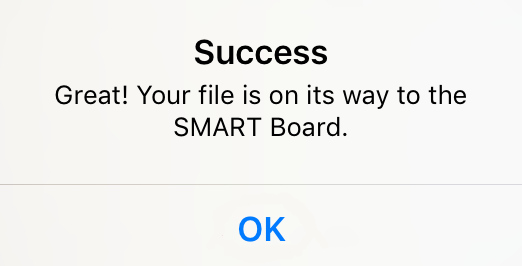
- Tap OK.
At the display, navigate back to the Player Library
 .
.Your scan appears as the first thumbnail in the list of lesson files.
Tap the thumbnail to open your scan and begin editing it at the display.
Concepts |
|
Related documents |